Data layers & Intelligence
Read a company's Intelligence
Before you start
Your workspace needs at least one data layer switched on. Data layers are optional and free; see Turn on a data layer.
To link or detach a record or add a contact, your role must be able to edit records. Officers’ names are shown only for companies in your portfolio or watchlist.
Your layers may differ
Open the company's Intelligence
Open the company, then click Intelligence in its left-hand menu, below Manage.
The Connections strip sits at the top. Below it, the company’s public record opens in a panel with tabs.
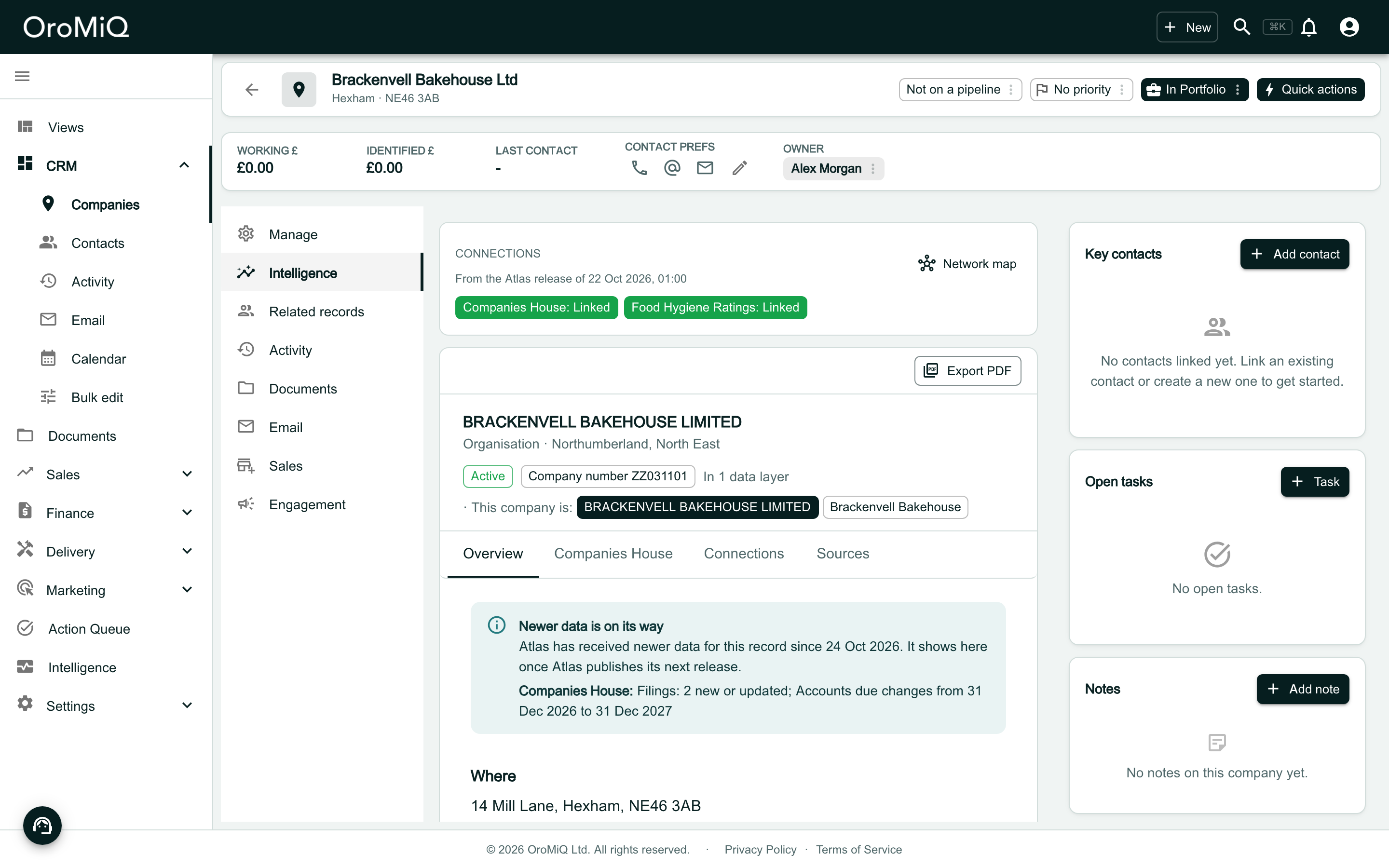
Read the Connections strip
Each chip is a data layer that holds something for this company, with its state, for example Companies House: Linked. Click a chip to open that layer’s tab.
The line under Connections says which Atlas release the data comes from. Atlas is the service that gathers the public registers for OroMiQ, and it publishes them in releases, so every value you see belongs to that release.
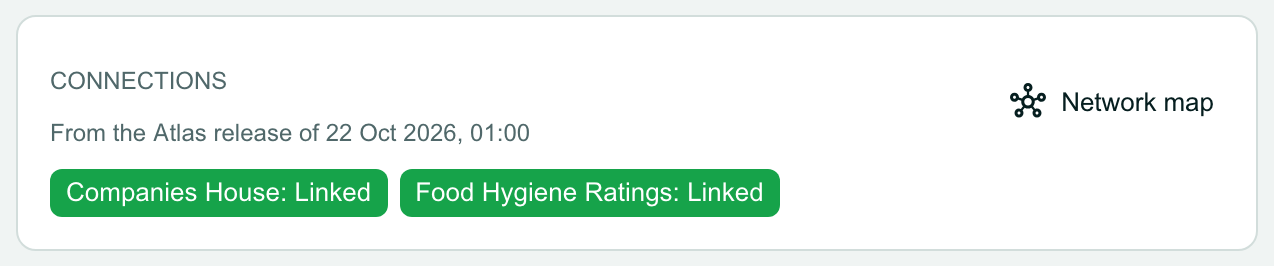
Read the Overview
The Overview tab is open first. It shows Where the record is, Who owns or runs it, and under In your data layers a card for each layer with the key facts.
The band above the tabs shows the record’s status, its company number and how many data layers it is in.
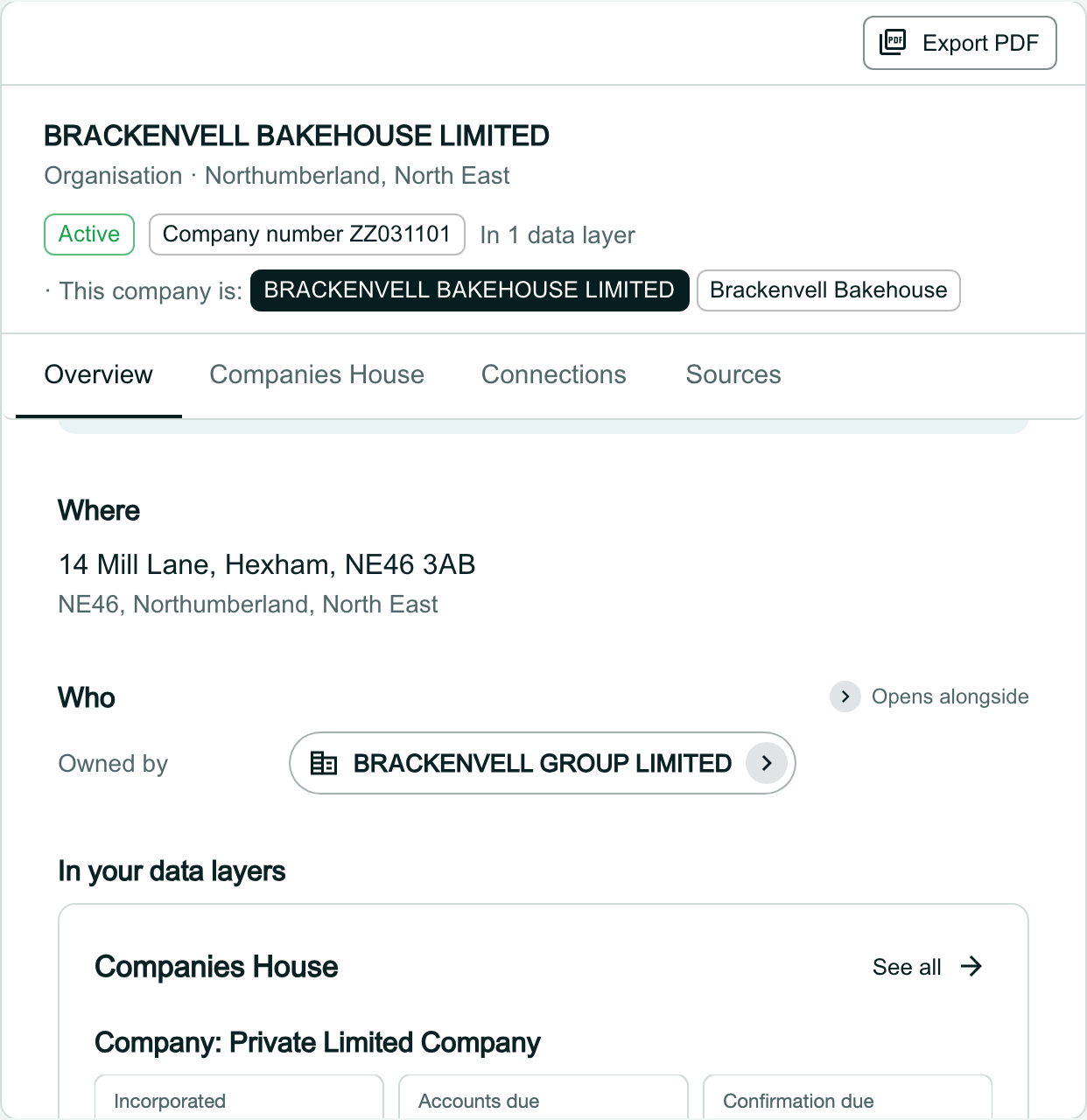
Open a layer's tab
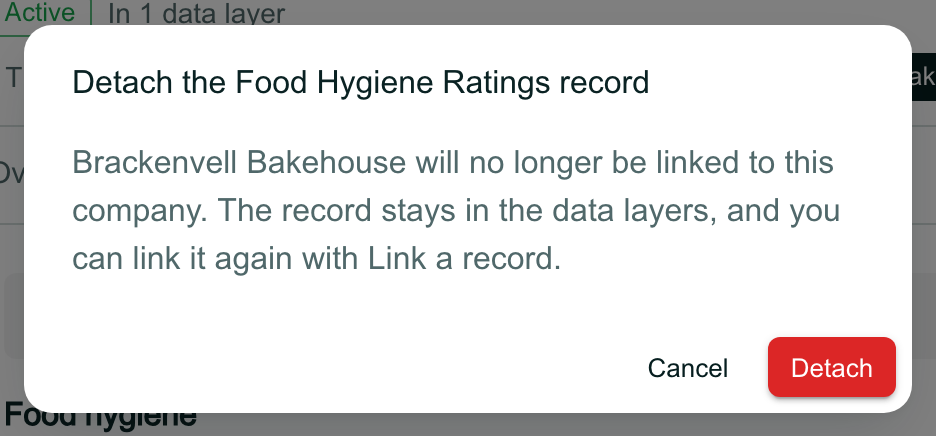
Click a layer’s tab, here Companies House, or See all on its card in the Overview. The tab shows everything that layer holds for the record, such as key dates, what the company does and its officers.
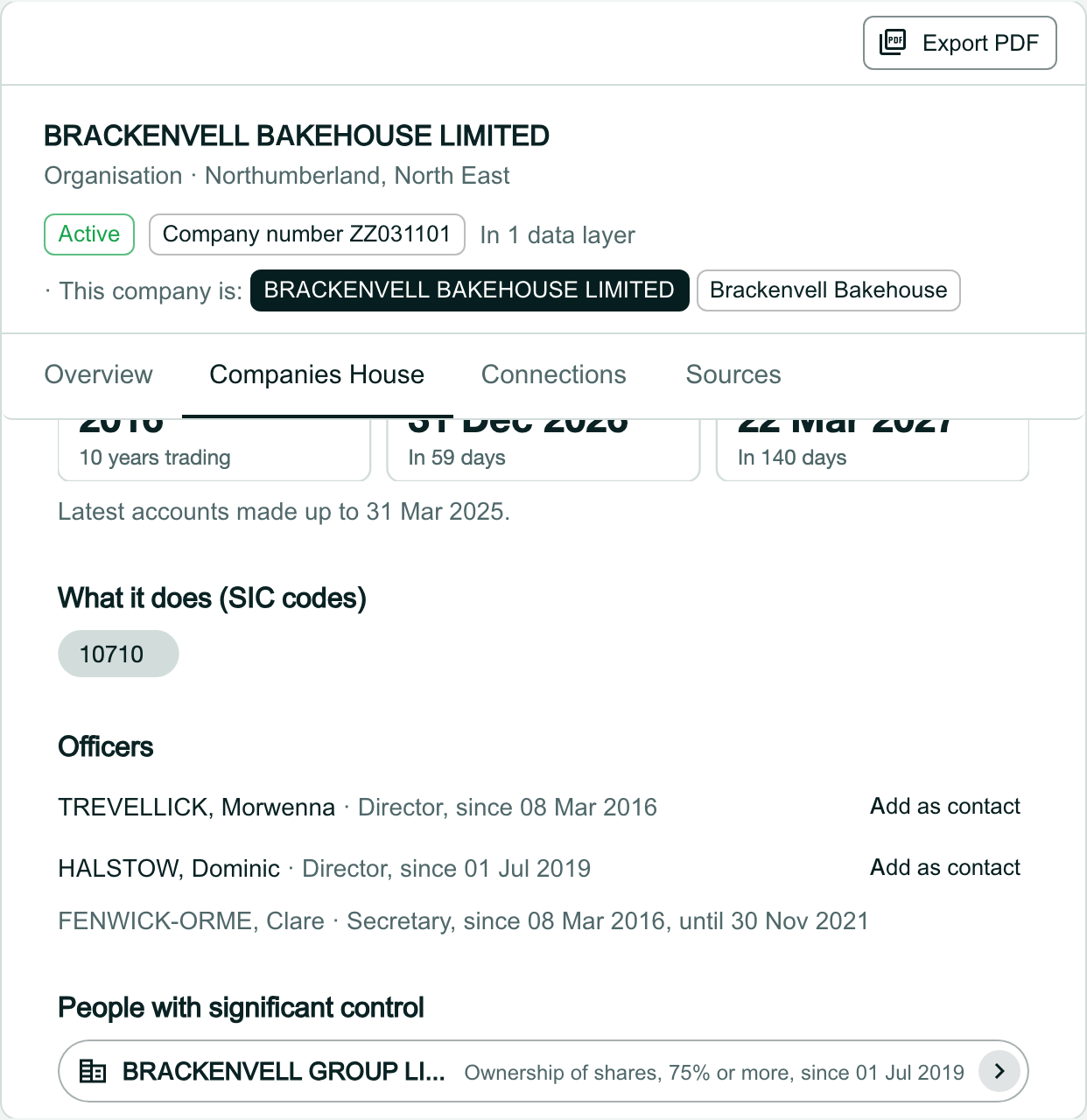
Follow a related record
On the Overview, under Who, click a related organisation, here BRACKENVELL GROUP LIMITED. It opens in a new panel beside the company, headed with how it relates (Owned by).
Each panel has its own tabs, so you can keep following links. If no company in your CRM holds the related record yet, Add as company creates one from it.
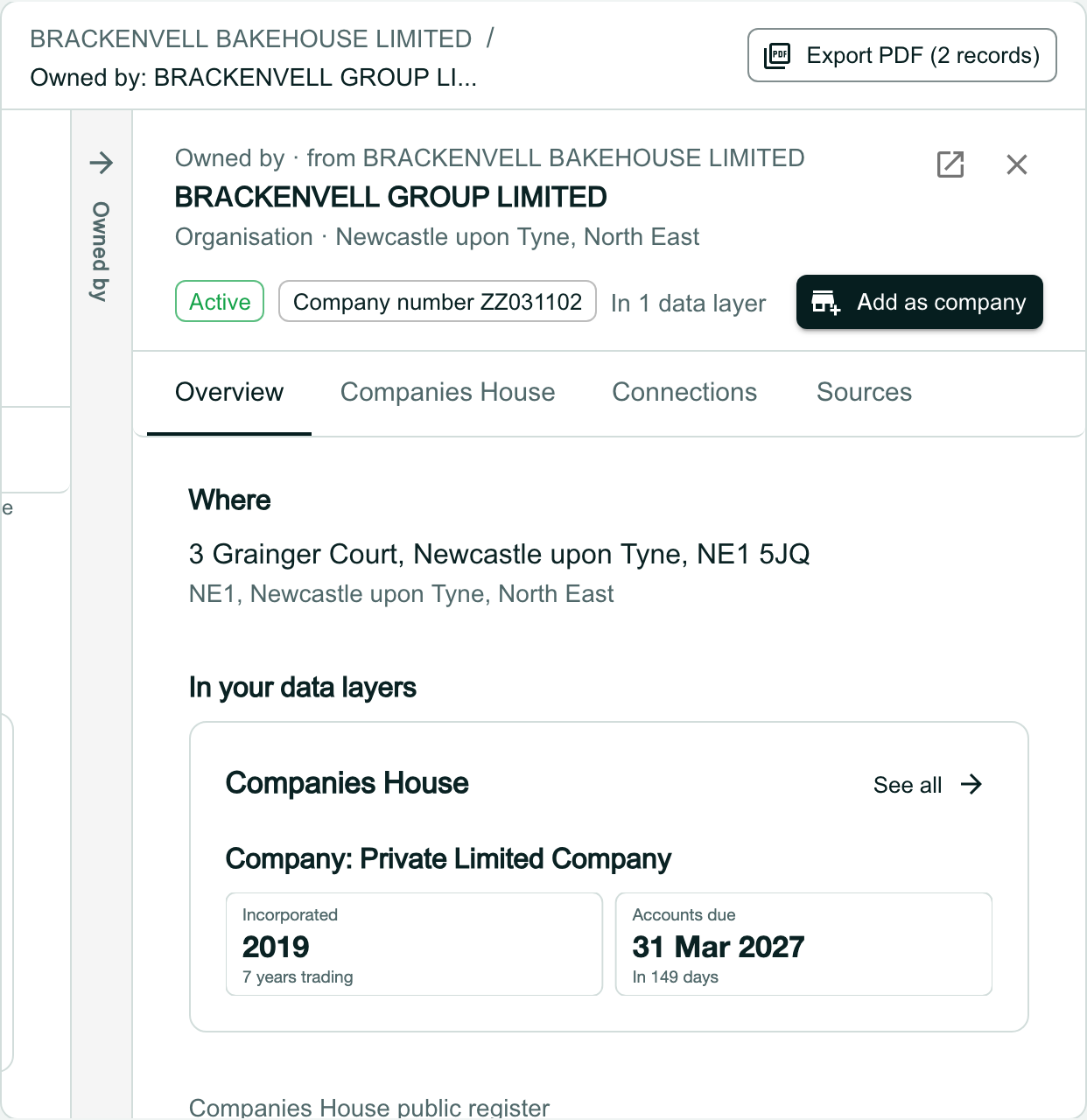
Step back along the trail
The trail along the top lists every panel you have opened. Click a name in it to bring that panel back into view.
To close a panel, click the X in its top-right corner. Any panels after it close too.

Switch between the company's records
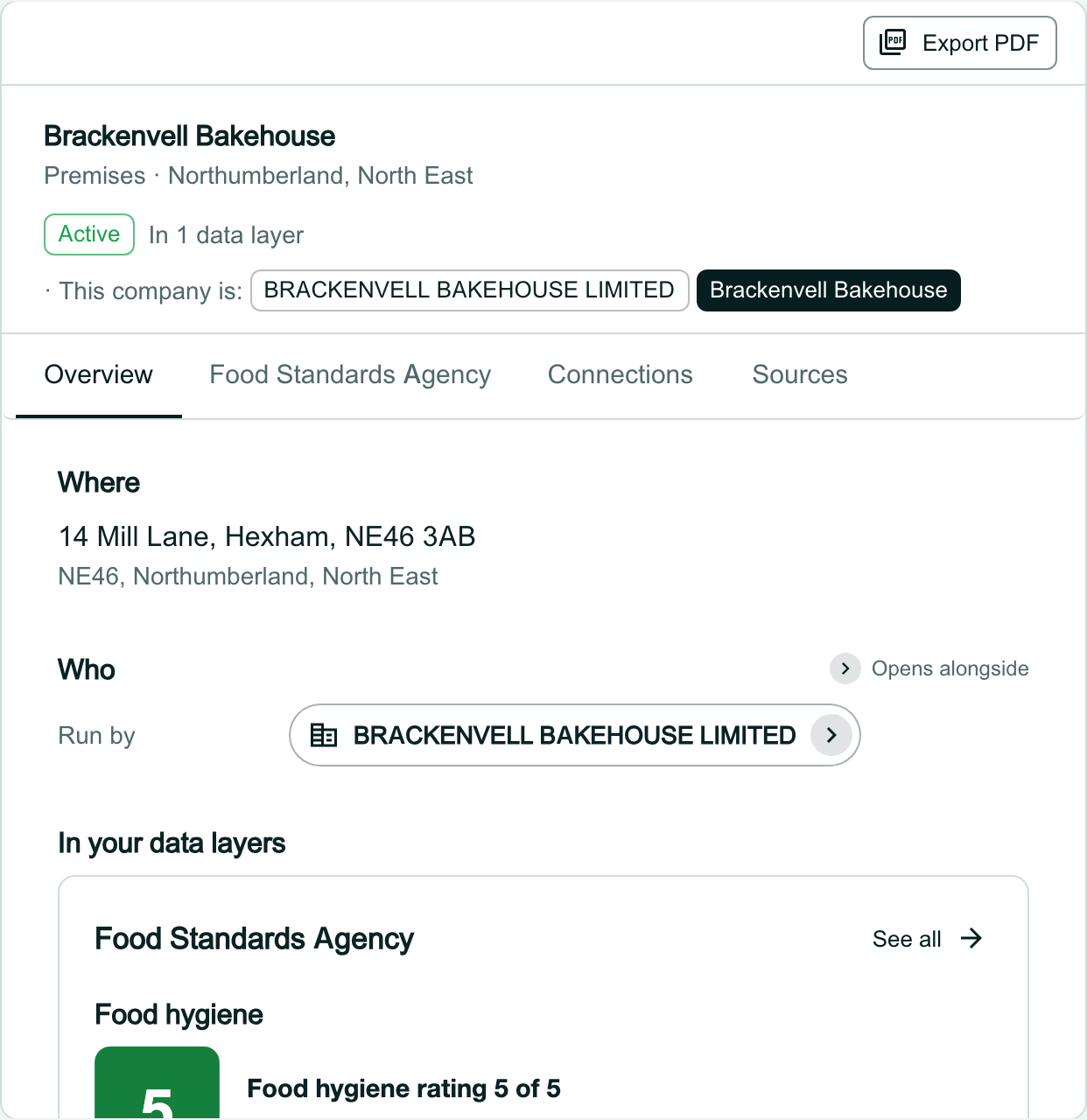
When a company is more than one record, for example an organisation and its premises, the band shows This company is: with a chip for each. Organisations come first. Click a chip to show that record.
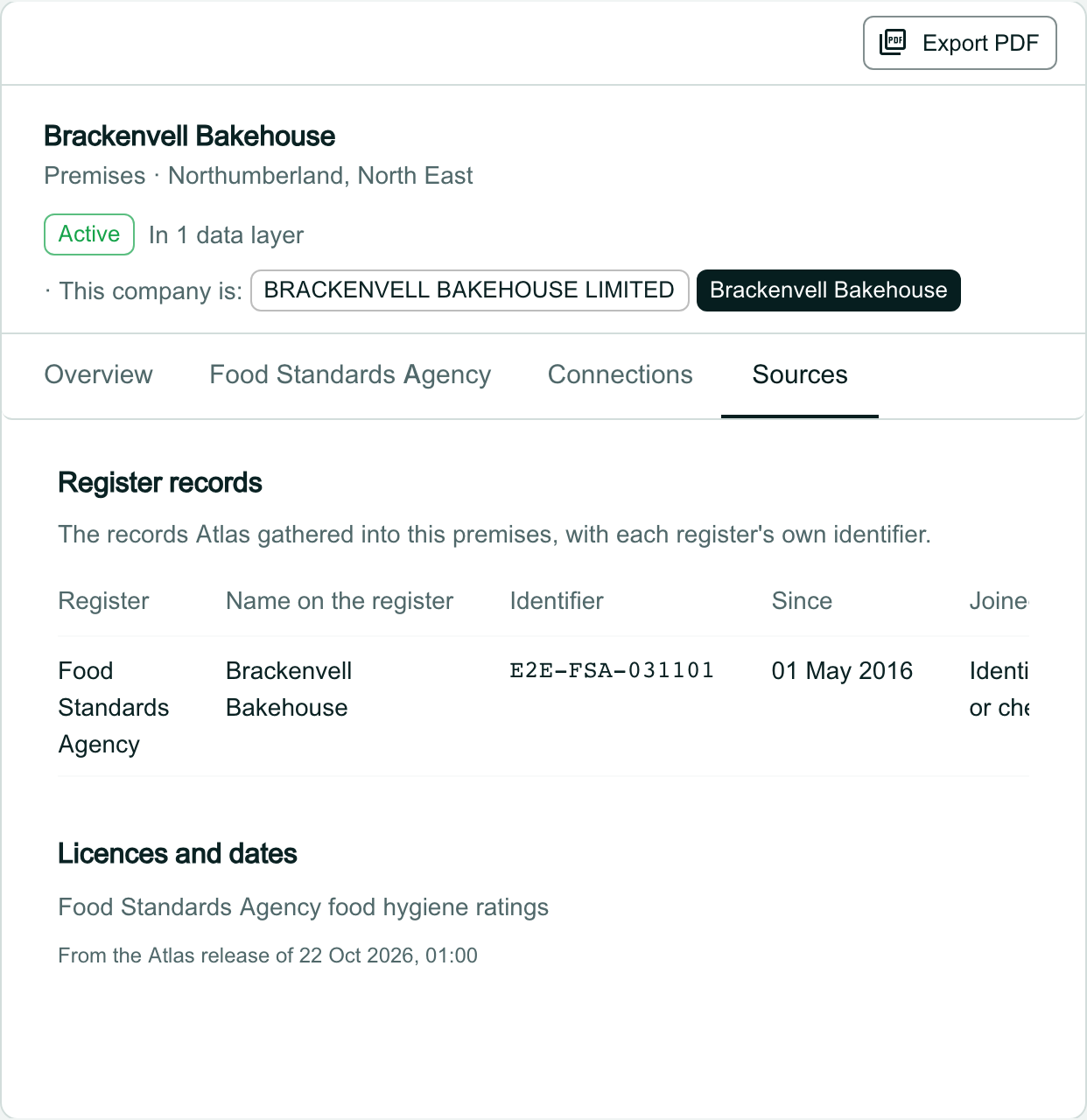
Check the sources
Click Sources to see where the data comes from: each register record with its own identifier, and the licences and release the data is published under.
Find the officers
On the organisation’s Companies House tab, scroll down to Officers and People with significant control. Current officers have Add as contact; officers who have left show when they left.
An owner that is itself an organisation opens in a new panel when you click it.
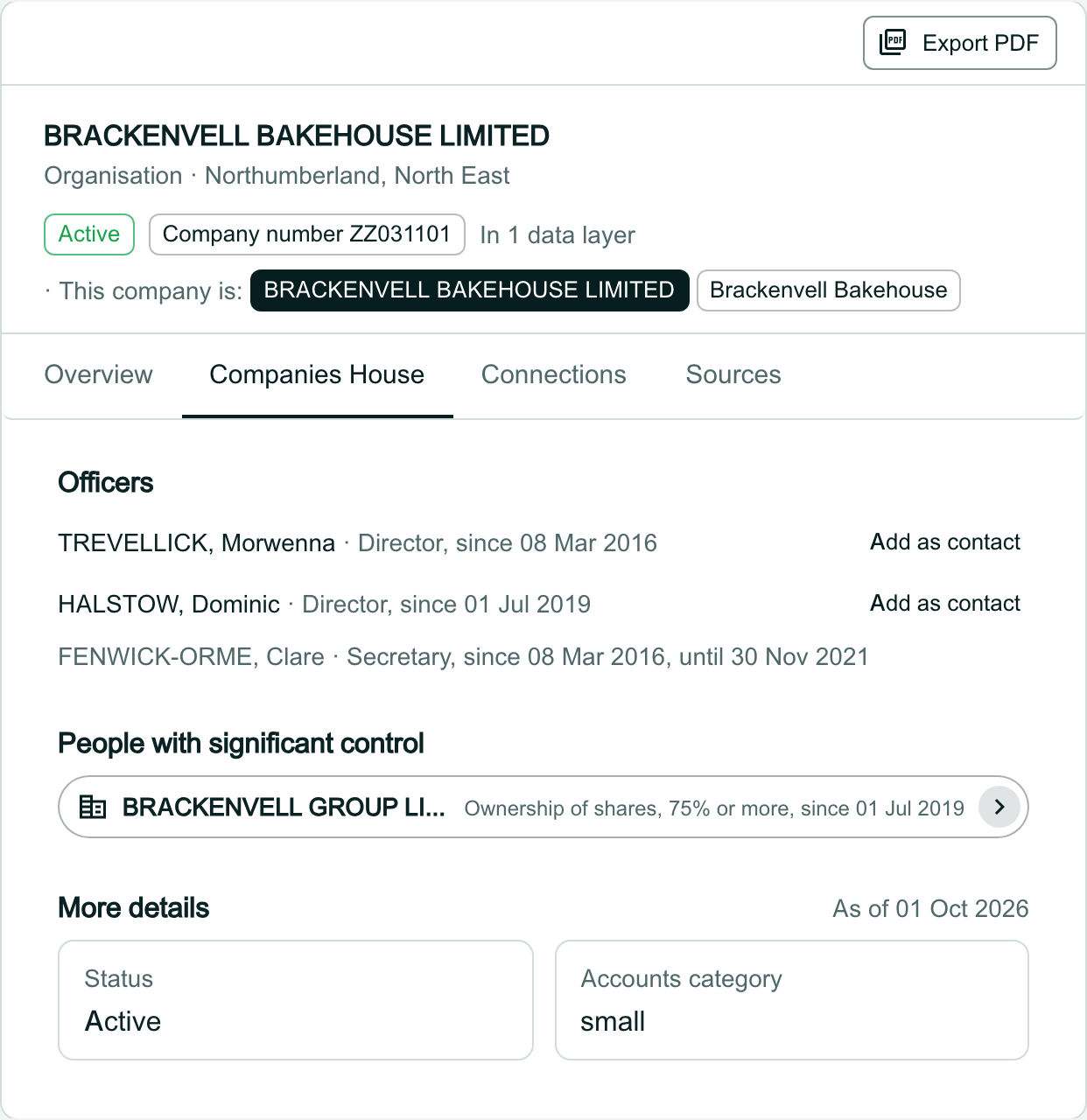
Add an officer as a contact
Click Add as contact beside the officer. OroMiQ copies their name and role into a new contact linked to the company, and it appears under Key contacts.
Tip
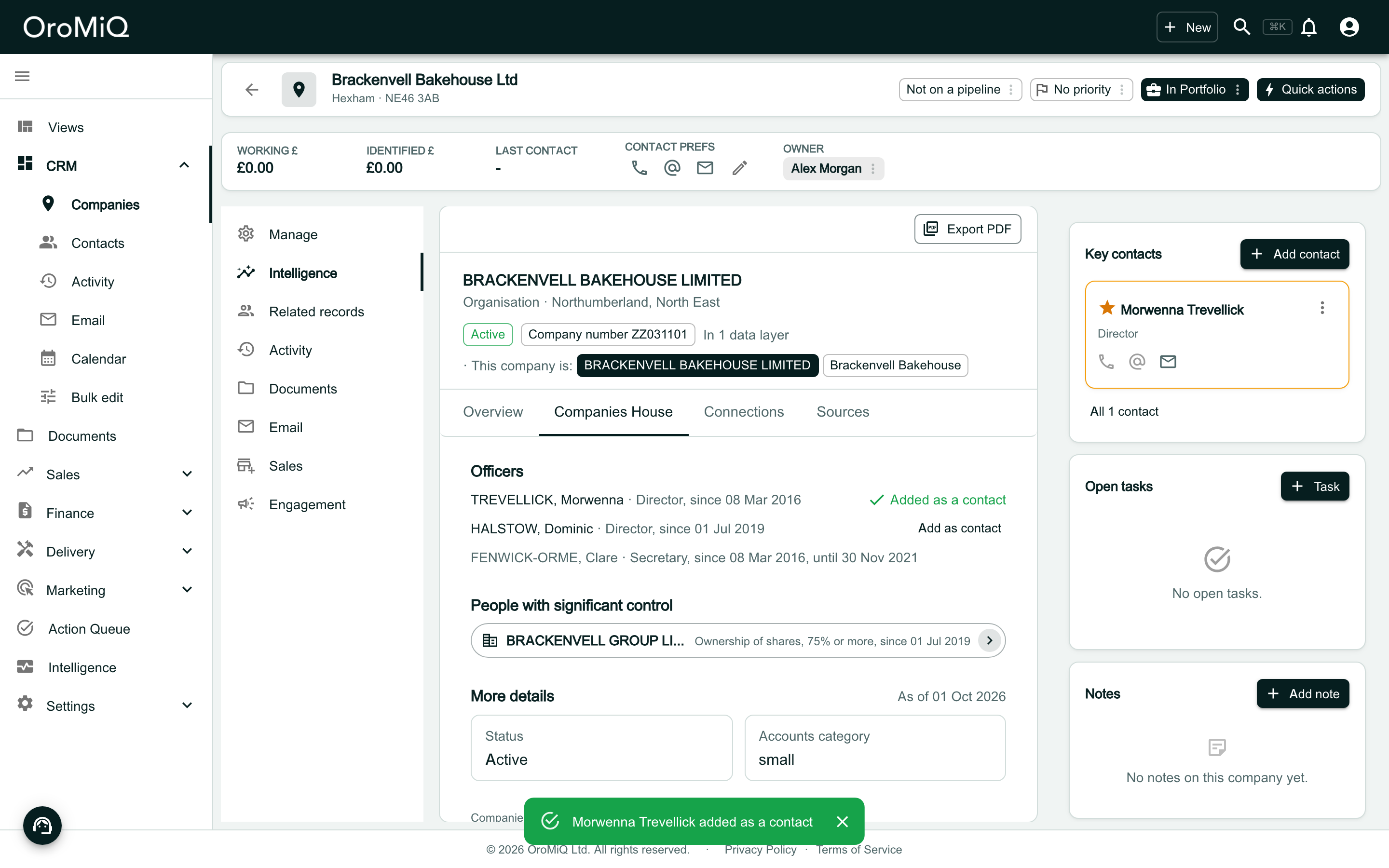
Read the 'Newer data is on its way' notice
When Atlas has received newer data for the record that is not in a published release yet, the Overview opens with Newer data is on its way. It says what is coming for each layer: how many new or updated items in a list, such as filings, and any value that is changing, from what to what.
The values elsewhere on the record stay as the release has them. The notice clears when Atlas publishes its next release and the new values appear in their place.
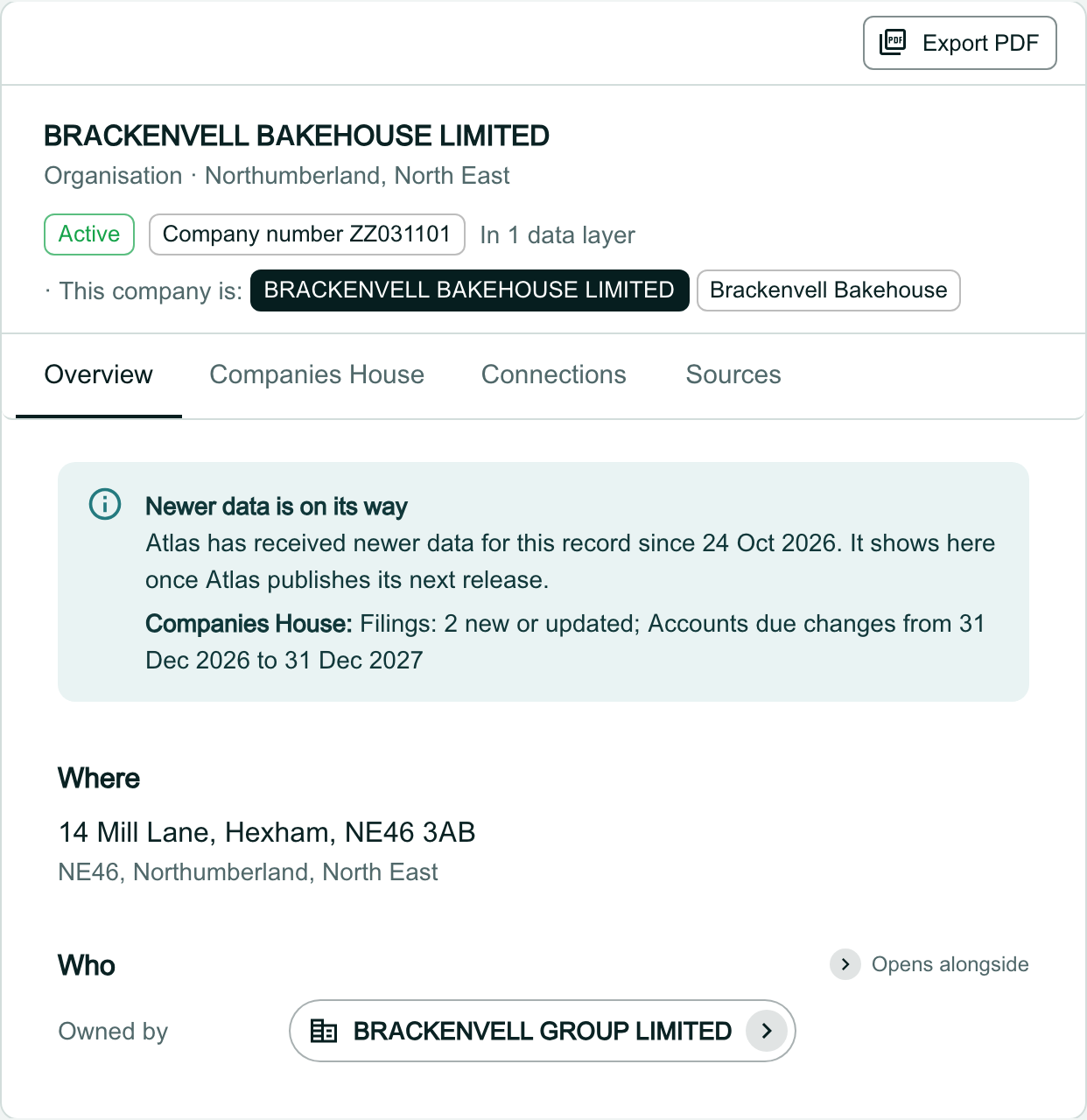
Detach a record
If a record is linked to the wrong company, open its layer’s tab. The bar at the top says what is Linked to this company. Click Detach.
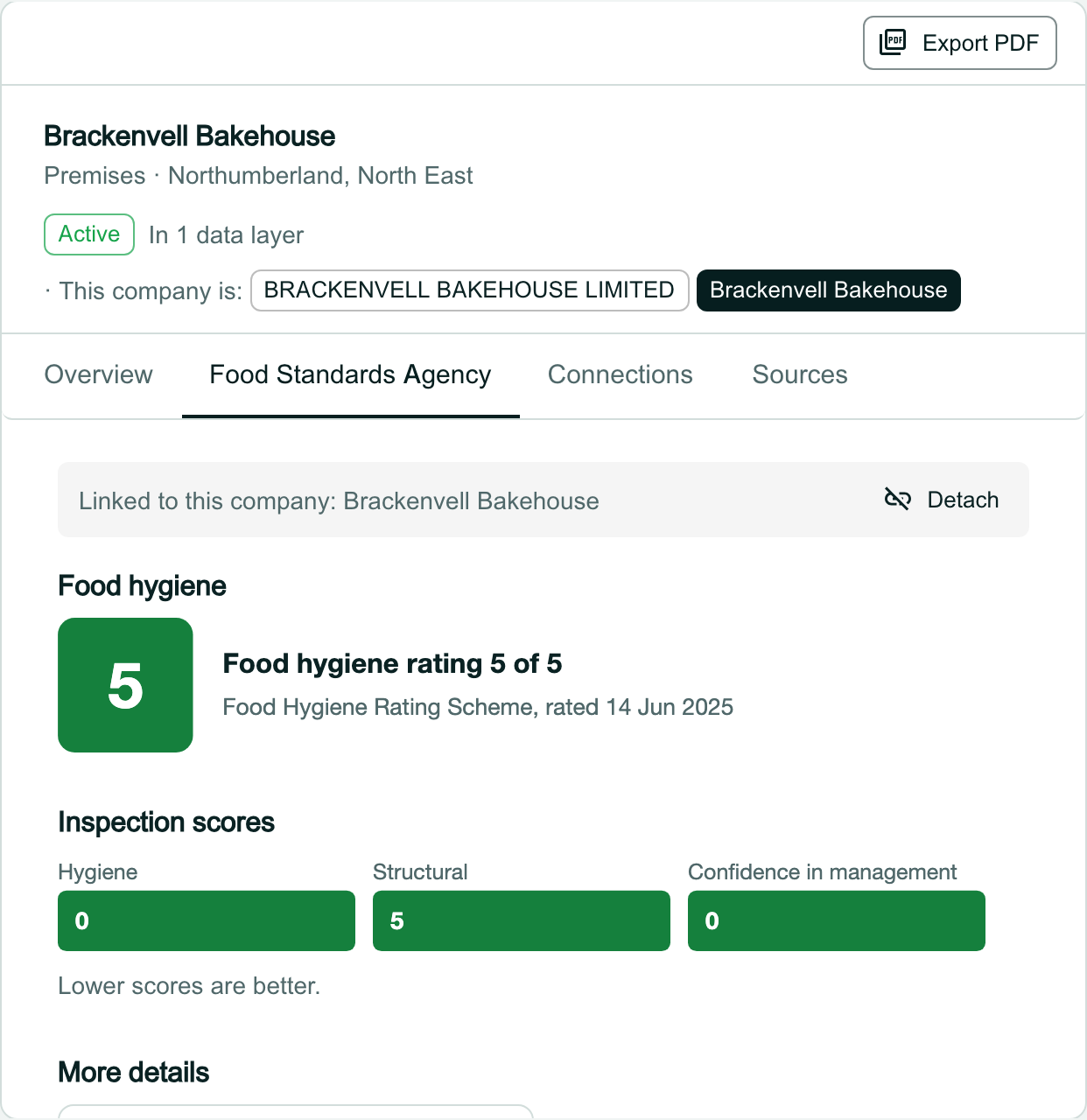
Confirm the detach
Click Detach to confirm, or Cancel to keep the link. The record itself stays in the data layers, so you can link it again later.
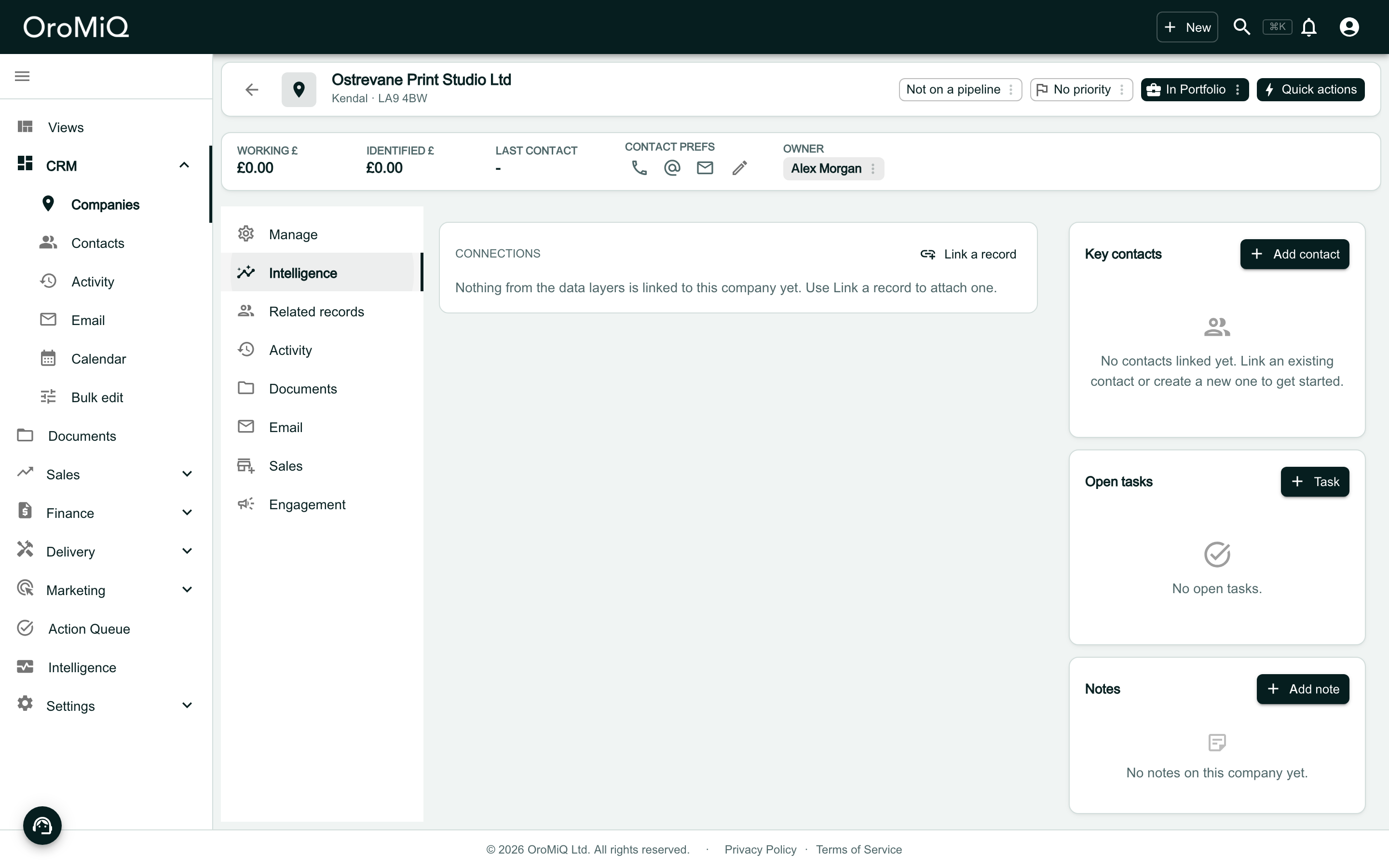
Link a record to a company with none
When nothing is linked yet, the strip says so. Click Link a record.
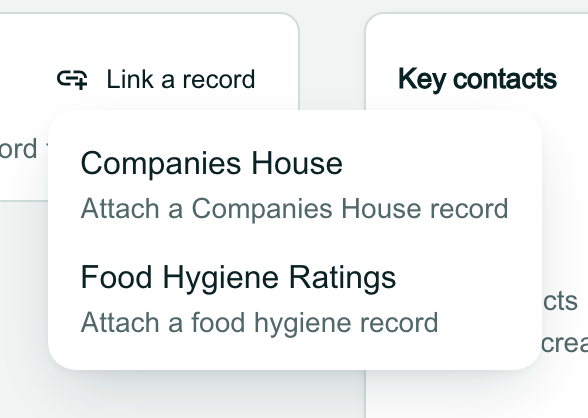
Choose the data layer
Choose the layer the record is in, for example Companies House.
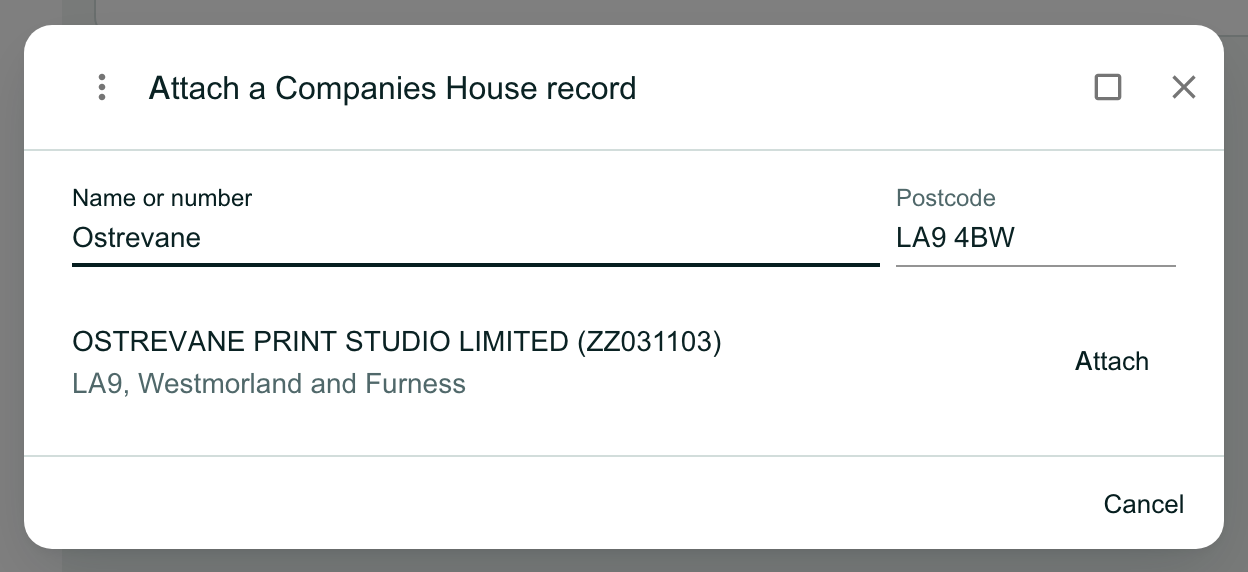
Find the record and attach it
Type a name or number in Name or number; you can narrow it with a Postcode. Check the result is the right one, then click Attach.
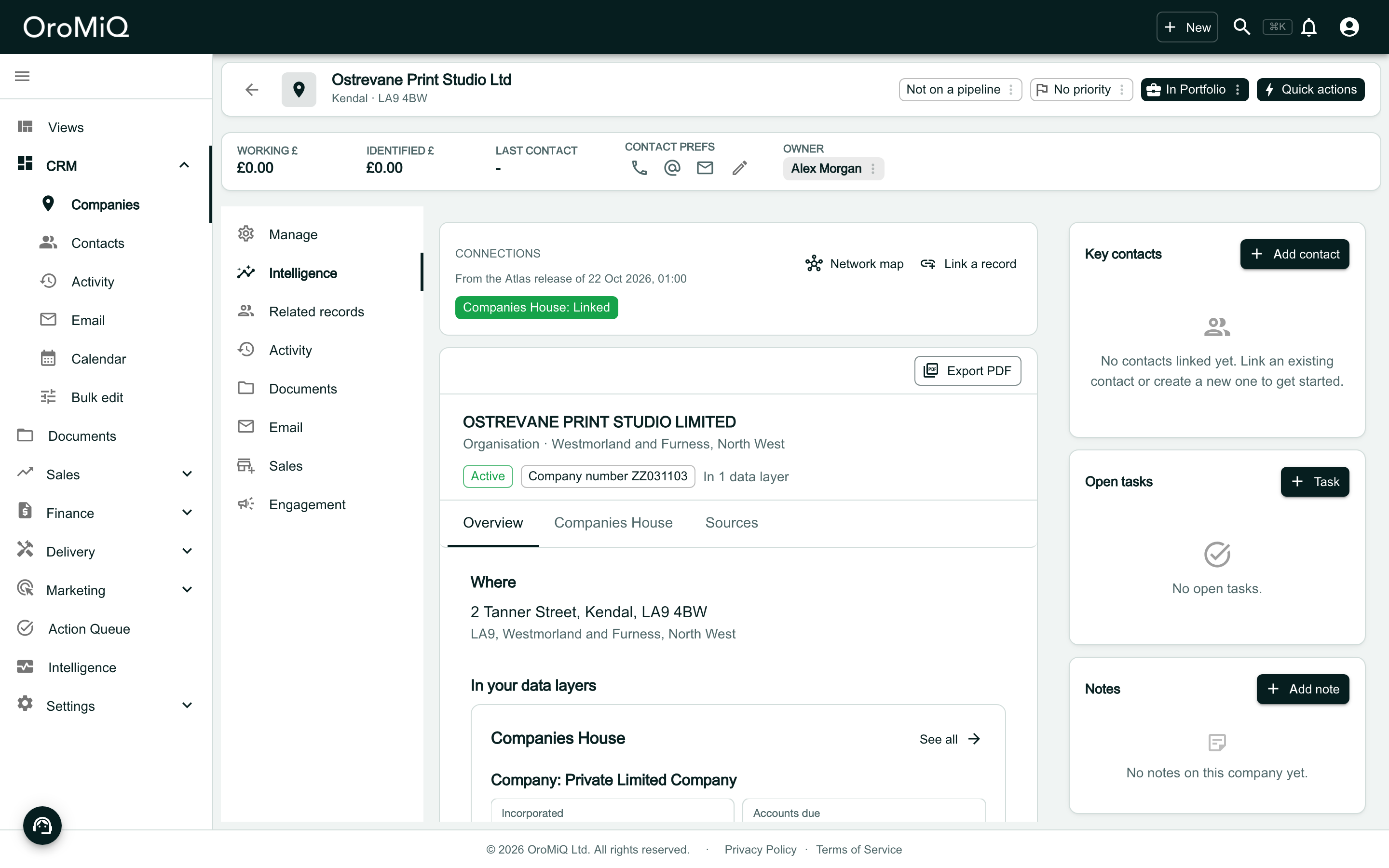
See the linked record
The layer’s chip now reads Linked, and the record opens below with its Overview, layer tab and Sources.
Note
What next
Cannot find what you need? Browse the Help Centre or submit a support ticket.