Data layers & Intelligence

See how a record has changed

6 min read
A register record’s History tab shows how it has changed over time, as the register recorded it: its changes, newest first, the roles held and their dates, and the record as it stood on any day. A company’s Intelligence panel puts the changes of every record linked to it in one timeline. Here you read both. It takes about five minutes.

Before you start

History needs a data layer switched on for your workspace (see Turn on a data layer), and a role that can see that layer. The History tab appears only on records from a layer whose past is kept; for some layers that history begins only recently and grows over time.

To link a company to its register records, see Read a company’s Intelligence.

Note

The companies, company numbers and changes in these pictures are examples made up for this guide. They are not real records. The example workspace has the Companies House and Care Quality Commission data layers switched on; you see the layers your workspace has.

Open a company's Intelligence

Open a company linked to a register record and click Intelligence in its menu. The linked record shows beneath Connections, with a row of tabs. The History tab is there when the record’s data layer keeps its past.
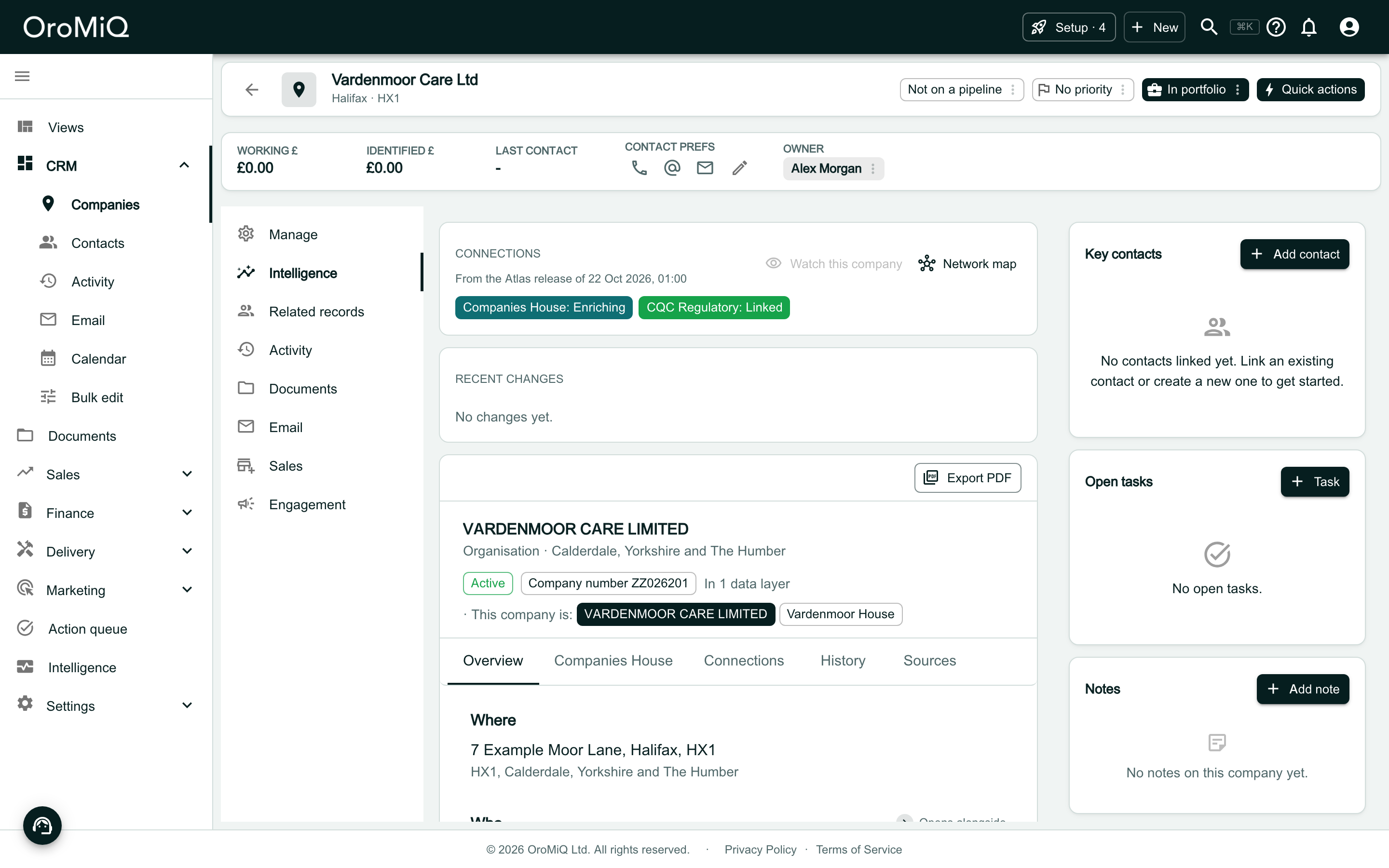
The company Vardenmoor Care Ltd on its Intelligence tab. The Connections strip shows Companies House: Linked and CQC Regulatory: Linked. Below it, the linked record VARDENMOOR CARE LIMITED, an organisation with company number ZZ026201, has the tabs Overview, Companies House, Connections, History and Sources.

Open the History tab

Click History. A record linked to a company in your workspace opens its history straight away.

A note at the top says how far back the history goes, in the data service’s own words. Earlier changes are not known.
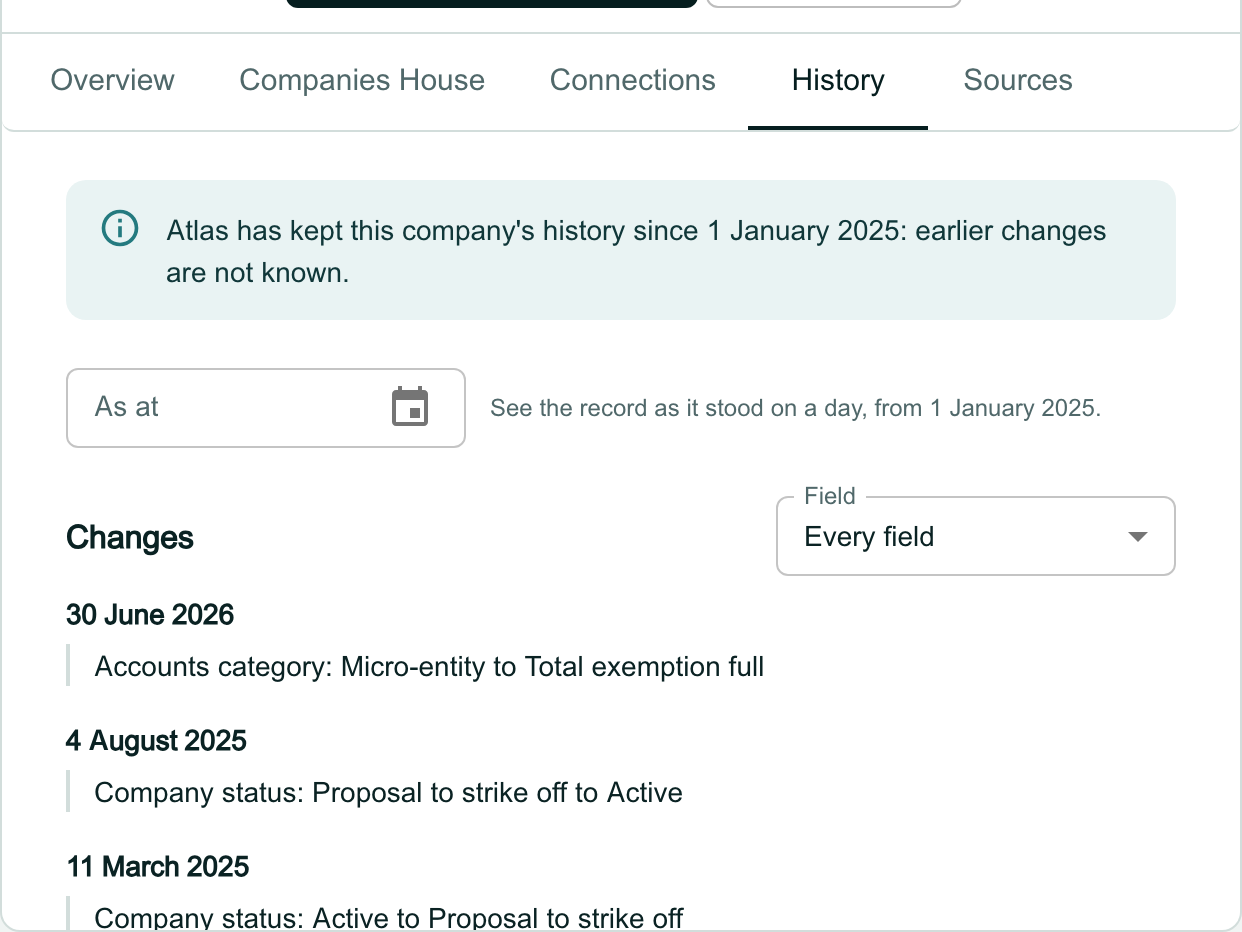
The History tab of the record, selected. A blue note reads Atlas has kept this company’s history since 1 January 2025: earlier changes are not known. Below are an As at date field with the line See the record as it stood on a day, from 1 January 2025, then Changes with a Field filter set to Every field, starting with 30 June 2026: Accounts category: Micro-entity to Total exemption full.

Read the changes

Under Changes, each change reads as the field, then the old value and the new one, such as Company status: Active to Proposal to strike off. The newest is at the top.

Each change sits under the day the register published it, where the register gives one. Labels and values appear exactly as the register sends them.
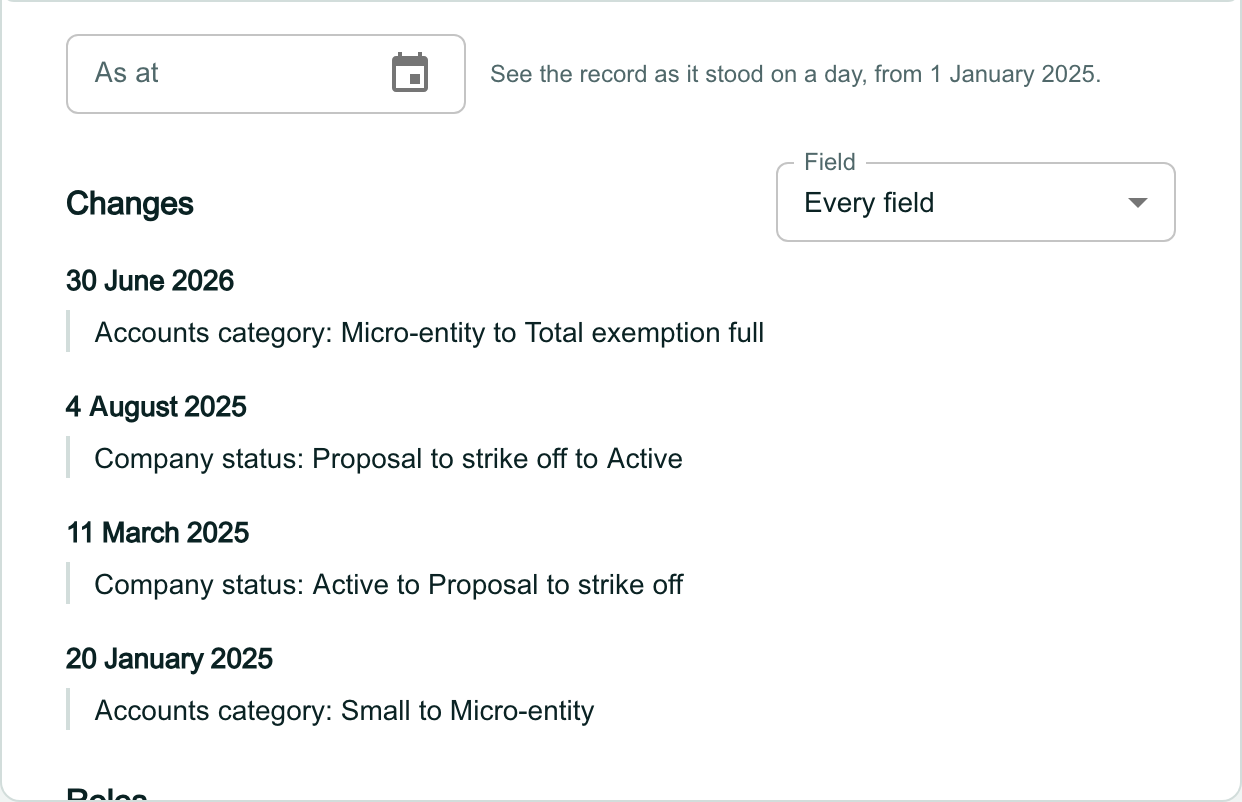
The Changes list, newest first: 30 June 2026, Accounts category: Micro-entity to Total exemption full; 4 August 2025, Company status: Proposal to strike off to Active; 11 March 2025, Company status: Active to Proposal to strike off; 20 January 2025, Accounts category: Small to Micro-entity. The Roles heading starts below.

Read the roles and dated lists

Roles lists each role held on the record, with when it started and, if it has ended, when it ended. A role still held reads since its start.

Dated lists names the lists the register keeps with dates, such as filings. Each is listed in full on the layer’s own tab. Click the icon beside Sources for where the history comes from and its licence.
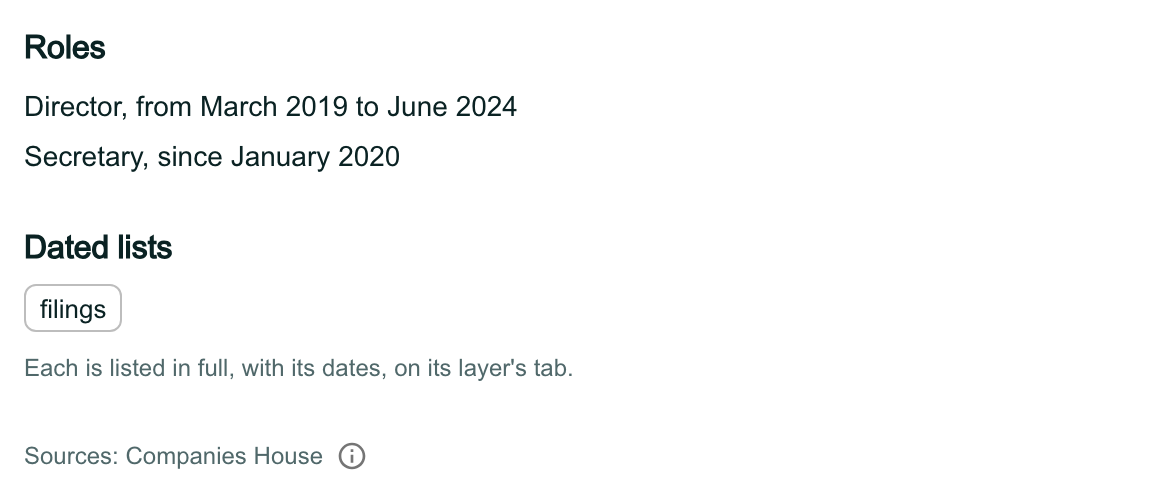
The lower part of the History tab. Roles lists Director, from March 2019 to June 2024, and Secretary, since January 2020. Dated lists shows a filings chip with the line Each is listed in full, with its dates, on its layer’s tab. At the foot: Sources: Companies House, with an information icon.

Filter the changes by field

Open Field beside Changes. It lists only the fields this record’s history holds.
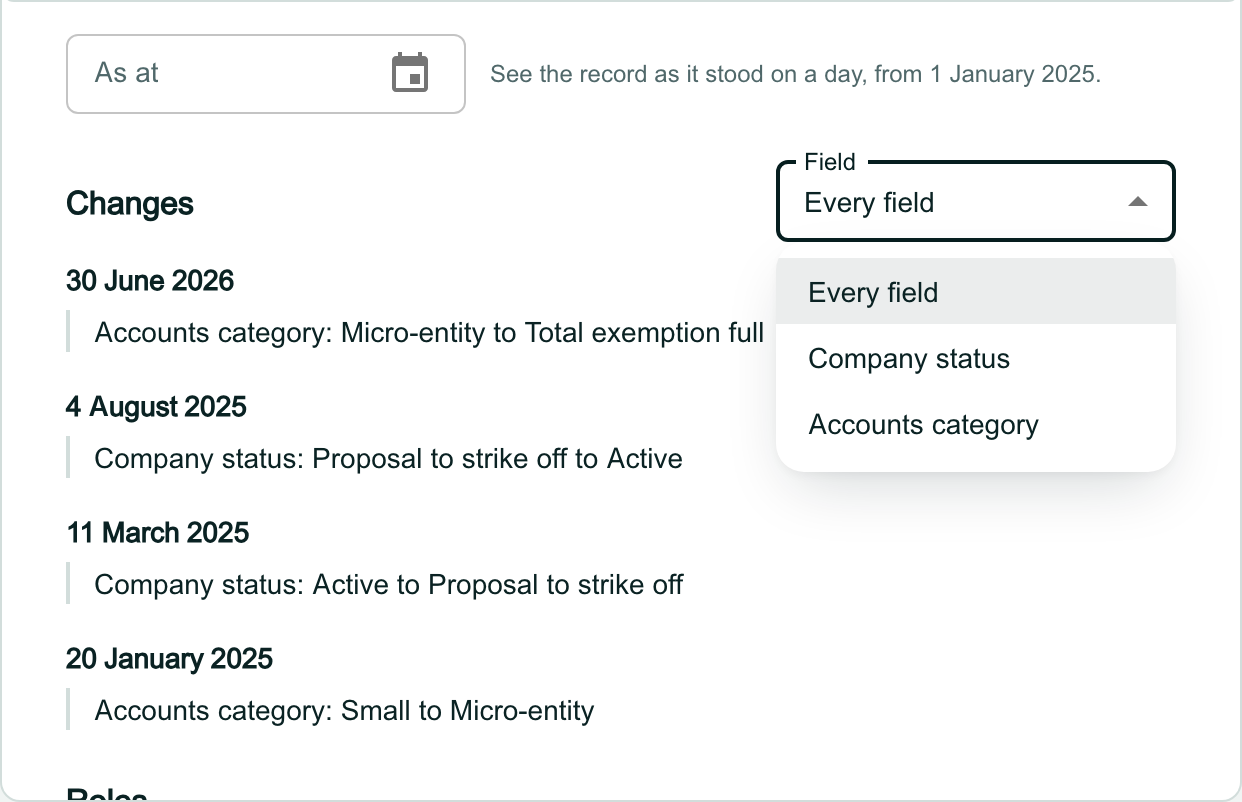
The Field filter beside Changes, open, listing Every field, Company status and Accounts category.

Read one field's changes

Choose a field, such as Company status. Only its changes stay in the list. Choose Every field to see them all again.
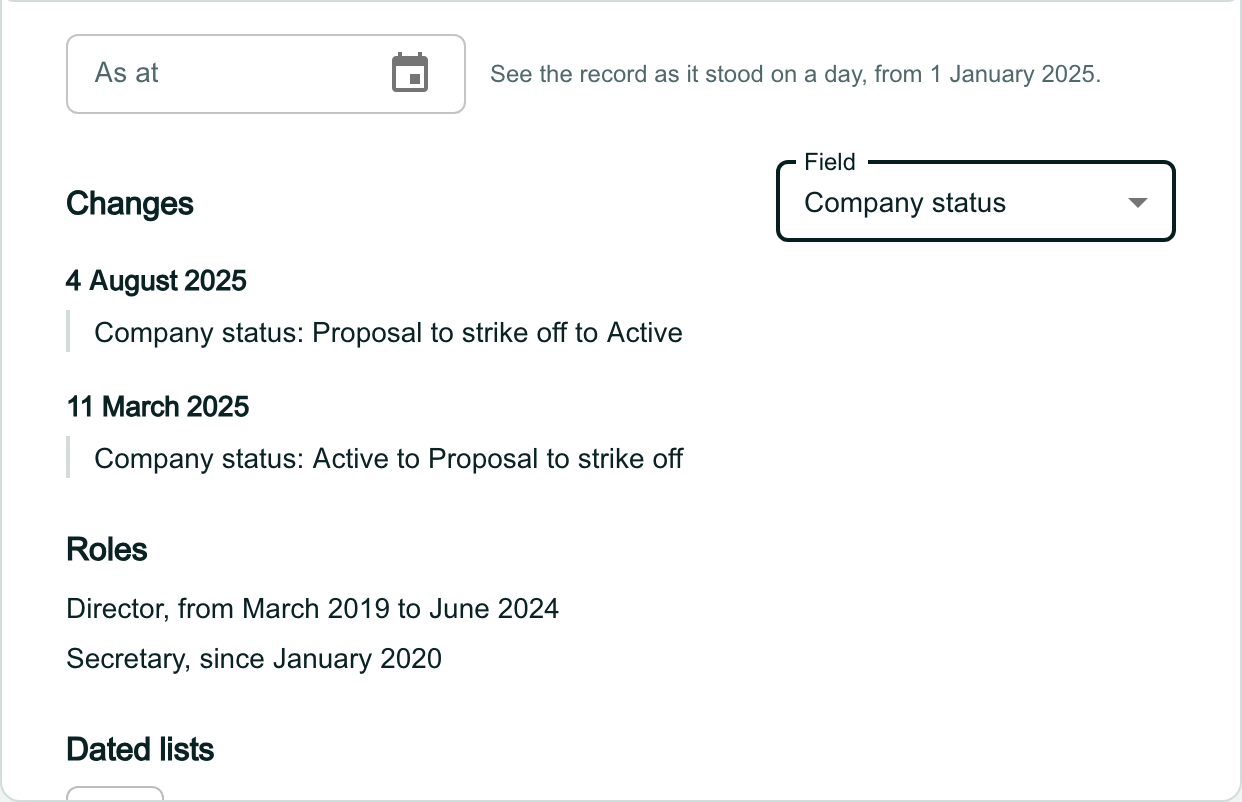
The Field filter set to Company status. Changes now lists only 4 August 2025, Company status: Proposal to strike off to Active, and 11 March 2025, Company status: Active to Proposal to strike off. Roles and Dated lists follow, unchanged.

See the record as it stood on a day

Type a day into As at, or pick one from the calendar. You can choose any day from where the history begins (the line beside the field says when) up to today.

A grey band names the day, and the changes give way to the record as it stood then.
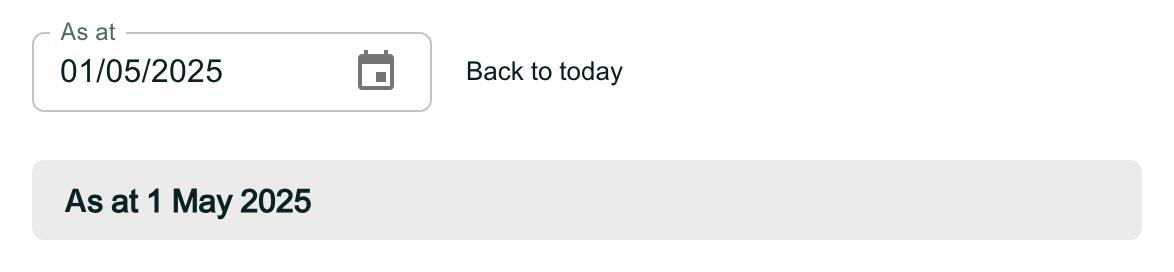
The As at field reading 01/05/2025, with a Back to today button beside it, and a grey band below reading As at 1 May 2025.

Read the record's values on that day

The record’s overview shows each value as it was on the day, with the date it was last set. Here, on 1 May 2025, the company had been proposed for striking off.

Click Back to today beside the date to return to the list of changes.
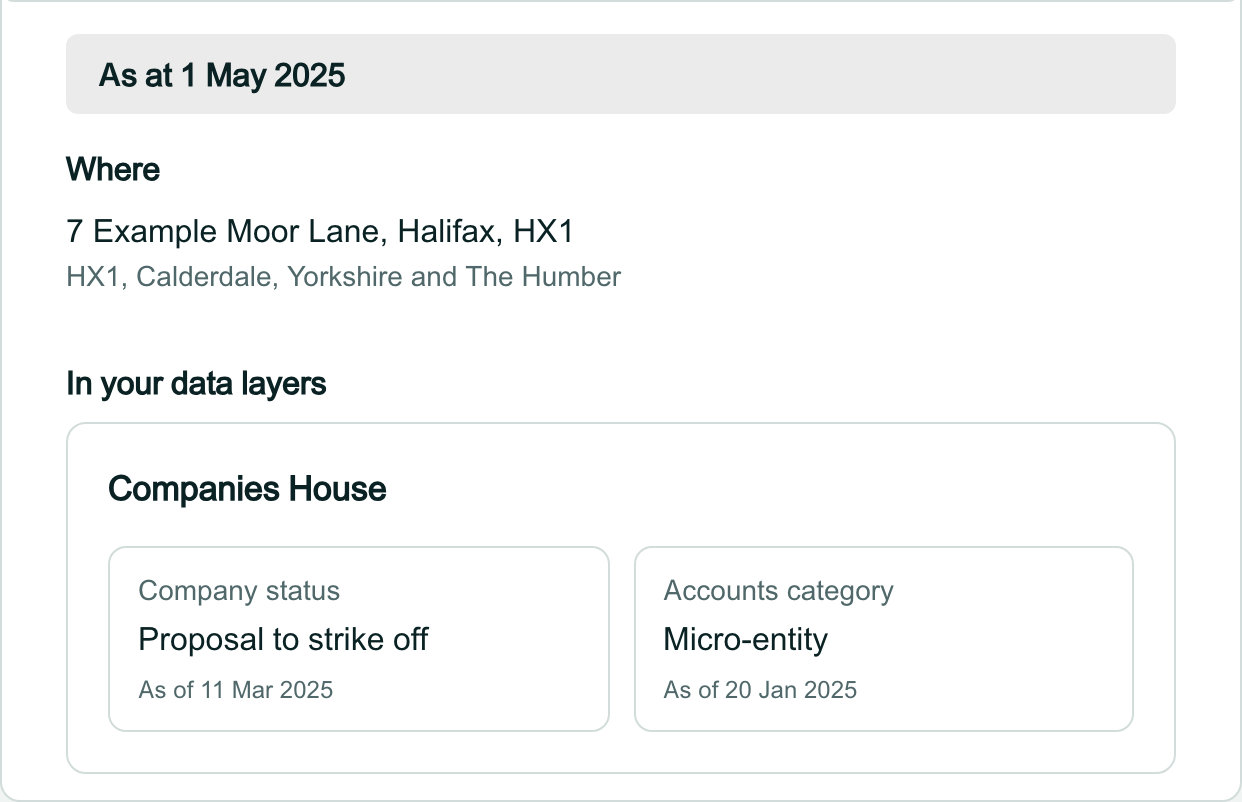
Under the band As at 1 May 2025: Where, with the address 7 Example Moor Lane, Halifax, HX1, then In your data layers with a Companies House card showing Company status: Proposal to strike off, as of 11 Mar 2025, and Accounts category: Micro-entity, as of 20 Jan 2025.

Show the history of a record no company holds

A record that no company in your workspace is linked to does not read its history straight away. Here it is the owner of the linked record, opened from that record’s Overview and then in a window of its own. Its History tab asks first.

Click Show history. Once read, the record’s history opens by itself next time.
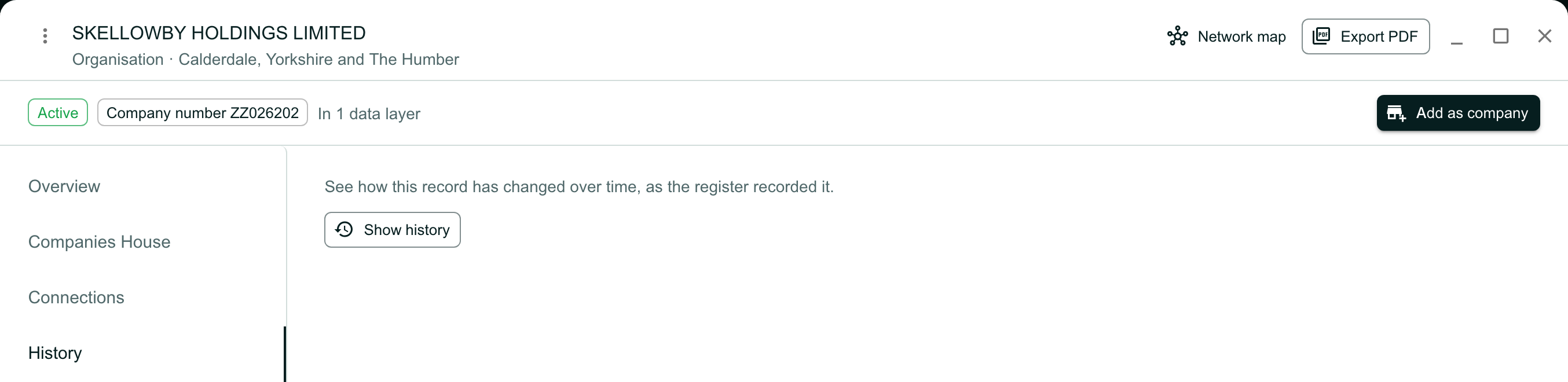
A record window for SKELLOWBY HOLDINGS LIMITED, an organisation with company number ZZ026202 and an Add as company button. History is selected in the window’s menu, and the tab reads See how this record has changed over time, as the register recorded it, above a Show history button.

Wait while the history is fetched

If the record’s past has not been gathered yet, the tab says Fetching this record’s history from the register. and checks again by itself. You do not need to do anything.

If it takes longer than usual, the tab says so and offers Try again.
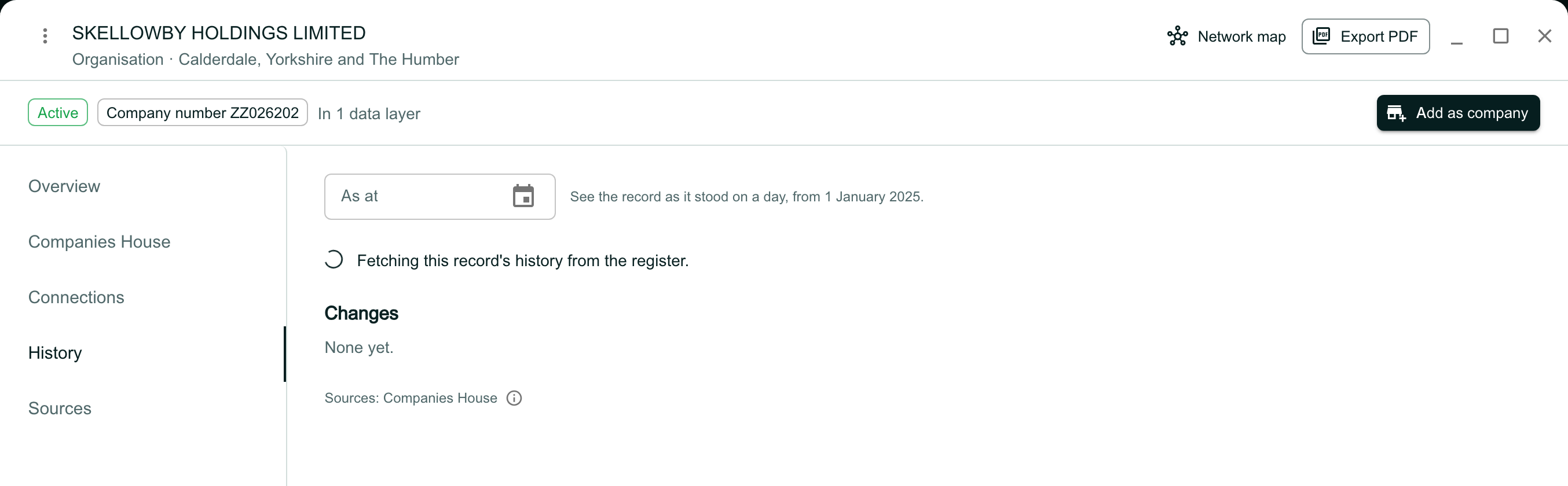
The same window after Show history: a spinner and the line Fetching this record’s history from the register, with Changes reading None yet.

Read the history once it arrives

The changes appear in place of the message, read the same way as before.
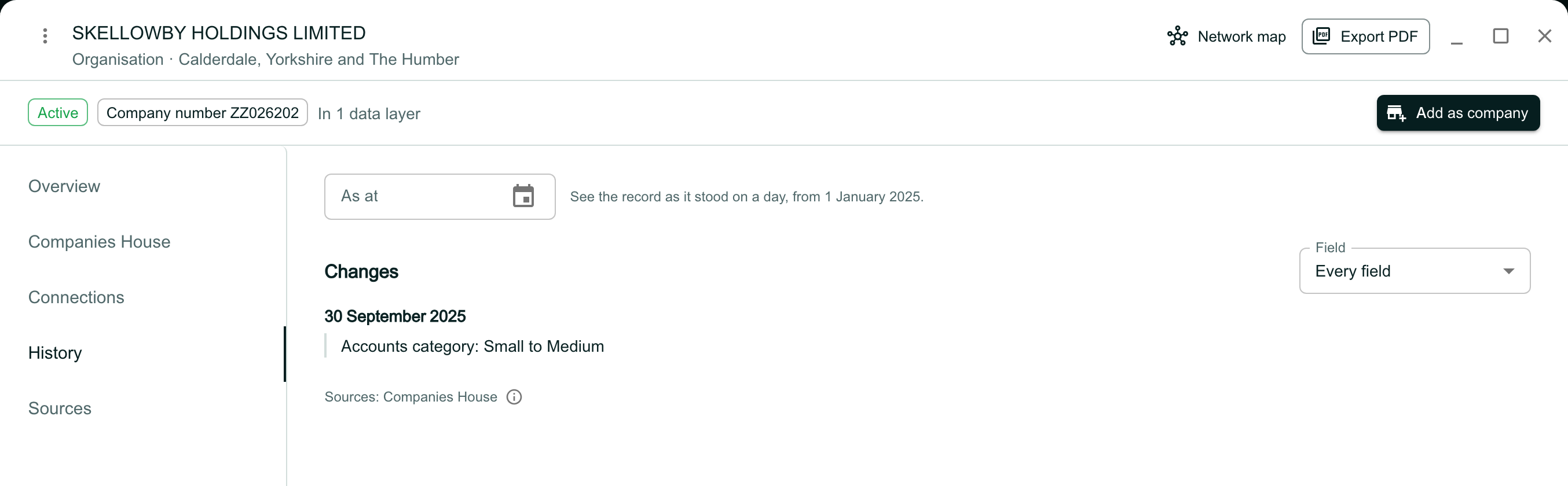
The window now shows Changes with one entry, 30 September 2025, Accounts category: Small to Medium, and the line Sources: Companies House.

Read a company's History across its records

On the company’s Intelligence tab, scroll down to History. It lists the changes of every record linked to the company in one timeline, newest first.

Each change names its data layer and the record it belongs to. Here the company is linked to a Companies House record and a care home on the Care Quality Commission register.
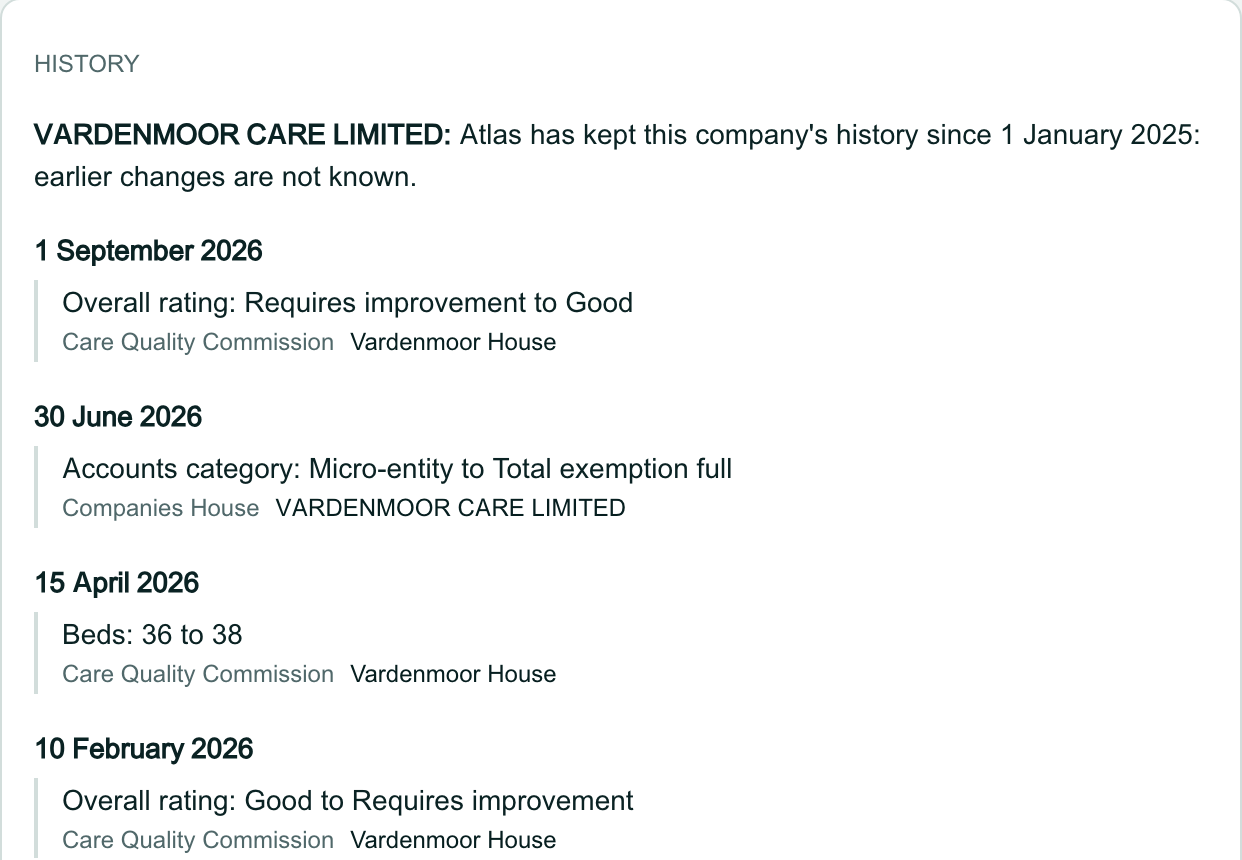
The History section of the company’s Intelligence panel. It opens with VARDENMOOR CARE LIMITED: Atlas has kept this company’s history since 1 January 2025: earlier changes are not known. Then changes newest first, each with its layer and record: 1 September 2026, Overall rating: Requires improvement to Good, Care Quality Commission, Vardenmoor House; 30 June 2026, Accounts category: Micro-entity to Total exemption full, Companies House, VARDENMOOR CARE LIMITED; 15 April 2026, Beds: 36 to 38, Care Quality Commission, Vardenmoor House.

Show older changes

Ten changes show at first. Click Show more at the foot of the section for the next ones.
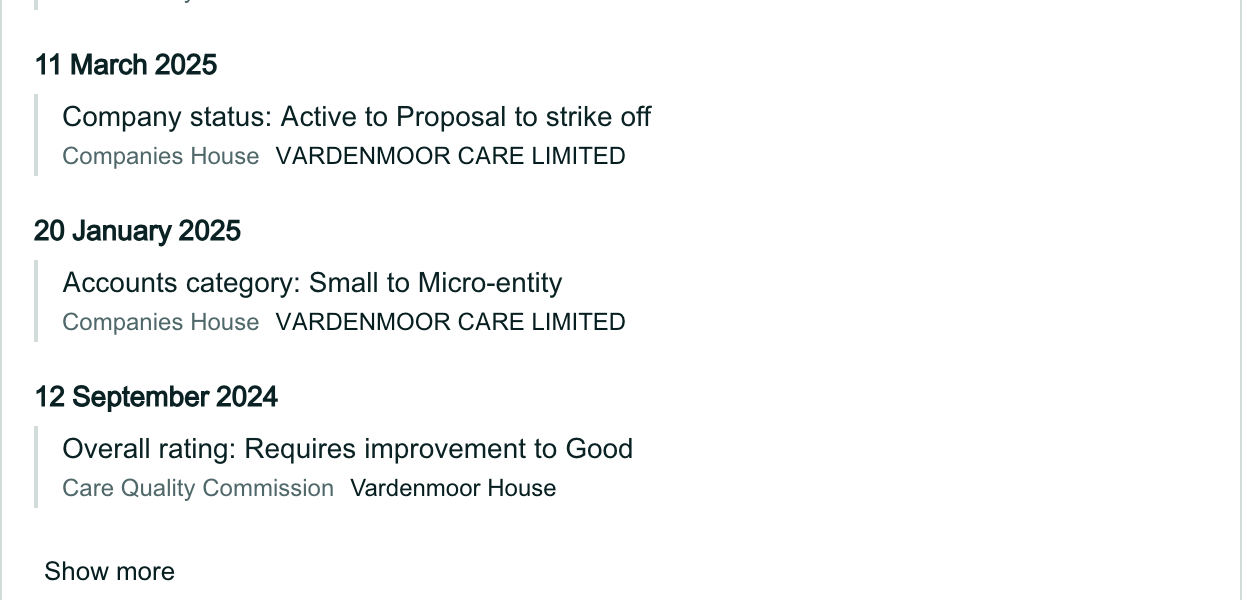
The foot of the History section: 11 March 2025, 20 January 2025 and 12 September 2024 changes, each with its layer and record, and a Show more button below.

Open a record from the company's History

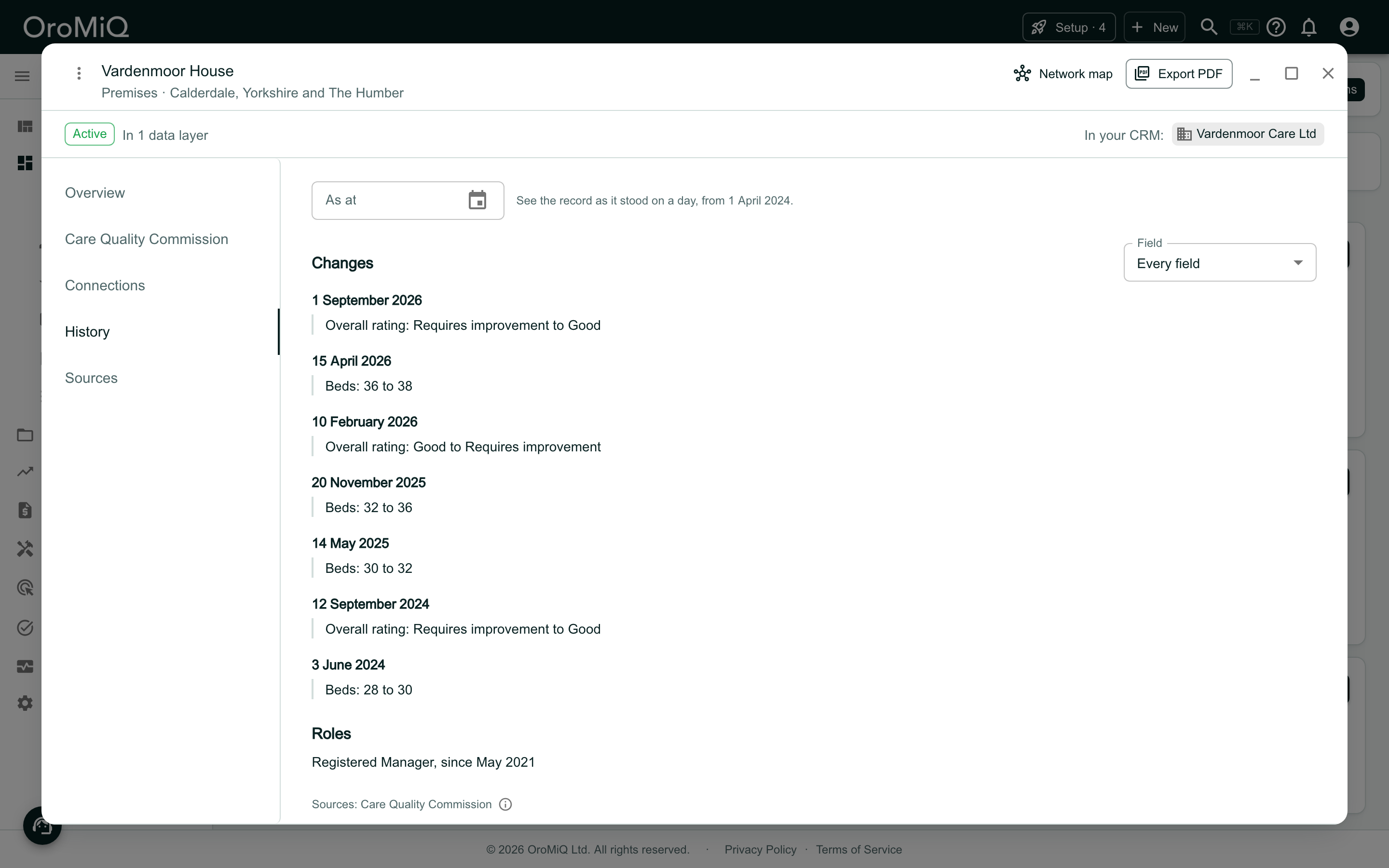
Click a record’s name under a change. The record opens in a window of its own, on its History tab, where you can filter its changes and use As at as before.

Note
Reading history does not change the company or add anything to its activity. To be told when a record changes from now on, set up an alert: see Get alerts when the registers change.
A record window for Vardenmoor House, a premises, with In your CRM: Vardenmoor Care Ltd at the top right. History is selected in the window’s menu, showing As at, a Field filter set to Every field, seven changes from 1 September 2026, Overall rating: Requires improvement to Good, back to 3 June 2024, Beds: 28 to 30, then Roles with Registered Manager, since May 2021, and Sources: Care Quality Commission.