Data layers & Intelligence
Get alerts when the registers change
Before you start
Alerts need a data layer switched on for your workspace (see Turn on a data layer). This guide uses Companies House; the fields you can choose depend on the layers you have switched on.
Anyone whose role includes Intelligence can see the Alerts tab. Setting up or deleting an alert, and watching a company, need a role with the Build permission for Intelligence. Ask an admin in Settings > Team & roles if you cannot.
Note
Open the Alerts tab
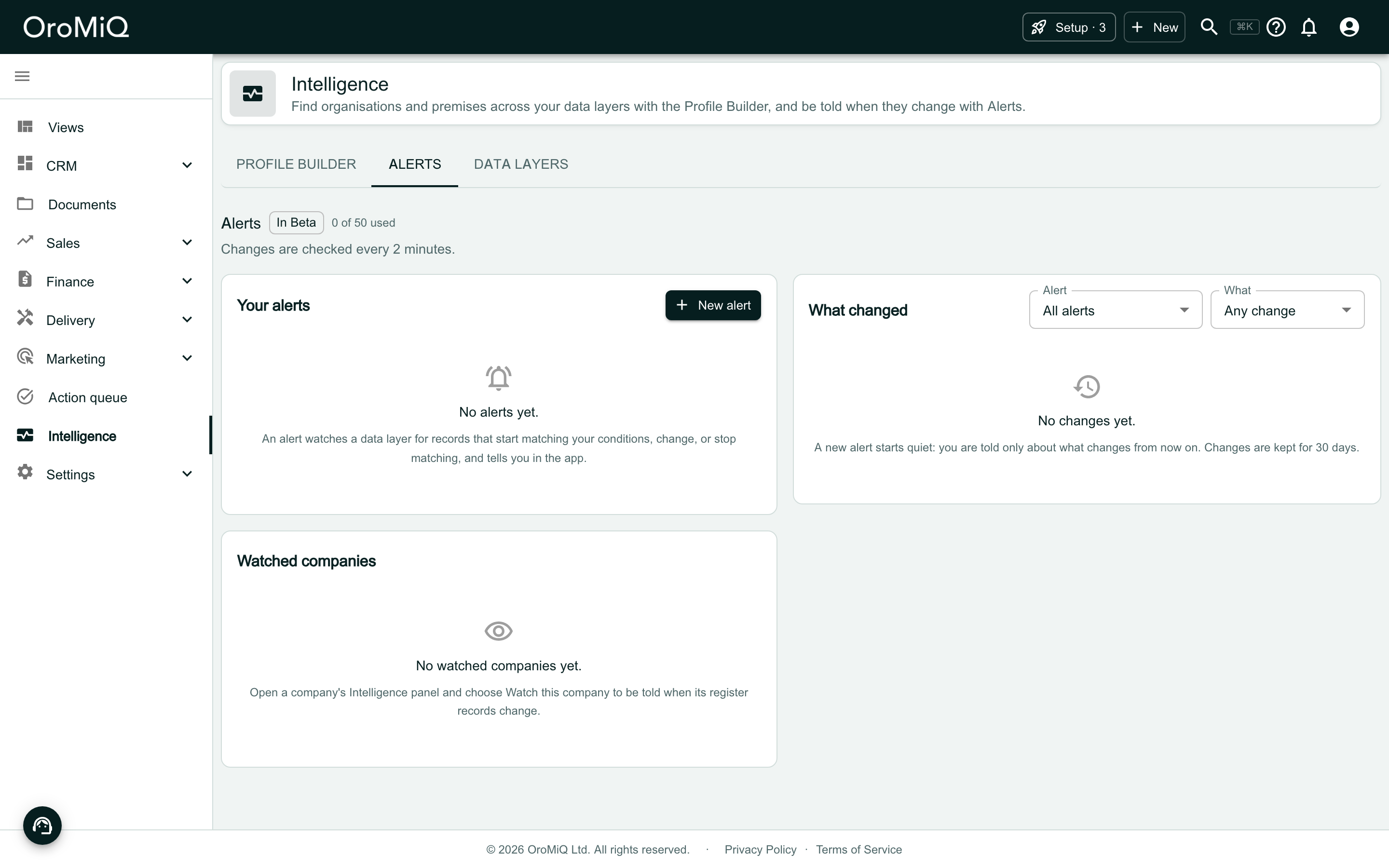
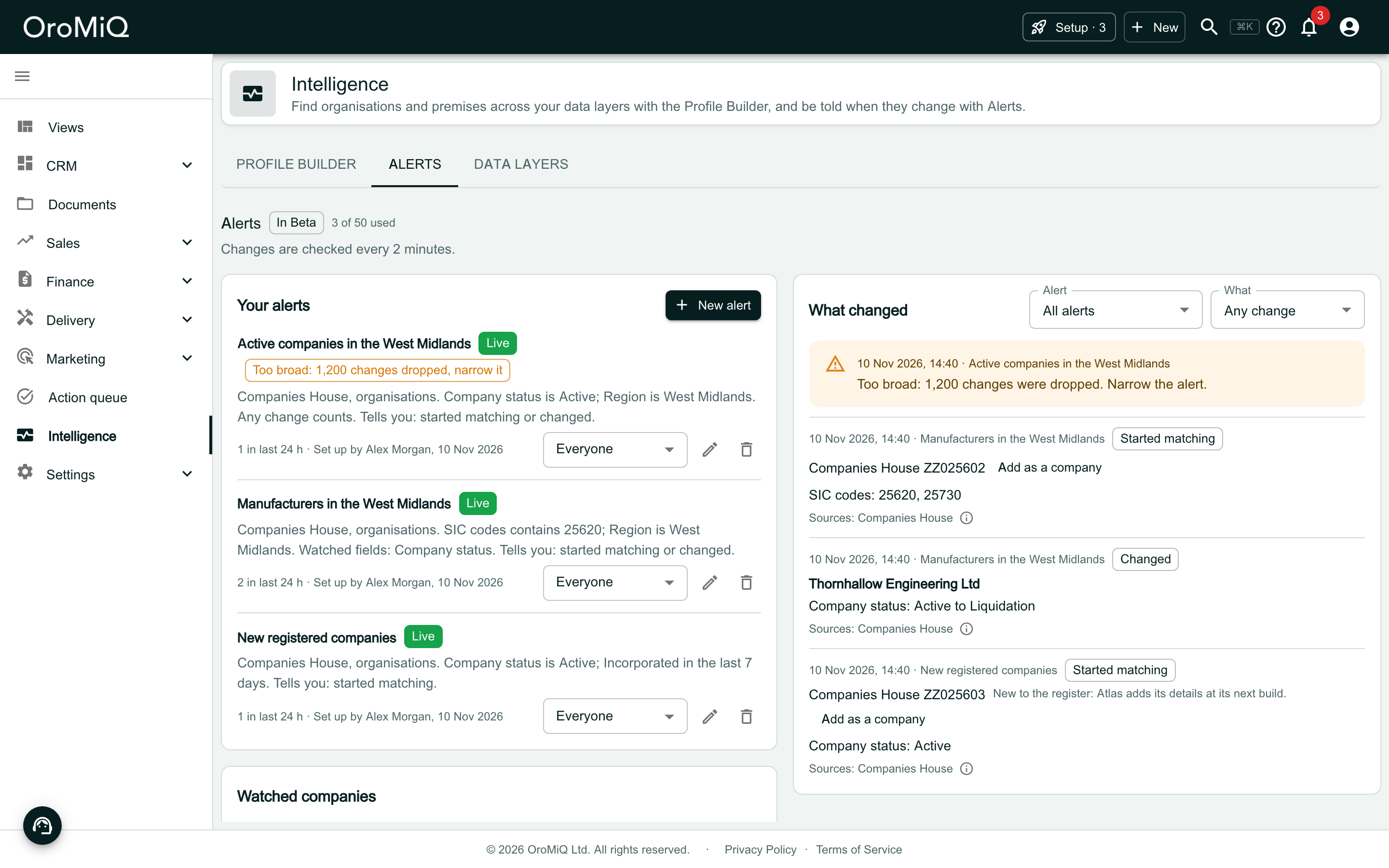
Click Intelligence in the sidebar, then the Alerts tab. It has three parts: Your alerts, Watched companies and What changed.
The count beside the heading shows how many of your workspace’s 50 alerts and watch groups are in use. The line under it says how changes reach you.
Name the alert and add its conditions
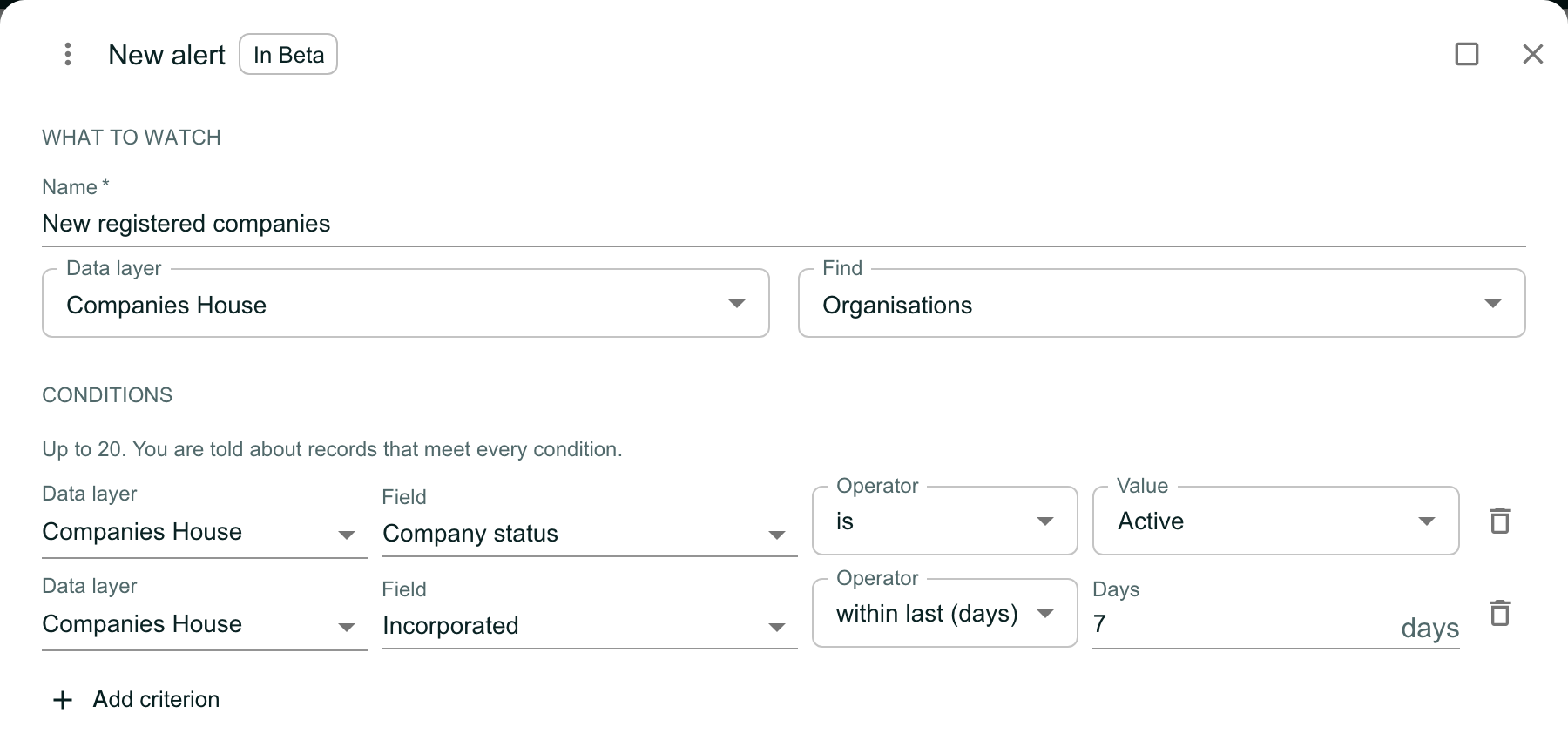
Click New alert. Give it a Name, choose the Data layer, and choose what to Find: Anything, Organisations or Premises.
Click Add criterion for each condition, up to 20. You are told about records that meet every one. At least one must narrow the alert, such as a place, a status or a date; the dialog says so if none does.
The example here finds newly registered companies: Company status is Active, and Incorporated within last (days) 7.
Choose when you are told, and who
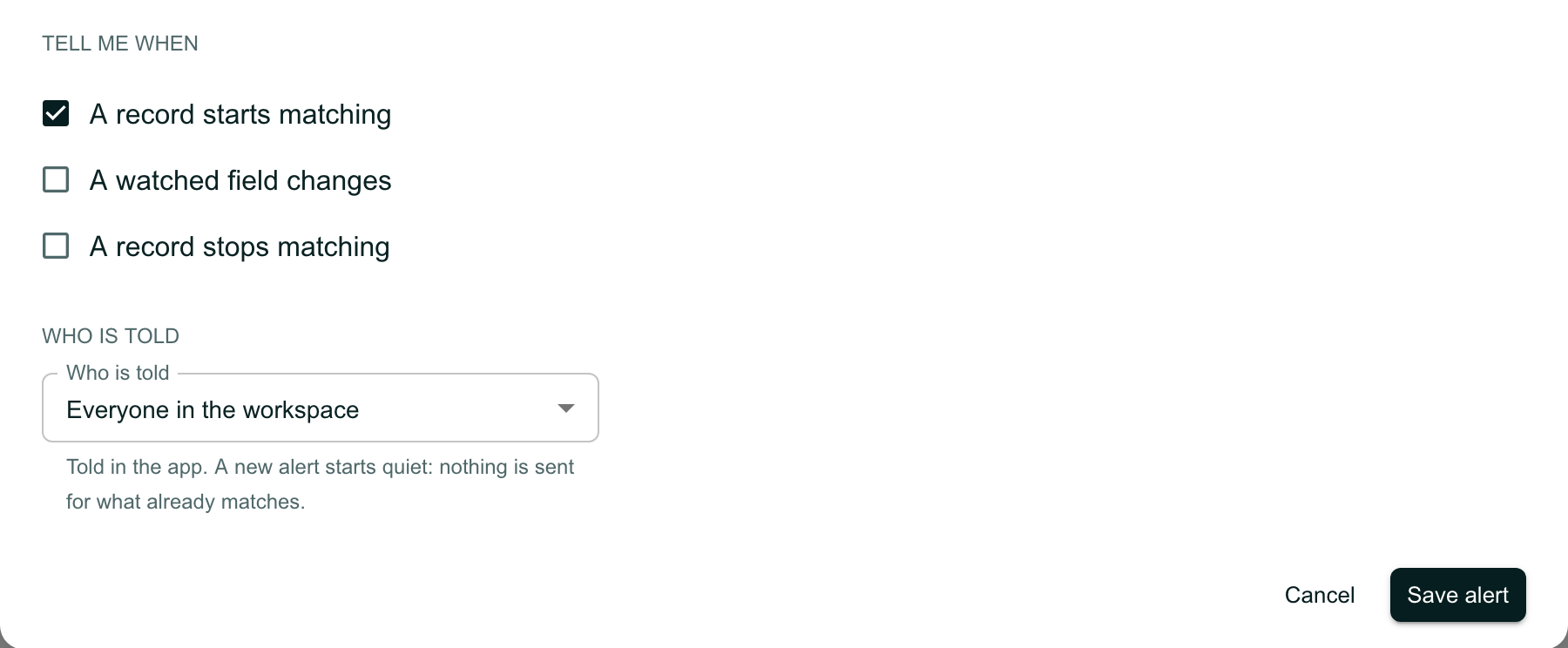
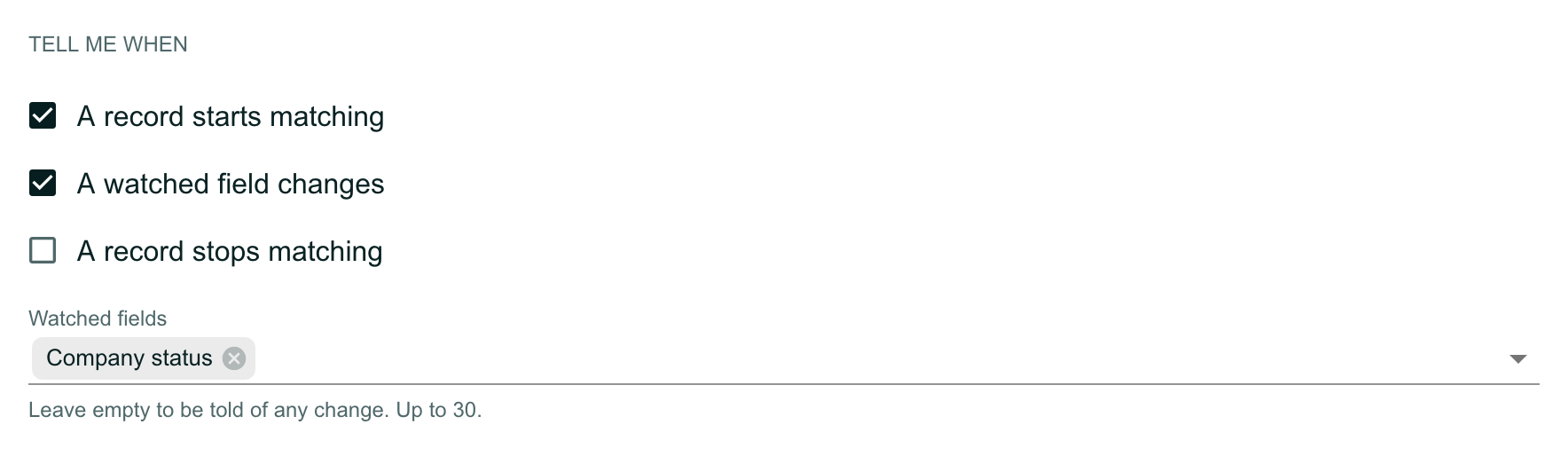
Under Tell me when, tick what counts as news:
- A record starts matching: a new record meets your conditions, or one changes so that it does.
- A watched field changes on a record that matches.
- A record stops matching.
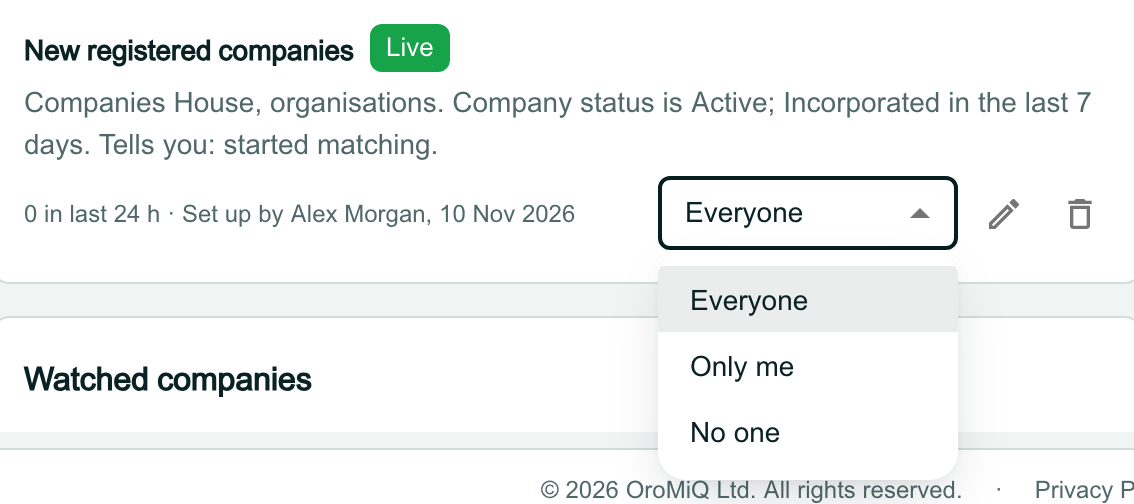
For new registered companies, tick A record starts matching only. Then choose Who is told: Everyone in the workspace, Only me or No one, and click Save alert.
Check that the alert is Live
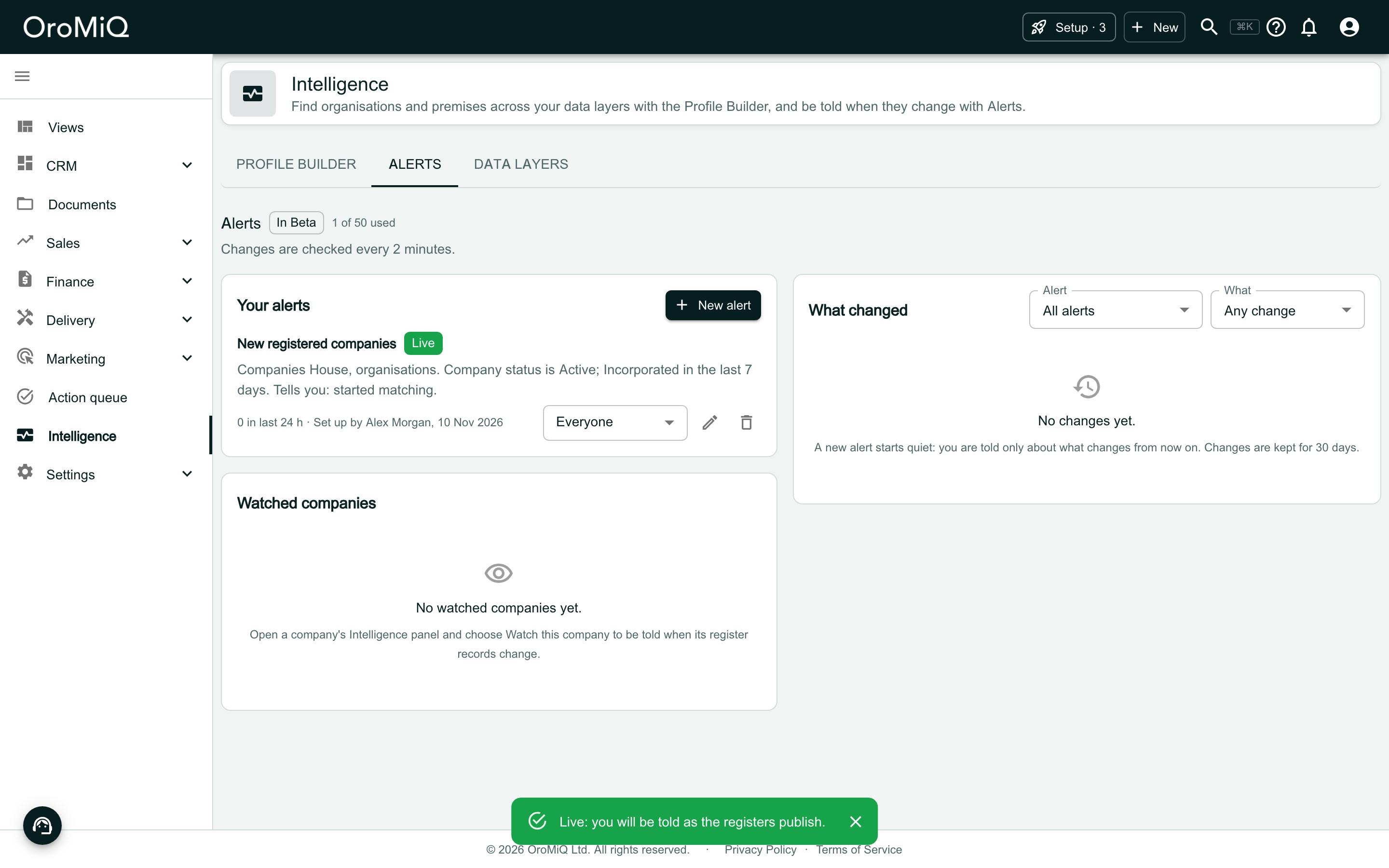
The alert appears in Your alerts with its conditions in words. The chip beside its name says where it stands; hover over it for the reason:
- Live: you are told as the registers publish.
- Waiting: this kind of alert cannot be matched yet. It is kept, and starts by itself when it can.
- Stopped: for example, the data layer it needs was switched off.
- Gone: the alert is no longer held. Delete it and set it up again.
A new alert starts quiet. It tells you nothing about records that already match, only about what changes from now on.
Avoid an alert that fires on everything
A watched field changes is ticked when the dialog opens. If you leave it ticked and choose no watched fields, any change to any matching record counts. An alert on Company status is Active alone would then tell you each time any active company files its accounts or changes an officer: hundreds of times a day. Its summary says Any change counts.
Either untick A watched field changes, as in the example above, or choose the fields you care about in the next step.
Watch only the fields that matter
When A watched field changes is ticked, a Watched fields box appears. Choose up to 30 fields. You are then told only when one of those changes.
This second example, Manufacturers in the West Midlands, tells you when a company starts matching or its Company status changes.
Change who is told, rename or delete an alert
Use the choice on an alert’s row to change who is told. It saves straight away.
To give an alert a clearer name, click the pencil icon on its row, type the new name and click Save. Only the name changes: the alert carries on, and what it has found stays listed under it.
You cannot change an alert’s conditions once it is saved. To change them, click the delete icon, confirm, and set up a new alert. A new one starts quiet again.
Or start from a saved search
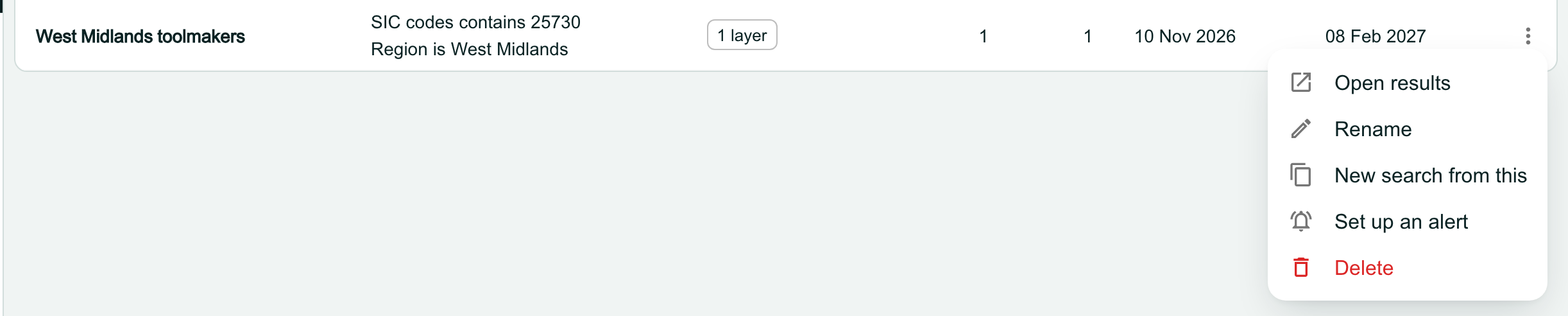
If you have already built the search you want in Profile Builder, open the Profile Builder tab, click the menu at the end of the saved search’s row and choose Set up an alert.
Check the filled-in alert, then save it
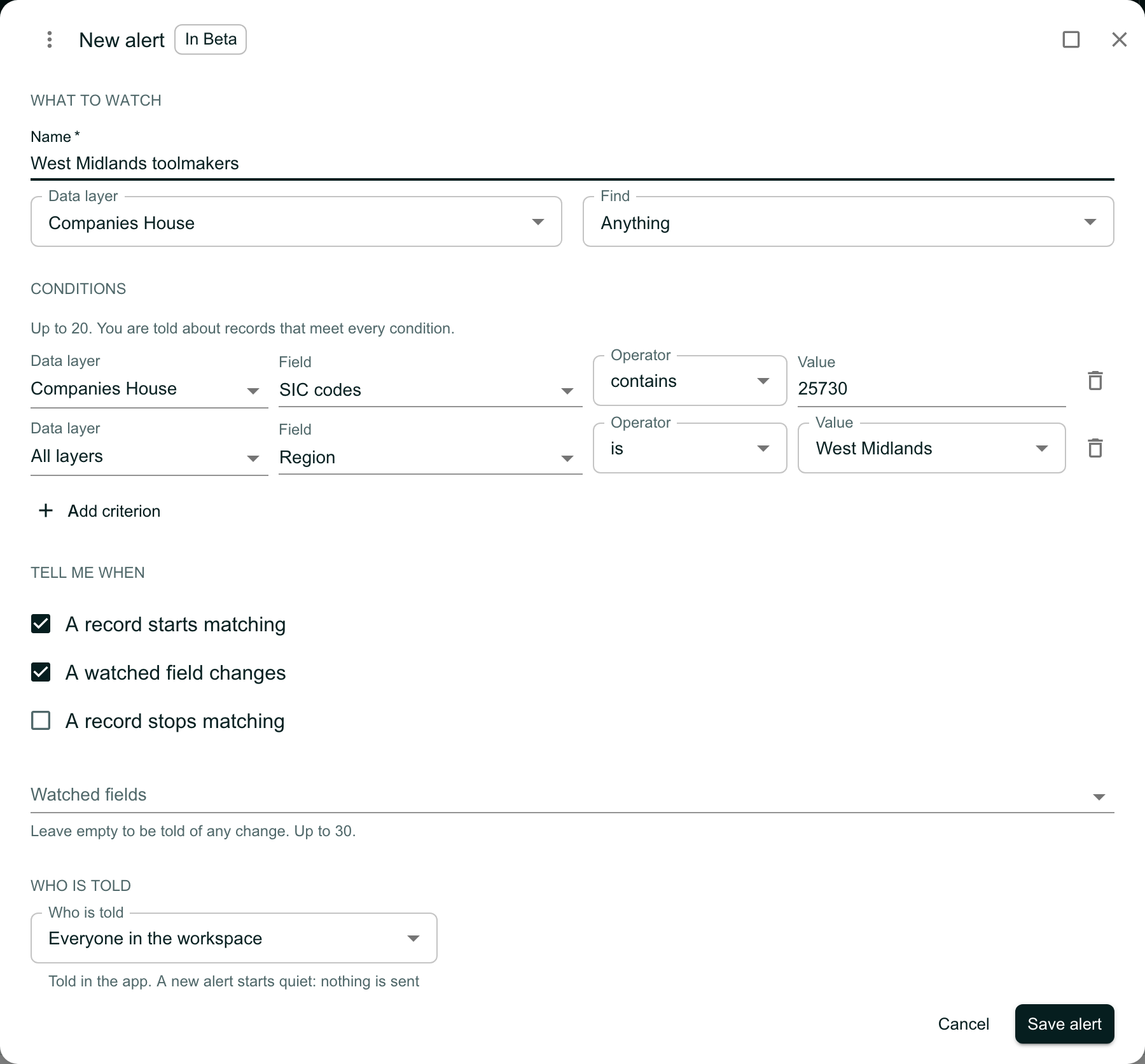
The dialog opens with the search’s name, data layer and conditions filled in. An alert reads one data layer, so conditions on another layer are left out, and the dialog says so.
Check Tell me when and the Watched fields, as in steps 3 and 5, then click Save alert.
Read What changed
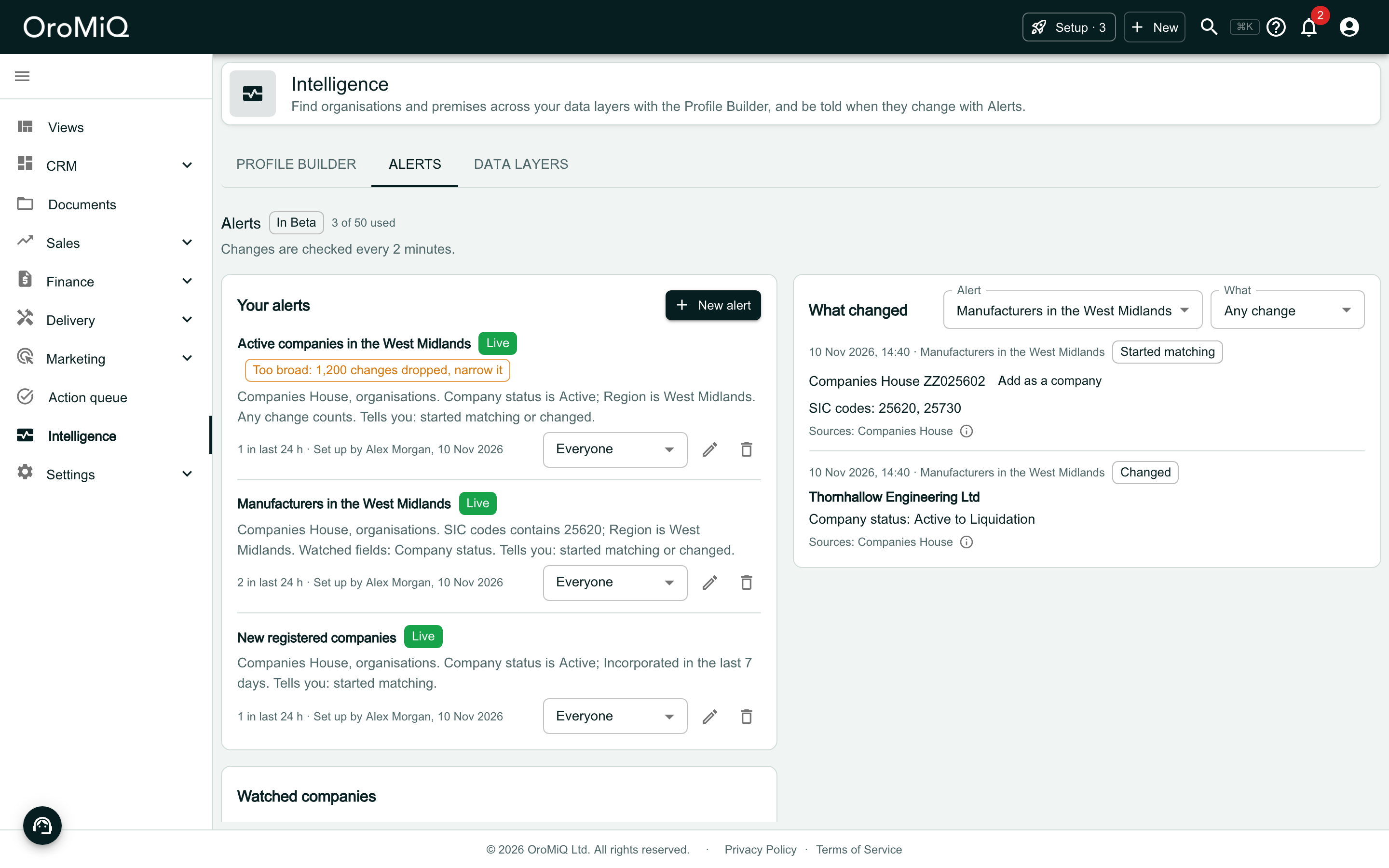
What changed lists what your alerts and watched companies found, newest first. Changes are kept for 30 days. Each alert’s row also says how many changes it found in the last 24 hours.
Read a change
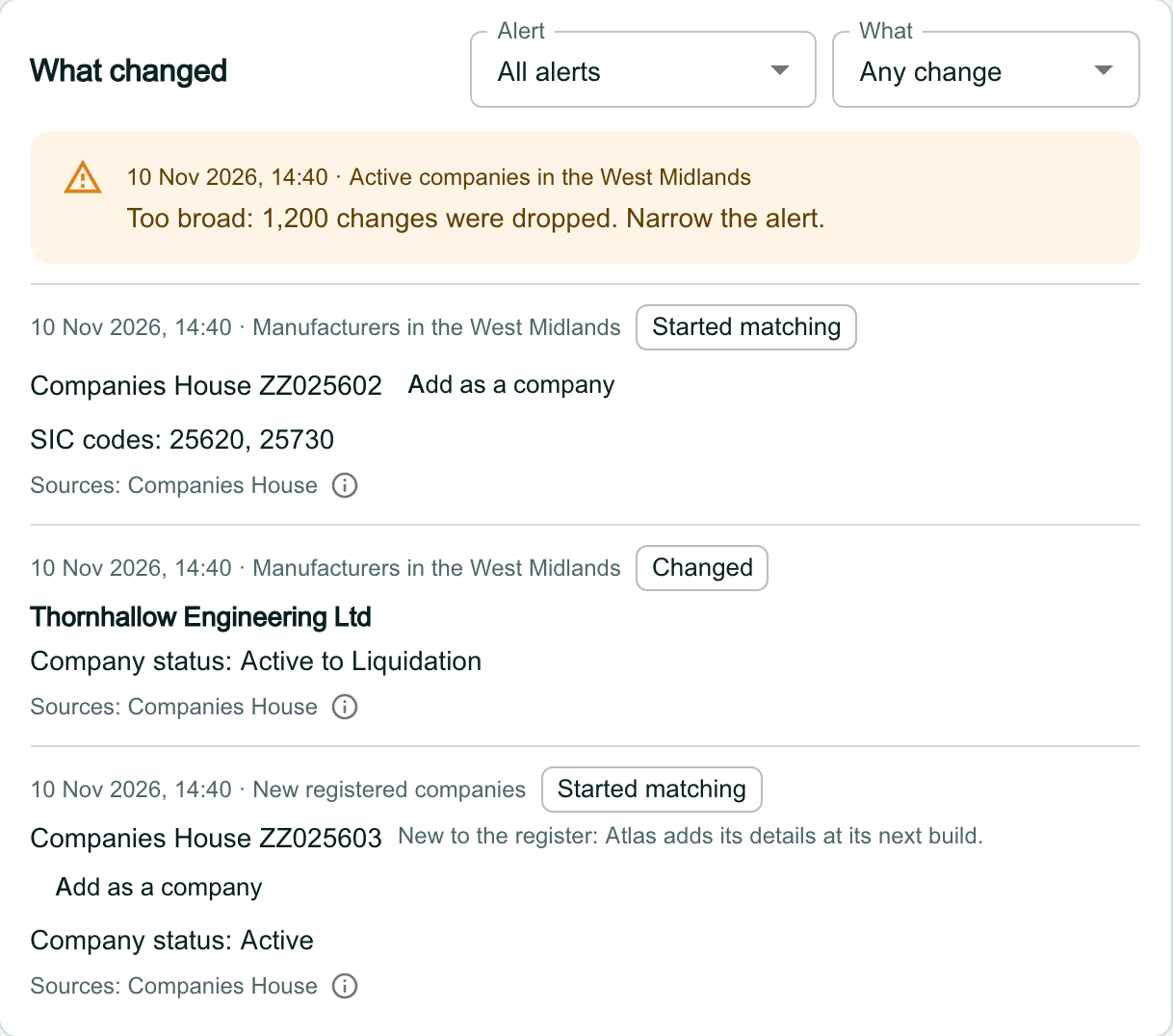
Each change shows when it happened, which alert found it, and what happened:
- The change in words, such as Company status: Active to Liquidation.
- The company in your CRM it is about, as a link to its page. If you do not hold the company yet, you see its register reference and Add as a company instead.
- A company brand new to the register shows New to the register: Atlas adds its details at its next build. Atlas is the service that supplies your data layers; the full record follows when it next updates.
- Sources names where the data comes from. Click the information icon for the licence lines.
If an alert is too broad
An alert that matches too much has some of its changes dropped. A warning row in What changed says how many, such as Too broad: 1,200 changes were dropped. Narrow the alert., and the alert’s row carries a Too broad chip (both are in the pictures above).
Delete the alert and set up a narrower one: add a condition, choose watched fields, or untick A watched field changes.
Filter the changes
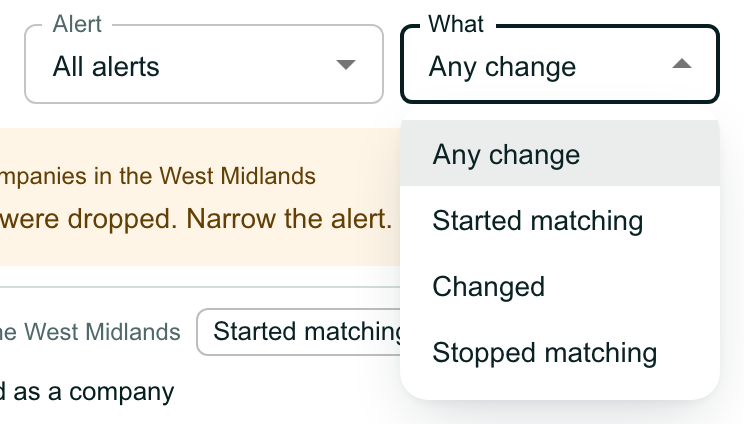
Use Alert to see one alert’s changes, and What to see only Started matching, Changed or Stopped matching.
Open a record you do not hold yet
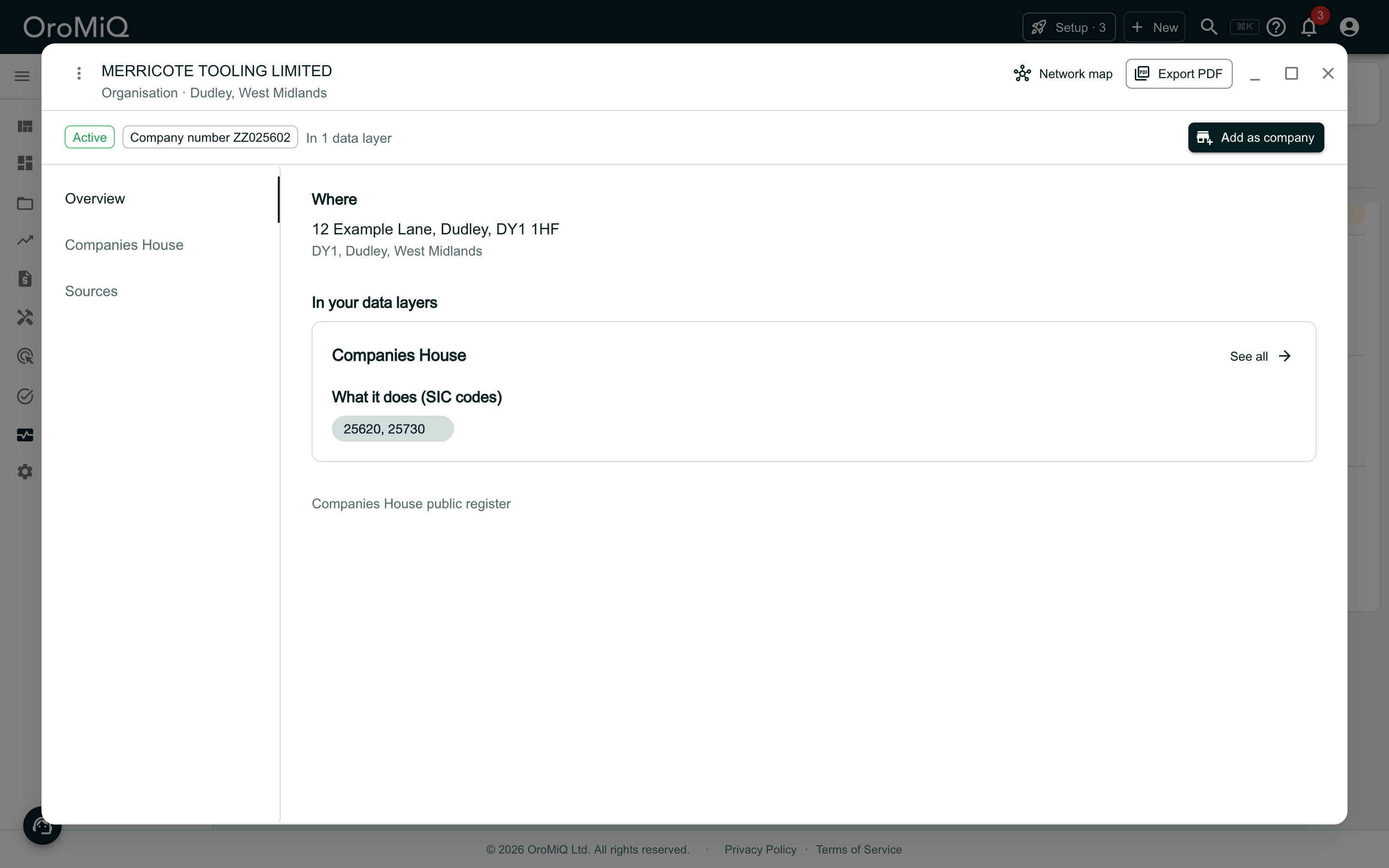
Click a register reference, such as Companies House ZZ025602. The record opens in a window over the tab, so your place in the list stays. Close the window to go back.
Add it as a company
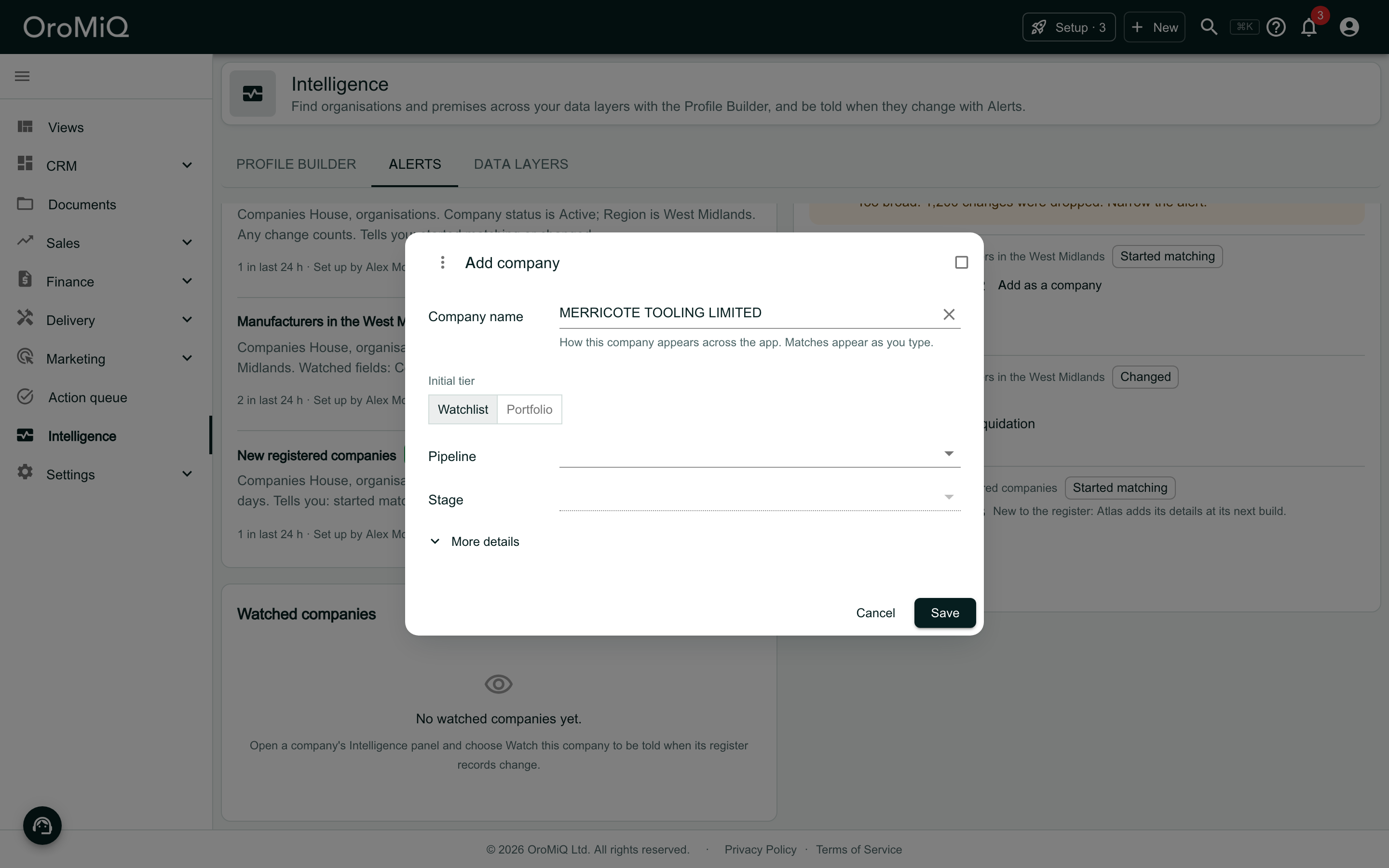
Click Add as a company on the change, or Add as company in the record’s window. The Company name starts as the name on the register, which you can change. For a company new to the register that Atlas has not added yet, it starts empty: type the company’s name.
Choose the Initial tier and, if you like, a Pipeline and Stage, then click Save. The new company is linked to the register record.
Get told in the app
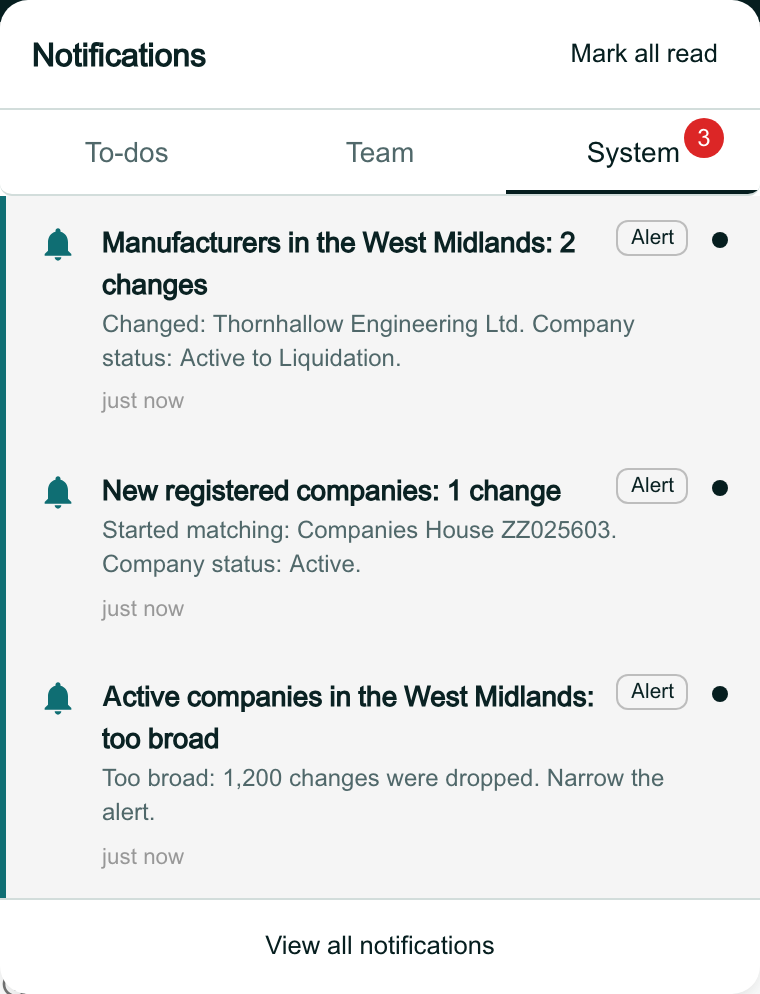
Each time an alert finds something, the people it tells get one notification for that batch, such as New registered companies: 1 change. Click the bell at the top of the page and open the System tab to see them. Alerts send no email.
Open an alert's changes from its notification
Click a notification. The Alerts tab opens with What changed filtered to that alert, and the notification is marked as read.
Watch a company
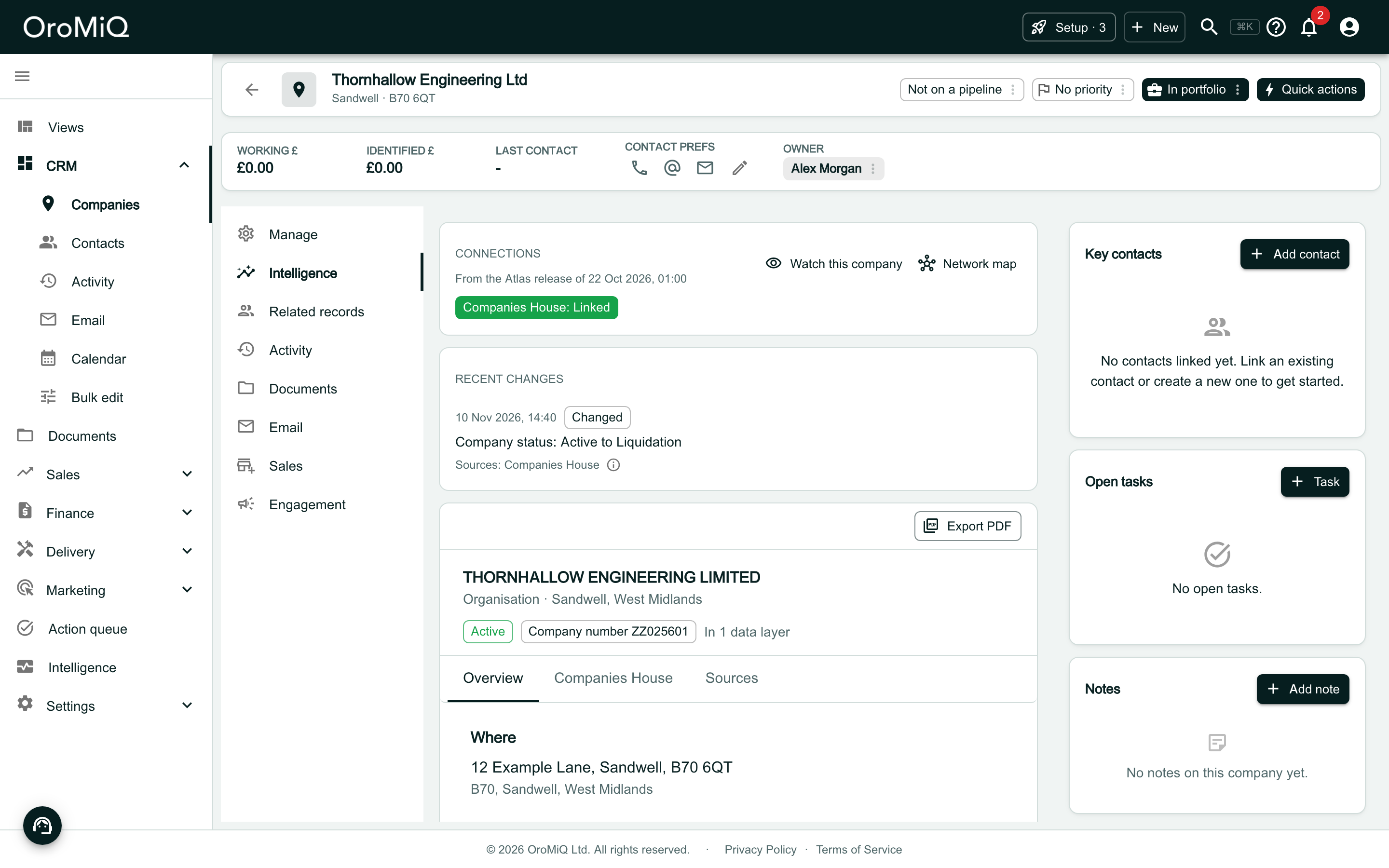
To follow one company rather than a search, open the company and click Intelligence. The company must be linked to a register record (see Read a company’s Intelligence).
Recent changes lists what your alerts have found about this company. Click Watch this company to be told of any change to its register records.
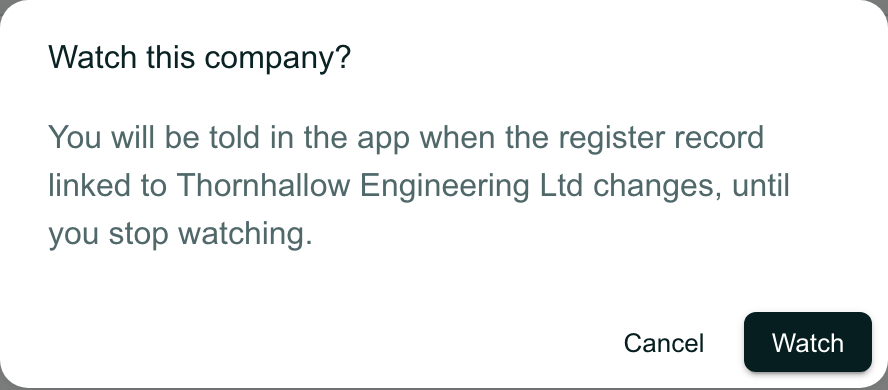
Confirm the cost
The confirmation says which register records are watched. Click Watch.
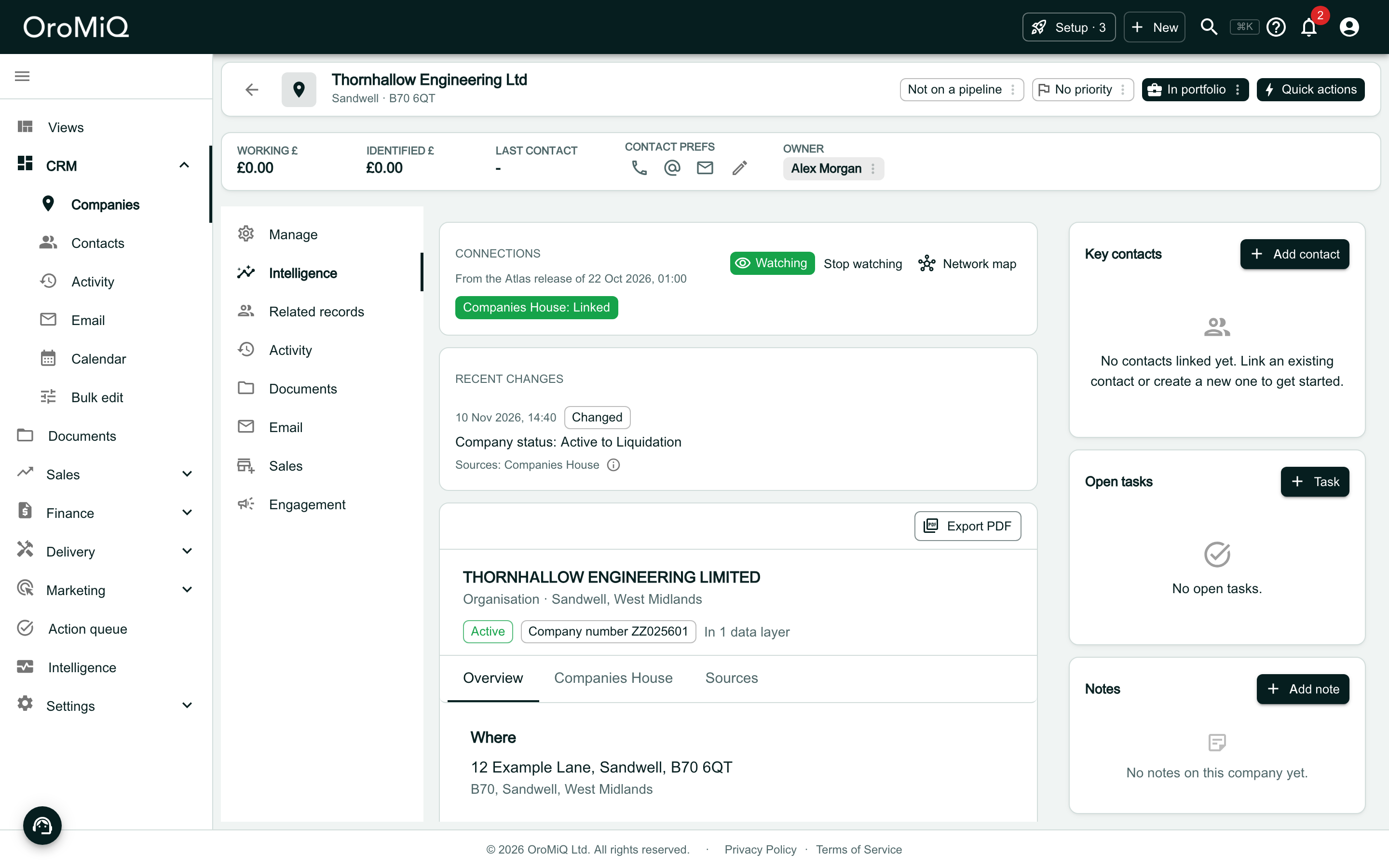
Check that it is watched
The button becomes a Watching chip, with Stop watching beside it.
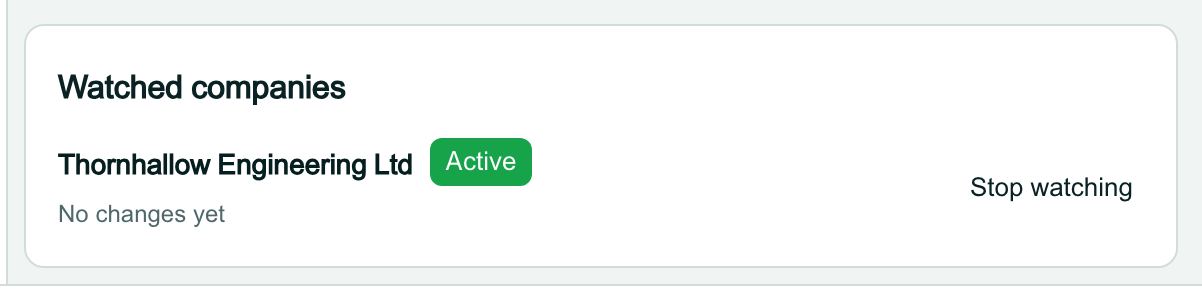
See your watched companies
Back on the Alerts tab, Watched companies lists each company with its status and its last change:
- Active: watched; you are told when its register records change.
- Paused: the data layers have paused the watch. It carries on by itself.
- Not linked: the company has no register record to watch. Link one first.
Click Stop watching to stop. Watched companies are kept in groups, and each group counts as one of your workspace’s 50.
What next
Cannot find what you need? Browse the Help Centre or submit a support ticket.