Troubleshooting & FAQs
Raise a support request and follow it
Before you start
Nothing to set up: every team member can raise a request and sees only their own requests.
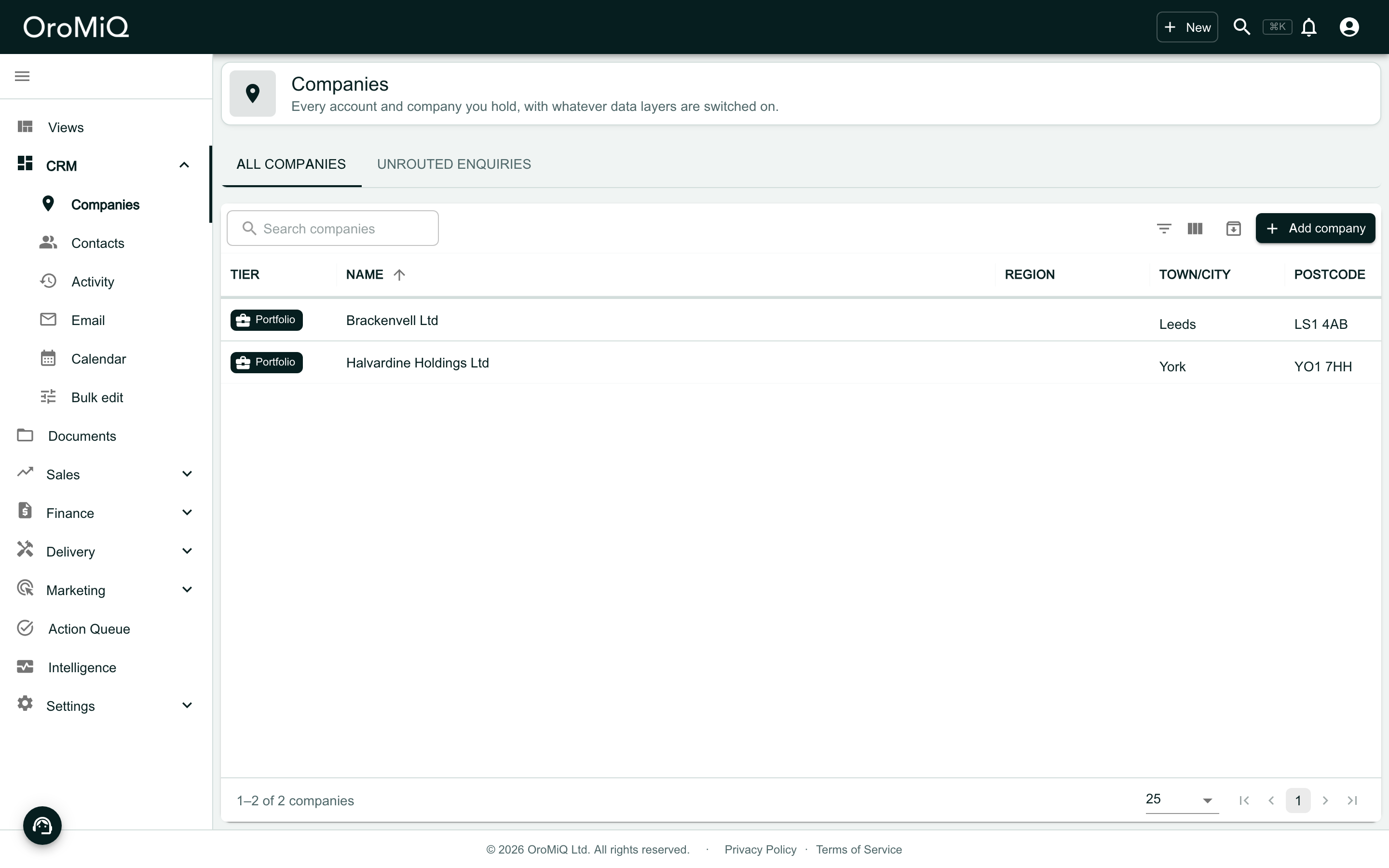
Find the Support button
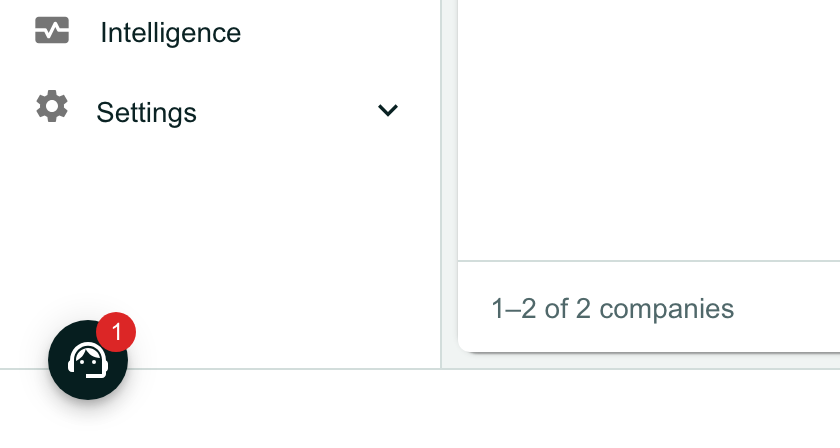
The round Support button with a headset sits at the bottom left of every page. Open the page the problem is on before you click it, so the screenshot shows it.
Describe what you need
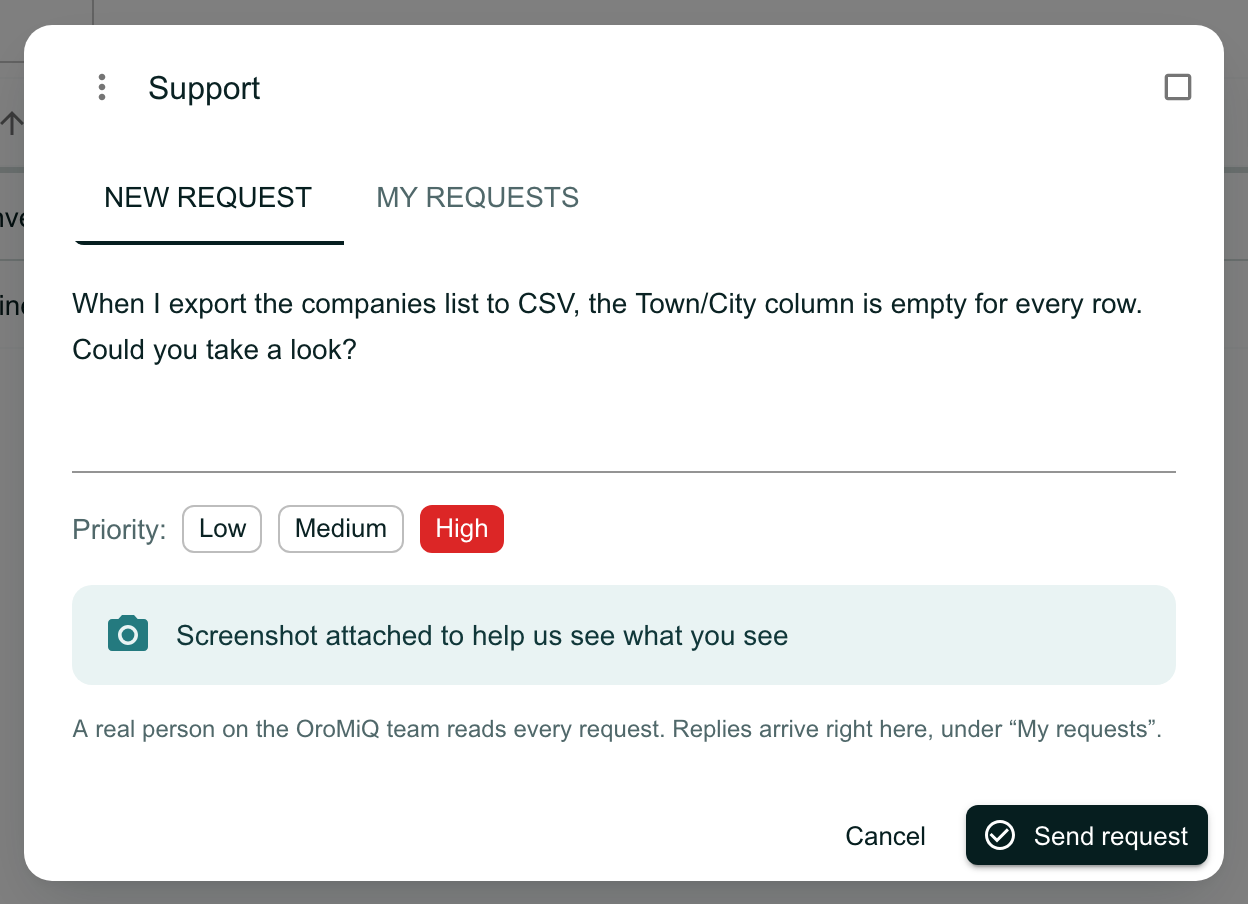
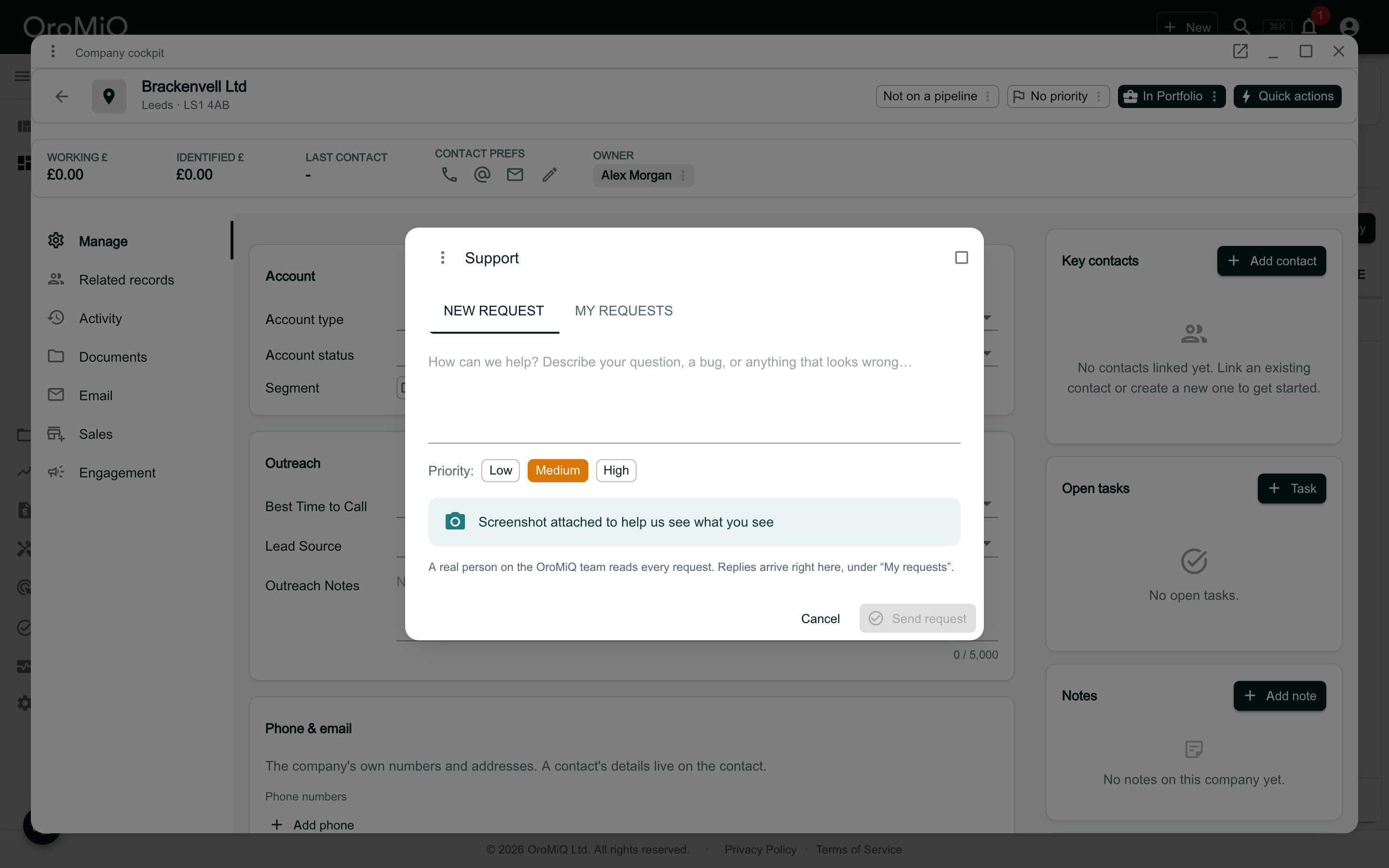
Click the button. On New request, say what you were doing and what happened, or ask your question. Choose a Priority: Low, Medium or High.
A screenshot of the page behind is attached for you, so the team sees what you see.
Send it
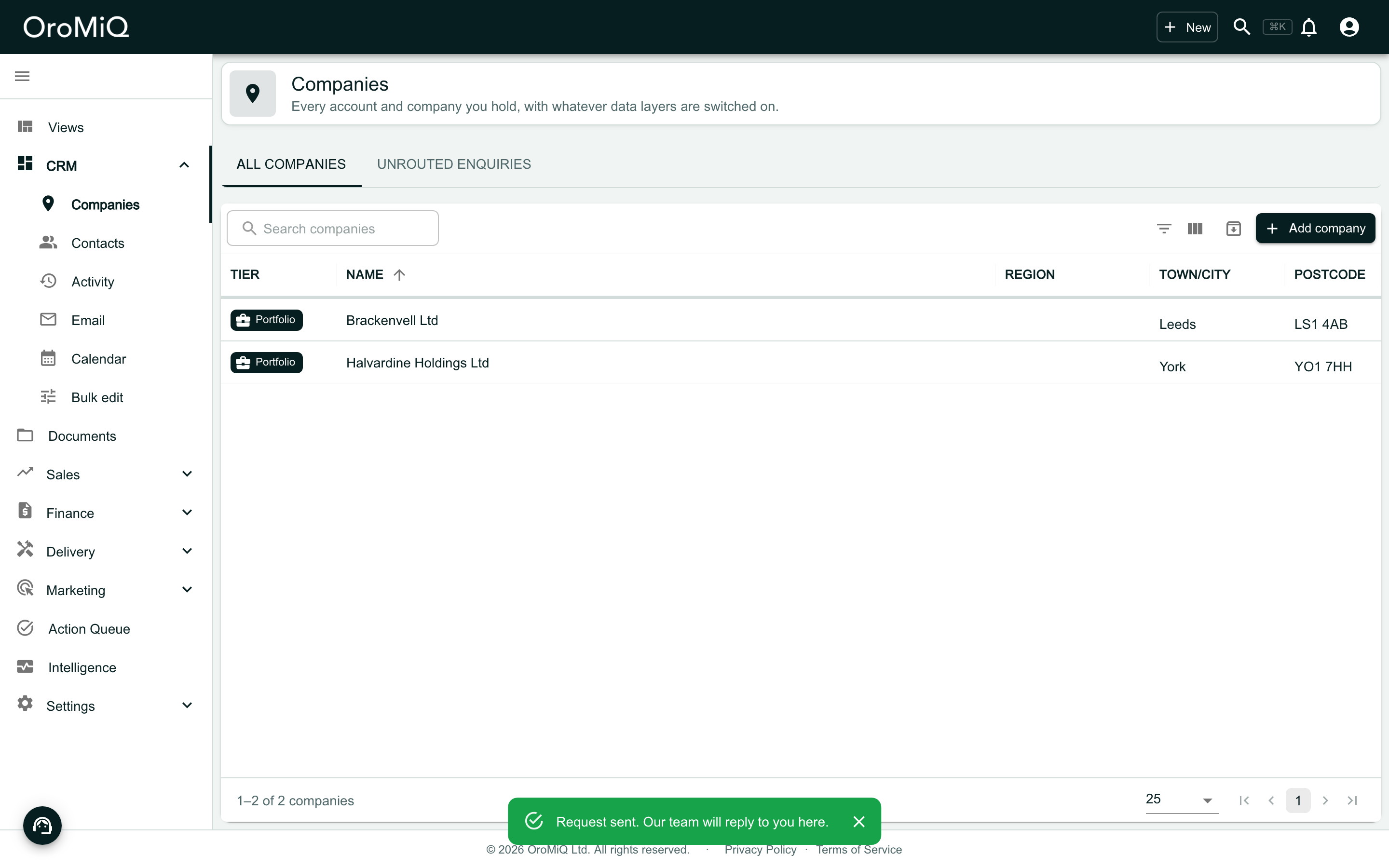
Click Send request. A message confirms it was sent, and that the reply will come to you here in OroMiQ.
See your requests
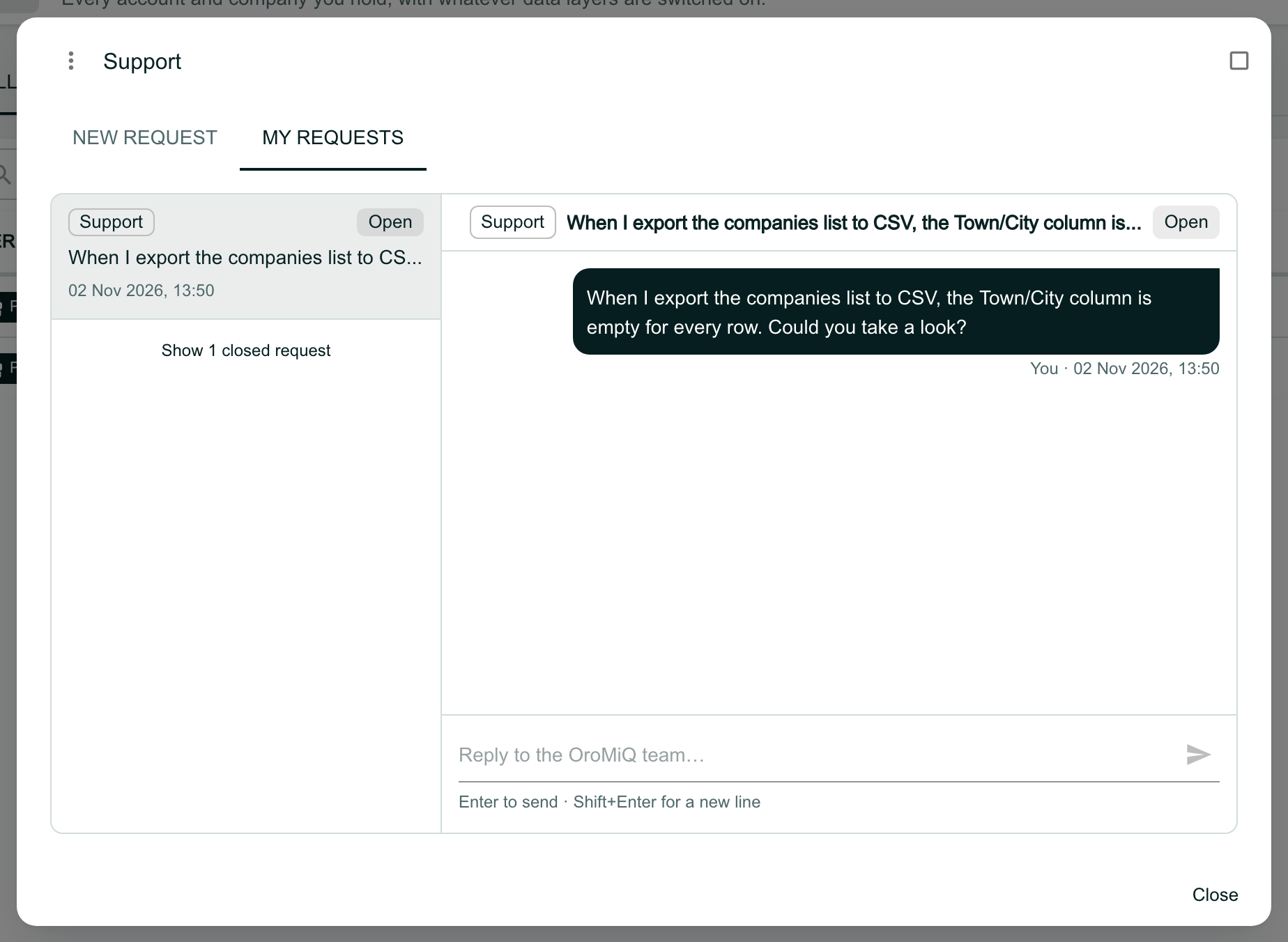
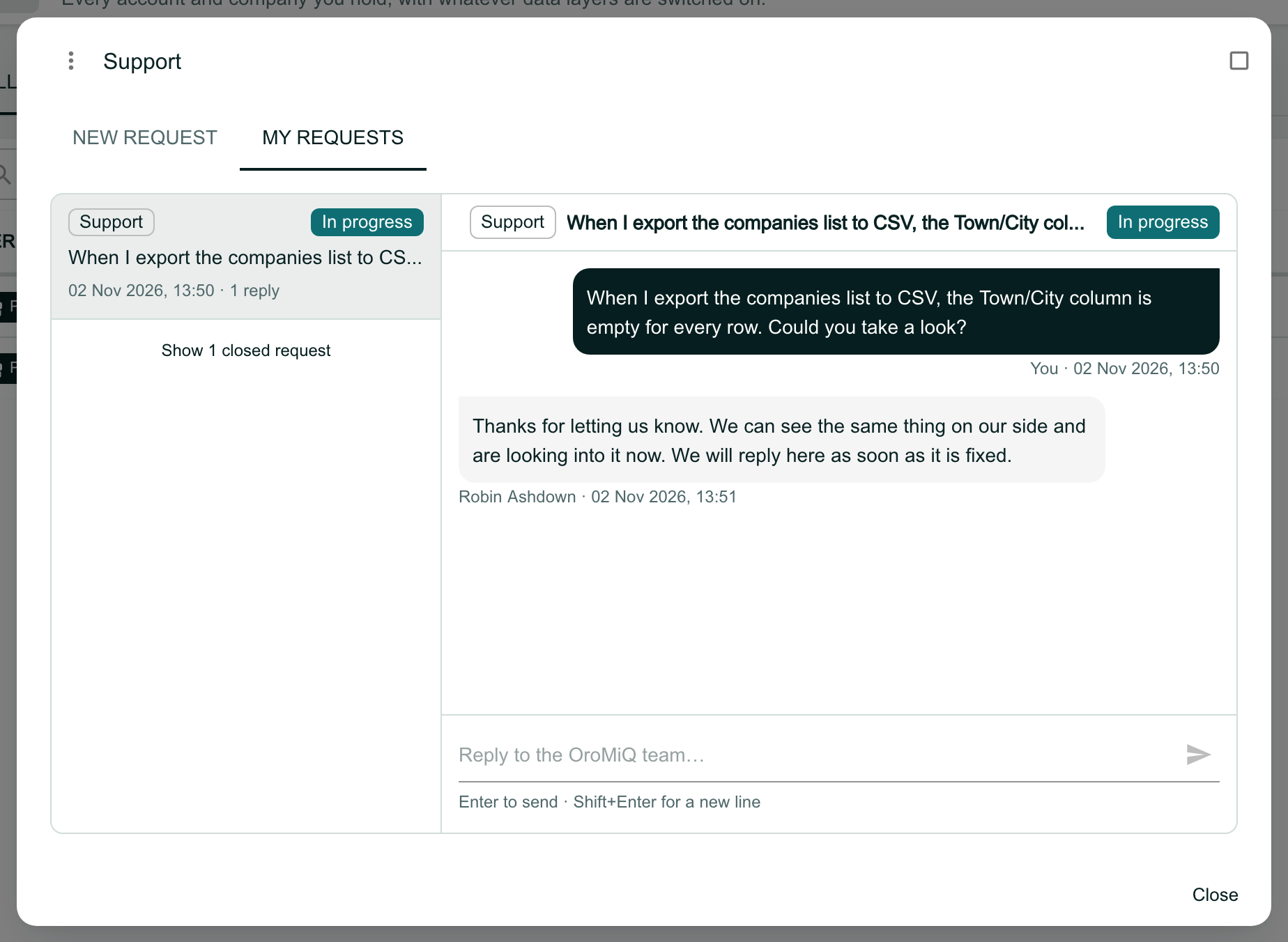
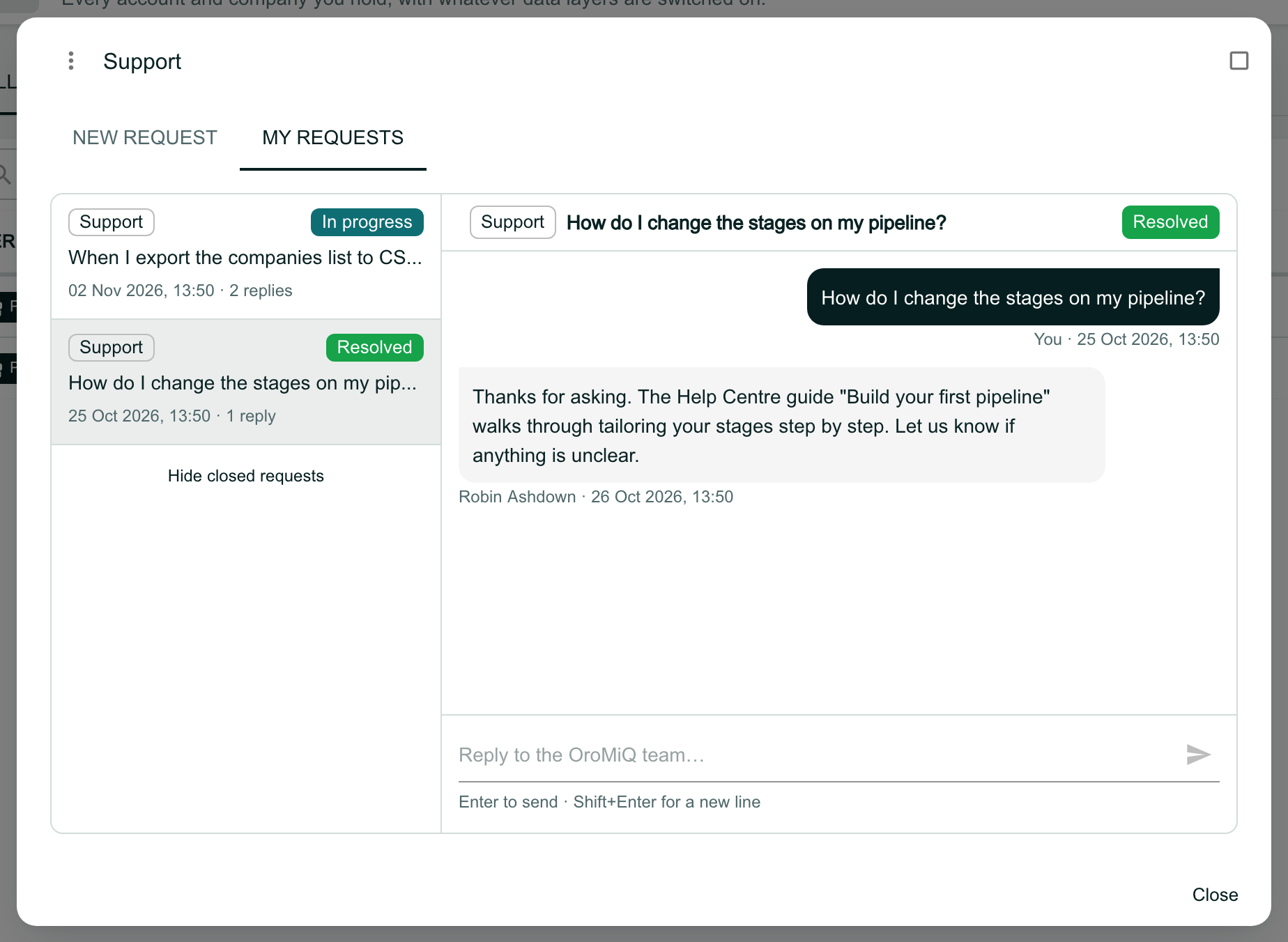
Open Support again and click My requests. Each request shows its status: Open when it is new, In progress while the team works on it, and Resolved or Closed when it is done. Click one to read its conversation.
Know when the team replies
When the team replies, a red badge on the Support button counts the replies you have not read yet.
Or see it in your notifications
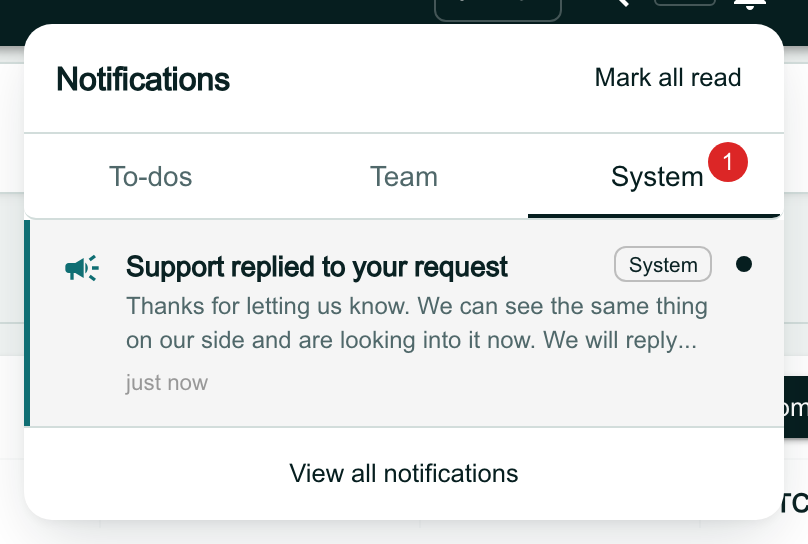
The reply also arrives as a notification: click the bell at the top right, and it is on the System tab as Support replied to your request.
Read the reply
Open Support, then My requests, and click the request. The team’s reply sits under your request, with who wrote it and when, and the request now reads In progress. Opening it marks the reply as read, so the badge goes.
Answer in the same conversation
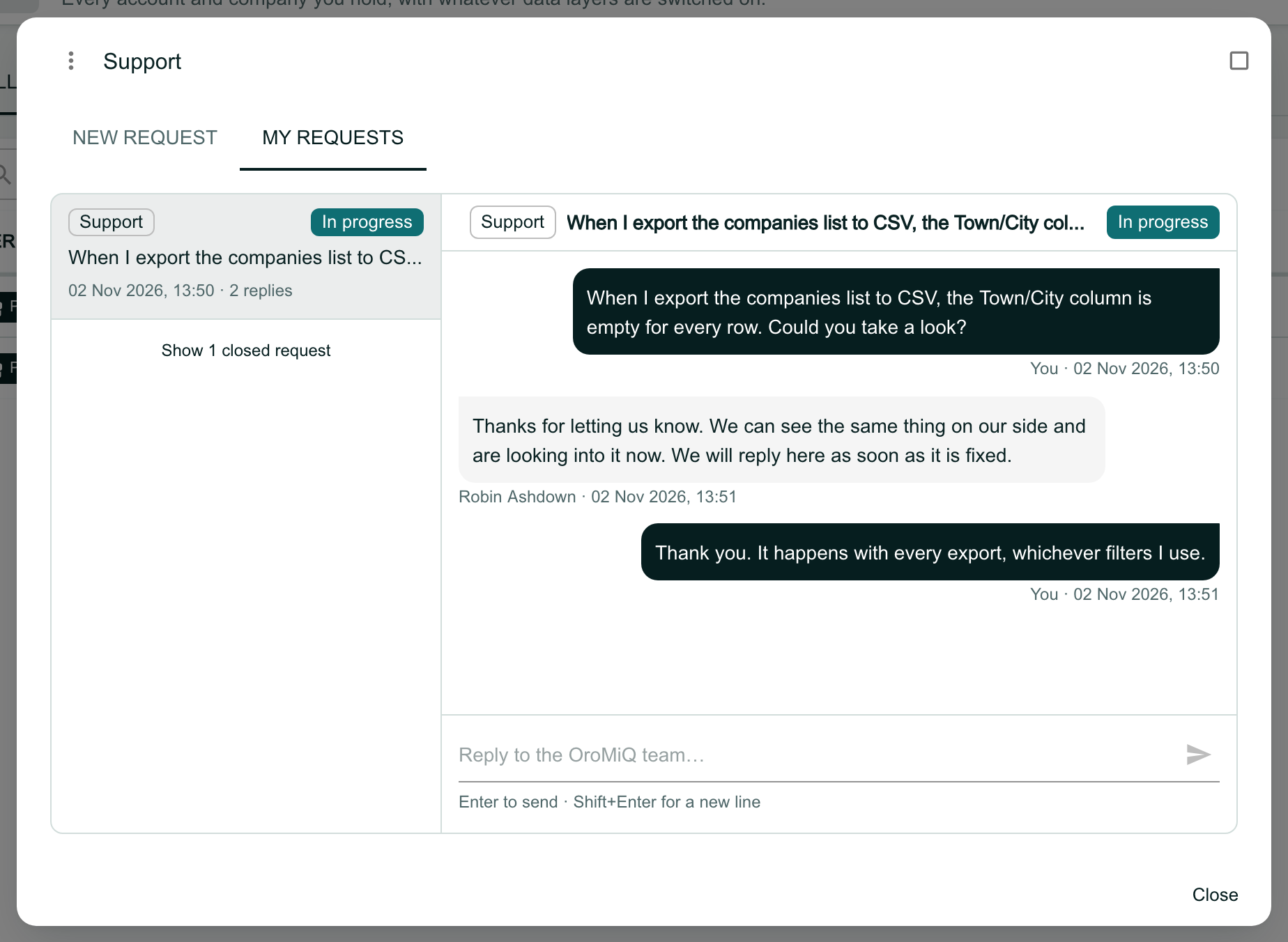
Type in the box at the foot and press Enter (or click the send arrow). Press Shift+Enter for a new line. The team sees your answer in the same conversation.
Find a closed request
Resolved and closed requests are hidden to keep the list short. Click Show 1 closed request under the list to see them again.
Report a problem from a window
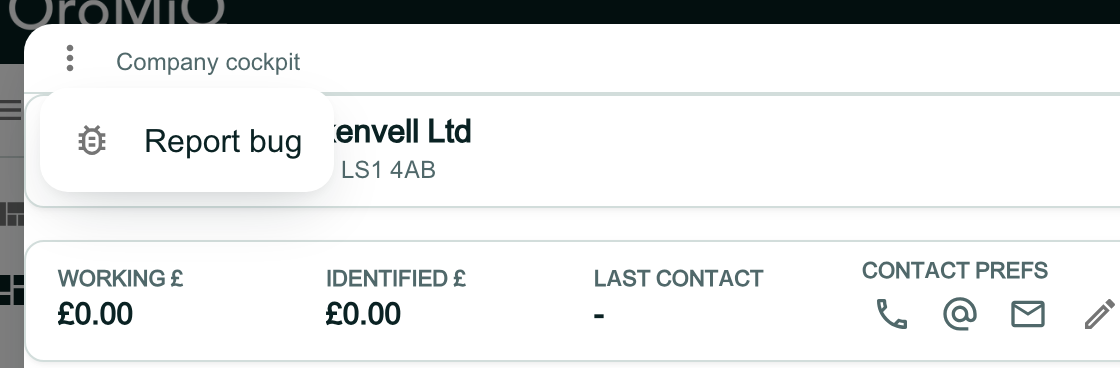
A window can cover the Support button, so windows have their own way in: click the three dots at the left of the title bar, then Report bug.
Send it as before
The Support window opens over it, on New request, and the request also tells the team which window you were in. Describe the problem and click Send request.
Note
What next
Cannot find what you need? Browse the Help Centre or submit a support ticket.