Getting started
Work with windows
Before you start
Nothing to set up: windows work for every team member, with or without data layers.
Search for a record
Click the magnifying glass at the top of the screen (or press Ctrl+K, Cmd+K on a Mac) and type part of a company’s name.
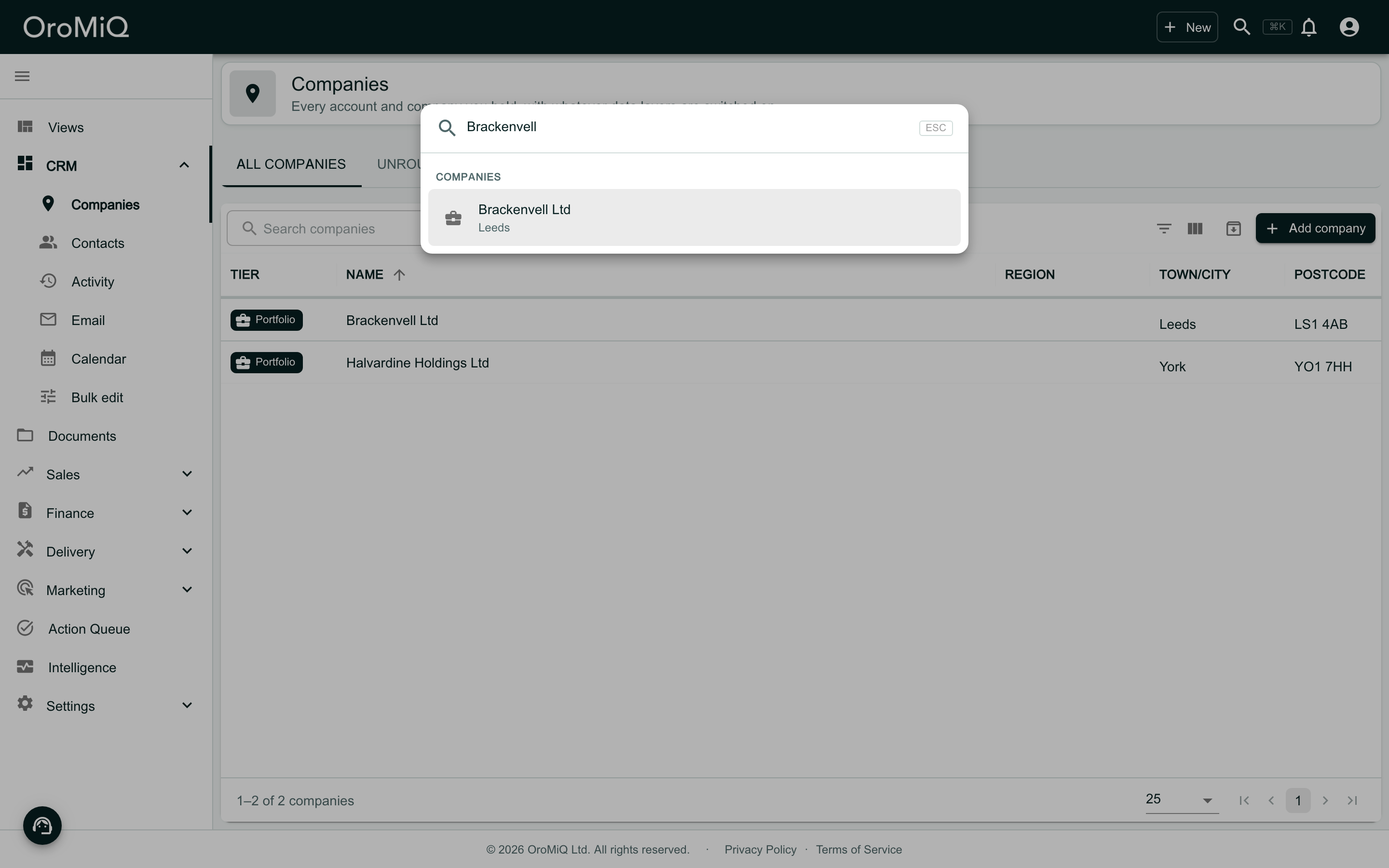
Open it in a window
Click the result. The company opens in a window over the page, with everything its own page has: its left-hand menu, cards and actions. The page you were on stays where it was behind it.
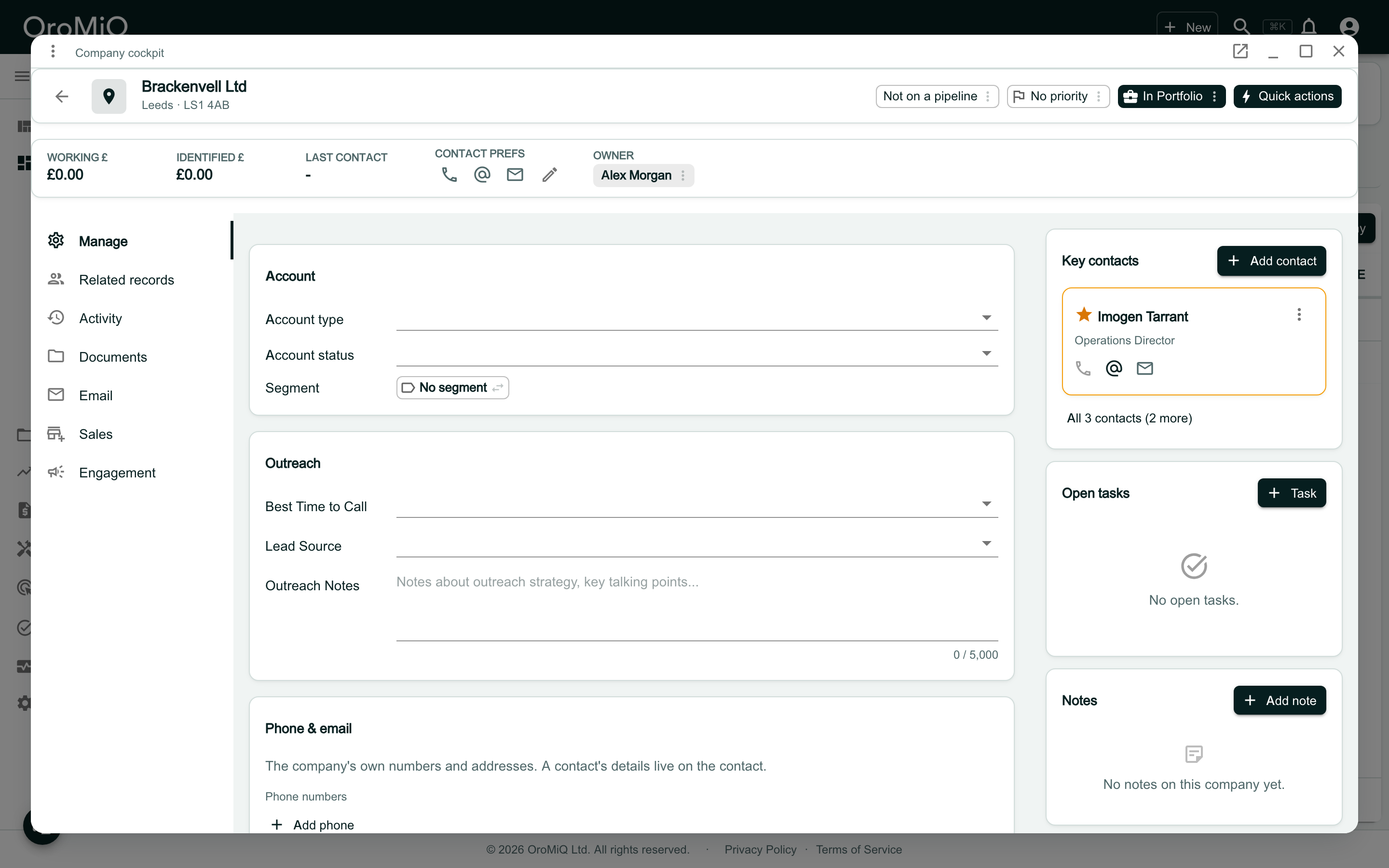
Use the title bar
The buttons at the right of the title bar, from left to right:
- Open full page leaves the window and opens the record’s own page.
- Minimise puts the window in the dock.
- Maximise makes it fill the screen.
- Close closes it.

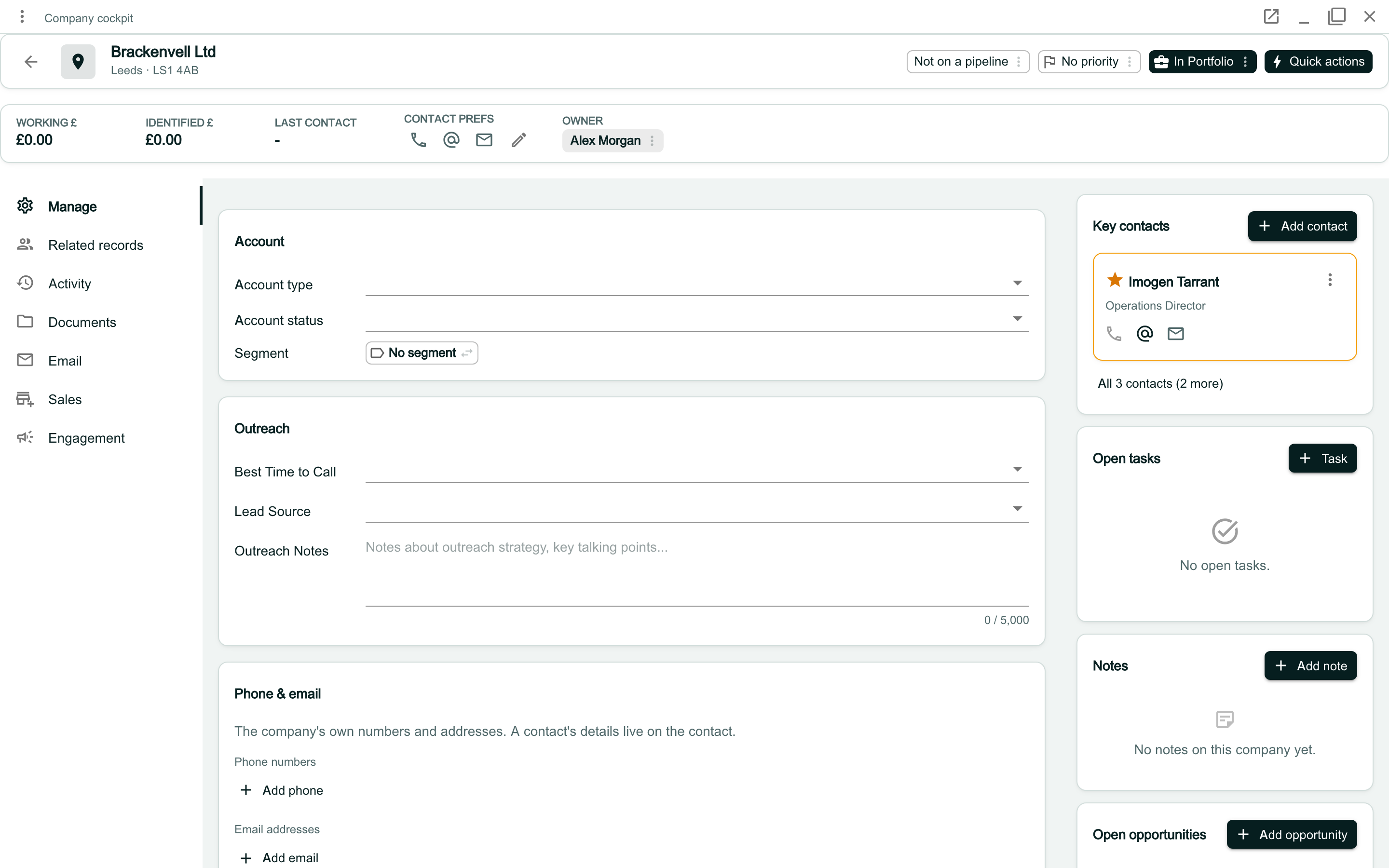
Maximise it
Click Maximise, or double-click the title bar, to give the window the whole screen. Click Restore down to put it back to its size.
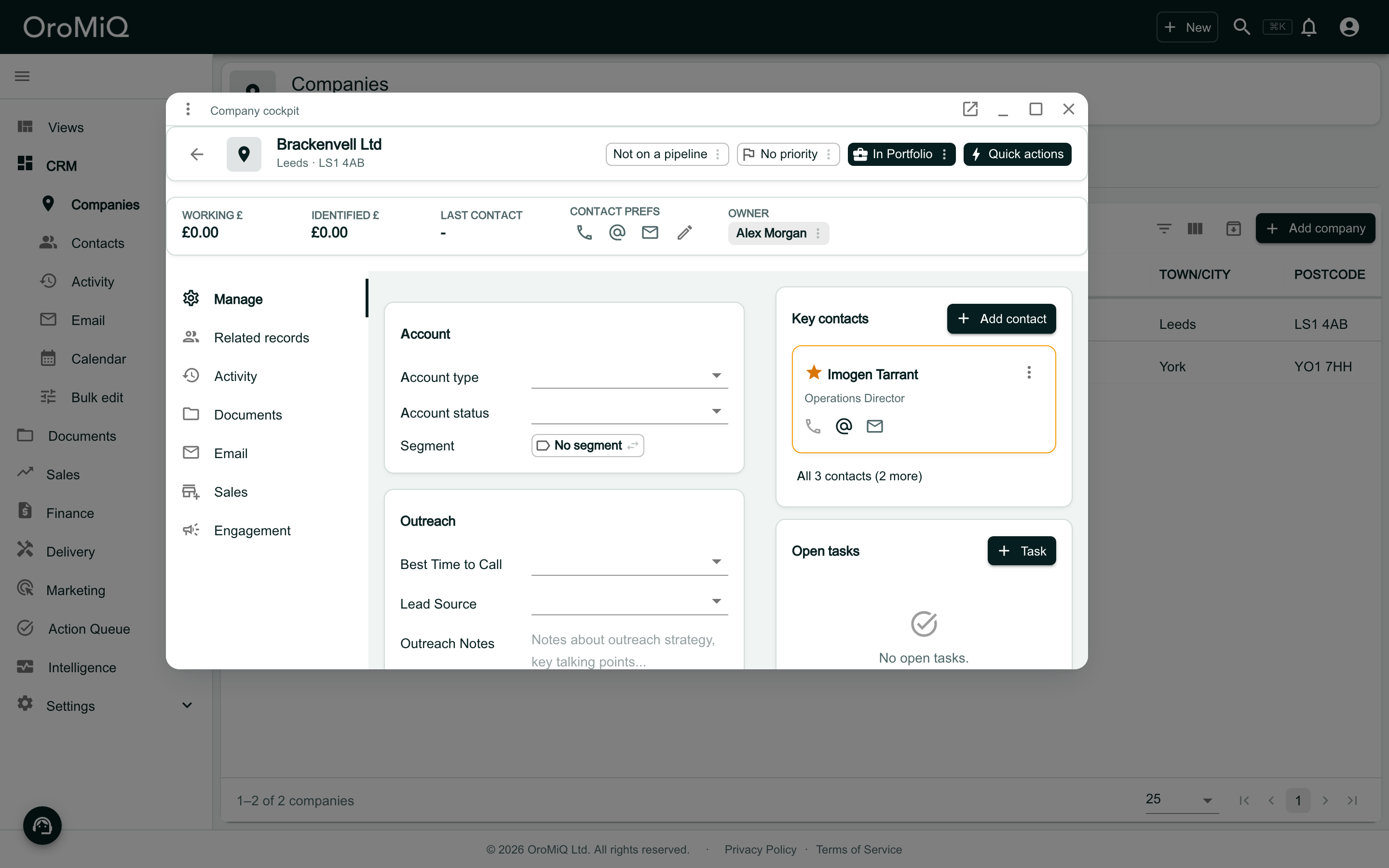
Move and resize it
Drag the title bar to move the window. Drag any edge or corner to resize it, for example to see the page behind while you work.
Put it back where it was
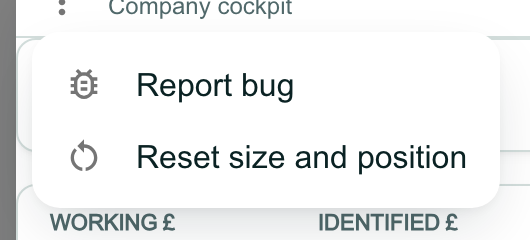
OroMiQ remembers the size and position you leave each kind of window at, on this device. To start again, click the three dots at the left of the title bar, then Reset size and position.
Report bug in the same menu opens a support request about this window; see Raise a support request and follow it.
Minimise it to the dock
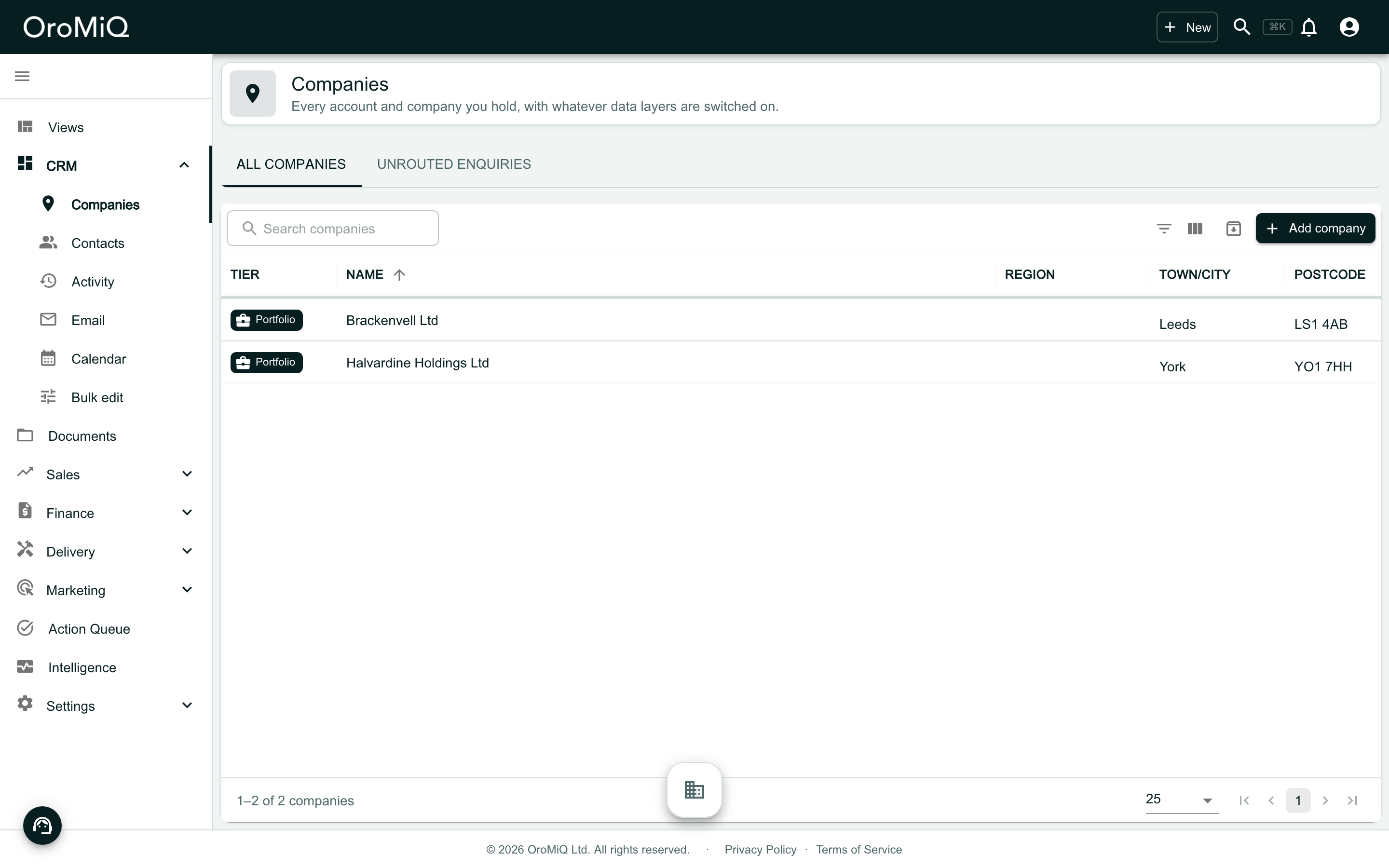
Click Minimise. The window goes to the dock, a small bar at the foot of the screen, with a button for each window you have open.
See which window is which
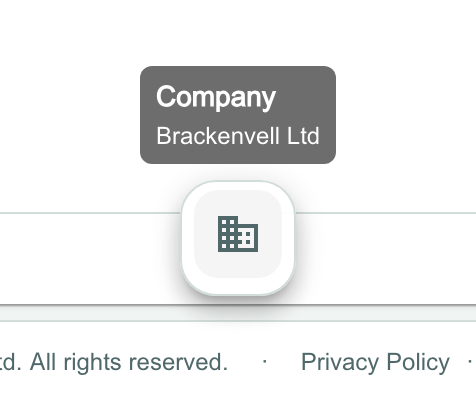
Point at a button in the dock to see what the window is. Click it to bring the window back.
Move to another page
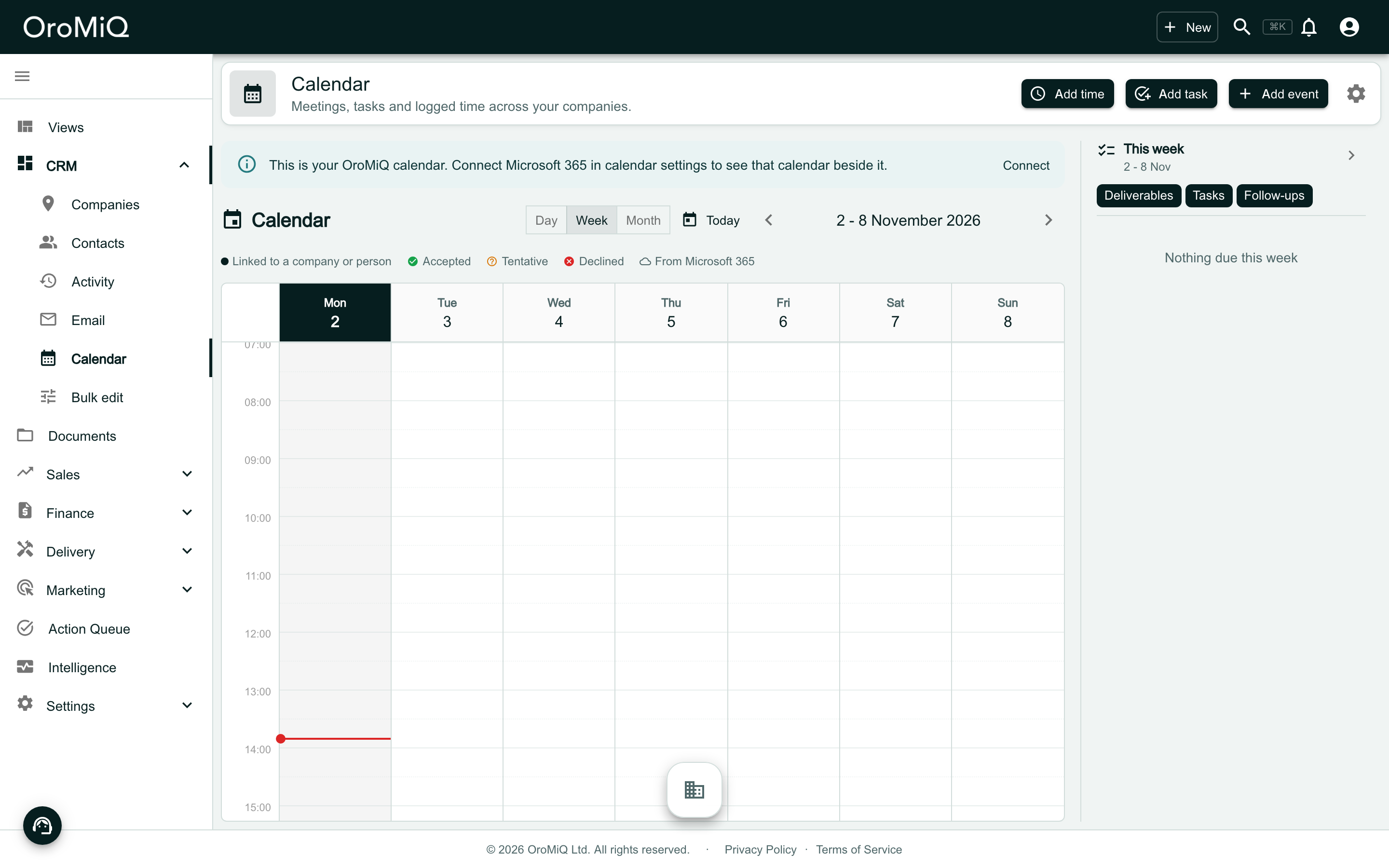
Go anywhere in OroMiQ, here to Calendar in the left-hand menu. Your windows come with you in the dock, ready to pick up where you left off.
Open a second window
One window is open at a time. Open another, here a linked company from the first window’s Related records, and the first one goes to the dock. The open window’s button is marked with a line under it.
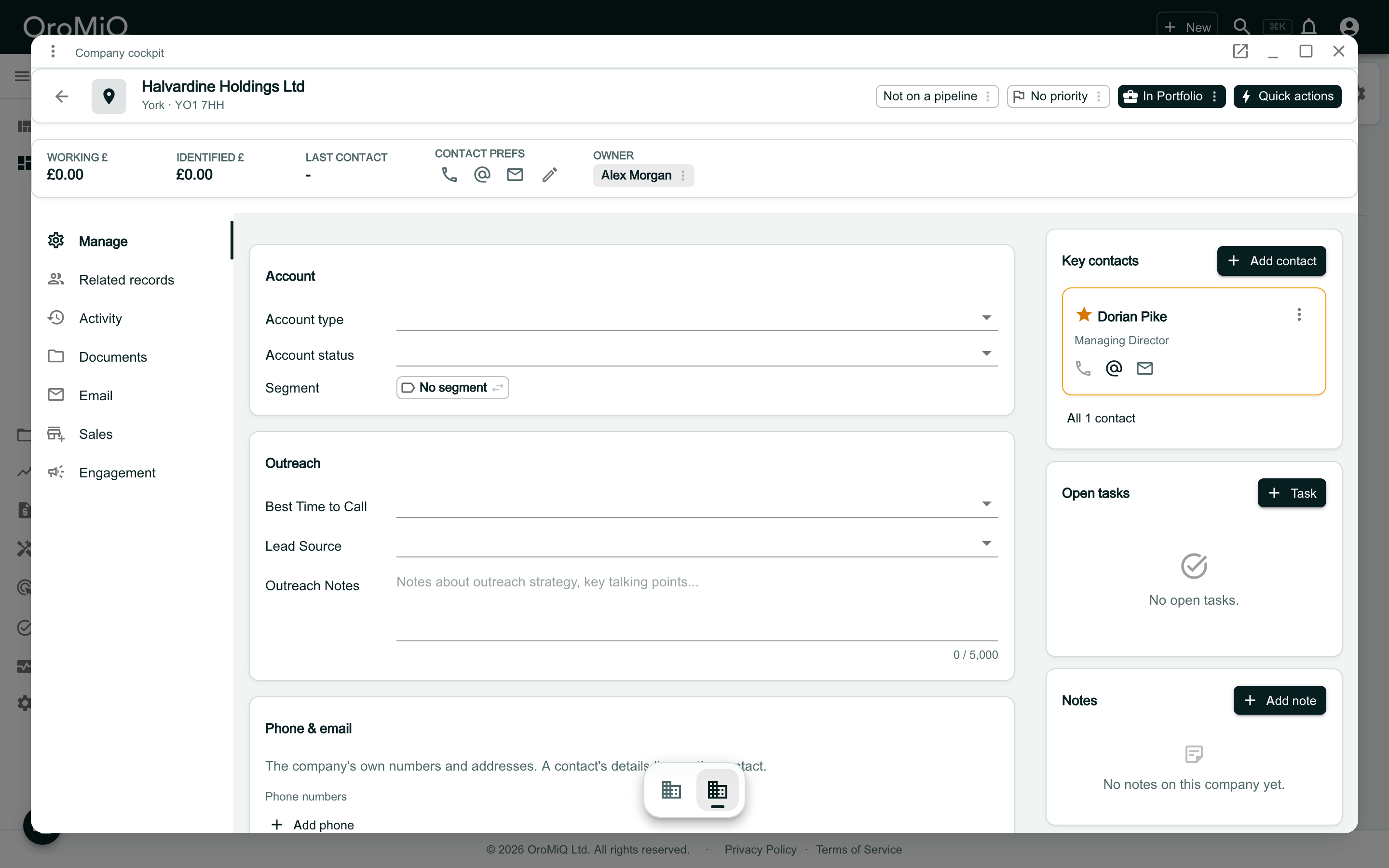
Use the dock's menu
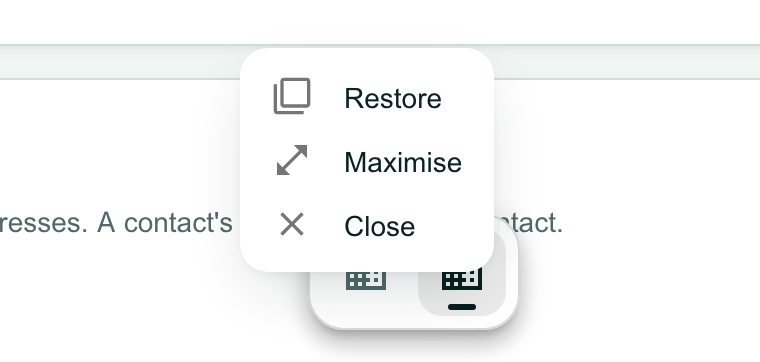
Right-click a button in the dock for Restore, Maximise and Close.
Windows do not survive a reload
What next
Cannot find what you need? Browse the Help Centre or submit a support ticket.