Contacts & companies
Link related companies
Before you start
Your role must be able to edit records to add, change or remove a link. Anyone who can open the company can see its links.
Linking companies is part of the CRM and works with no data layer. The connections from the registers need a data layer that says who owns or runs whom, such as Companies House, and the company linked to its register record; see Turn on a data layer.
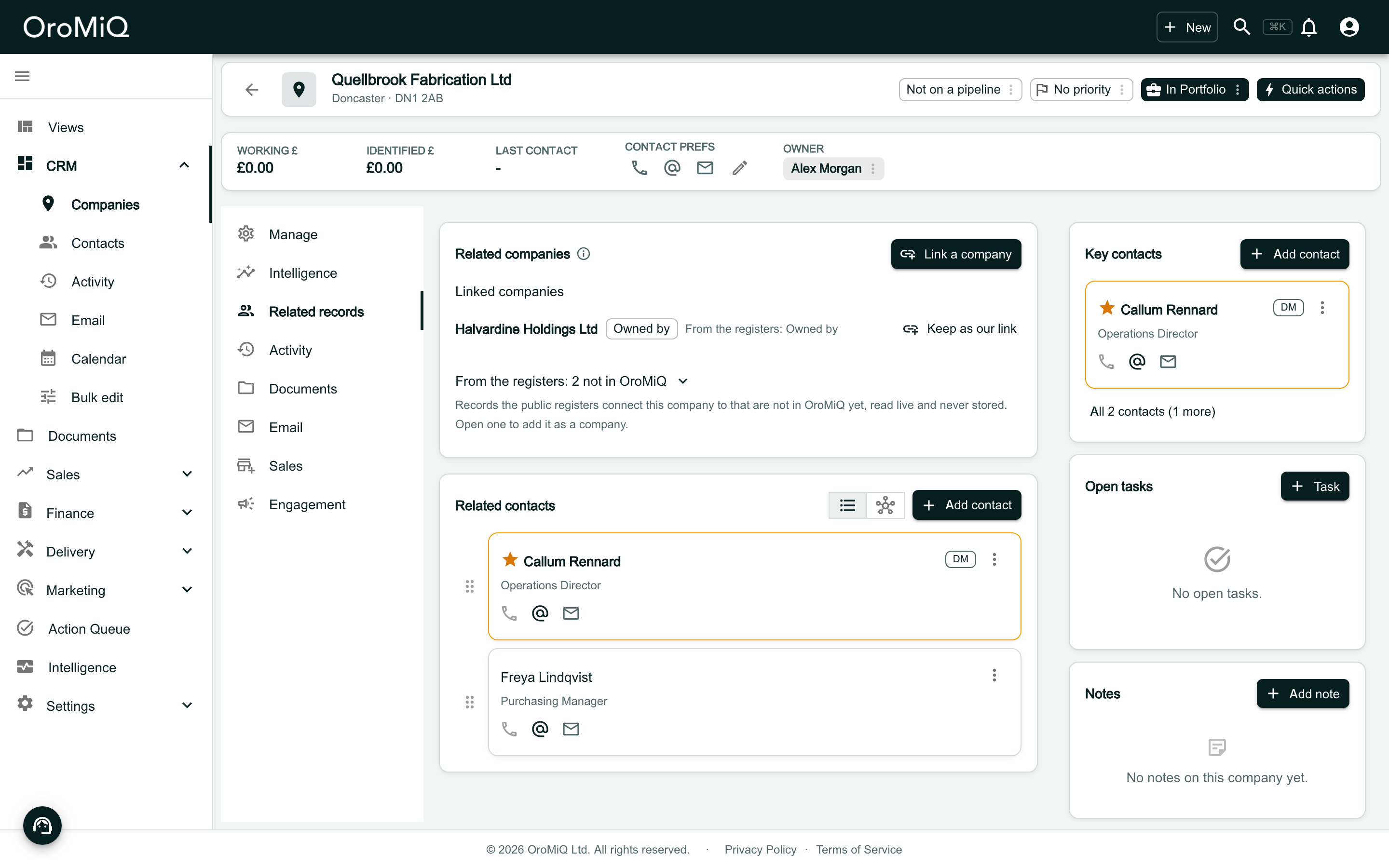
Open the company's Related records
Open the company, then click Related records in its left-hand menu.
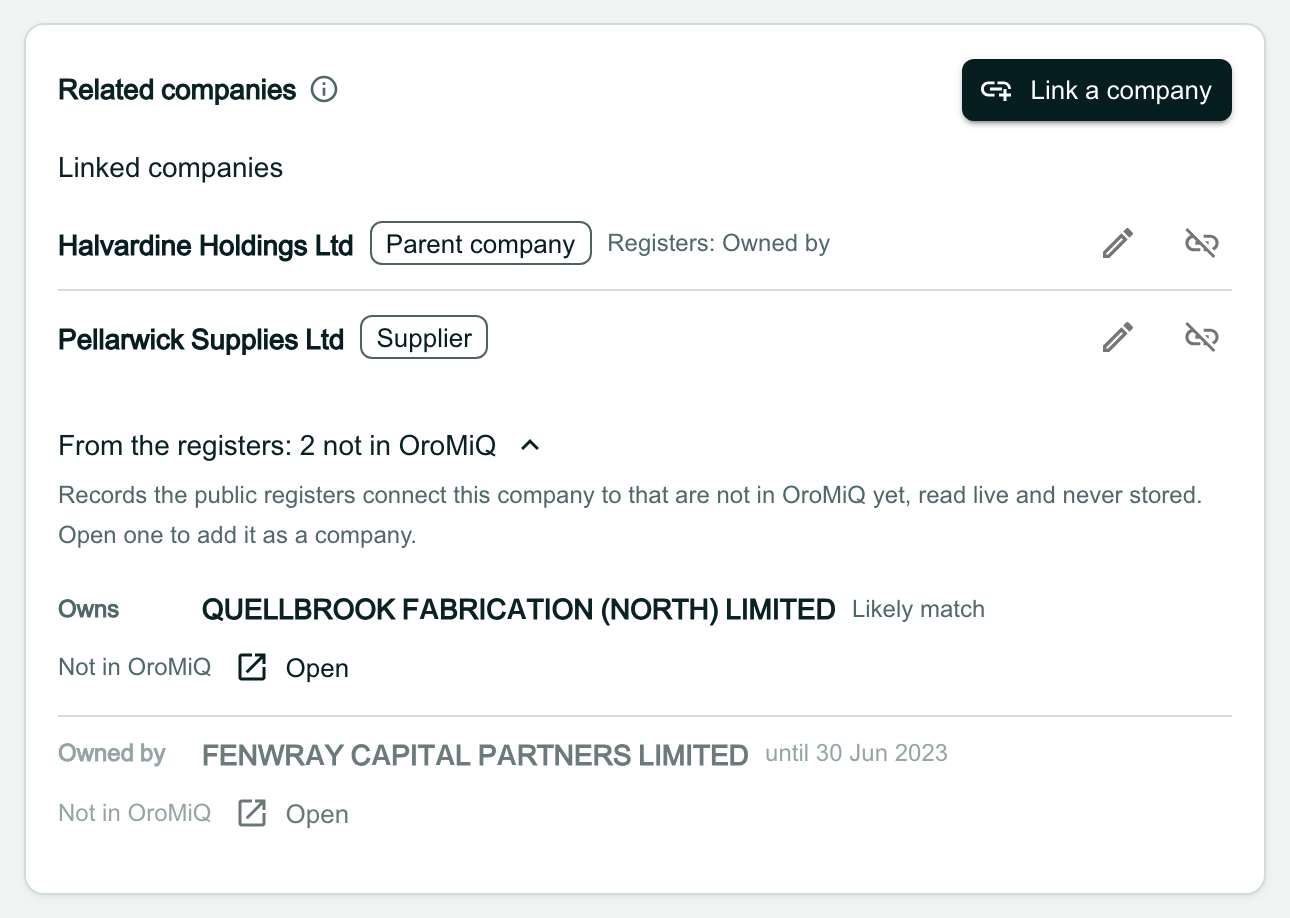
The Related companies card sits at the top, above Related contacts. Under Linked companies it lists every company in your workspace this one is linked to.
Link a company and choose a role
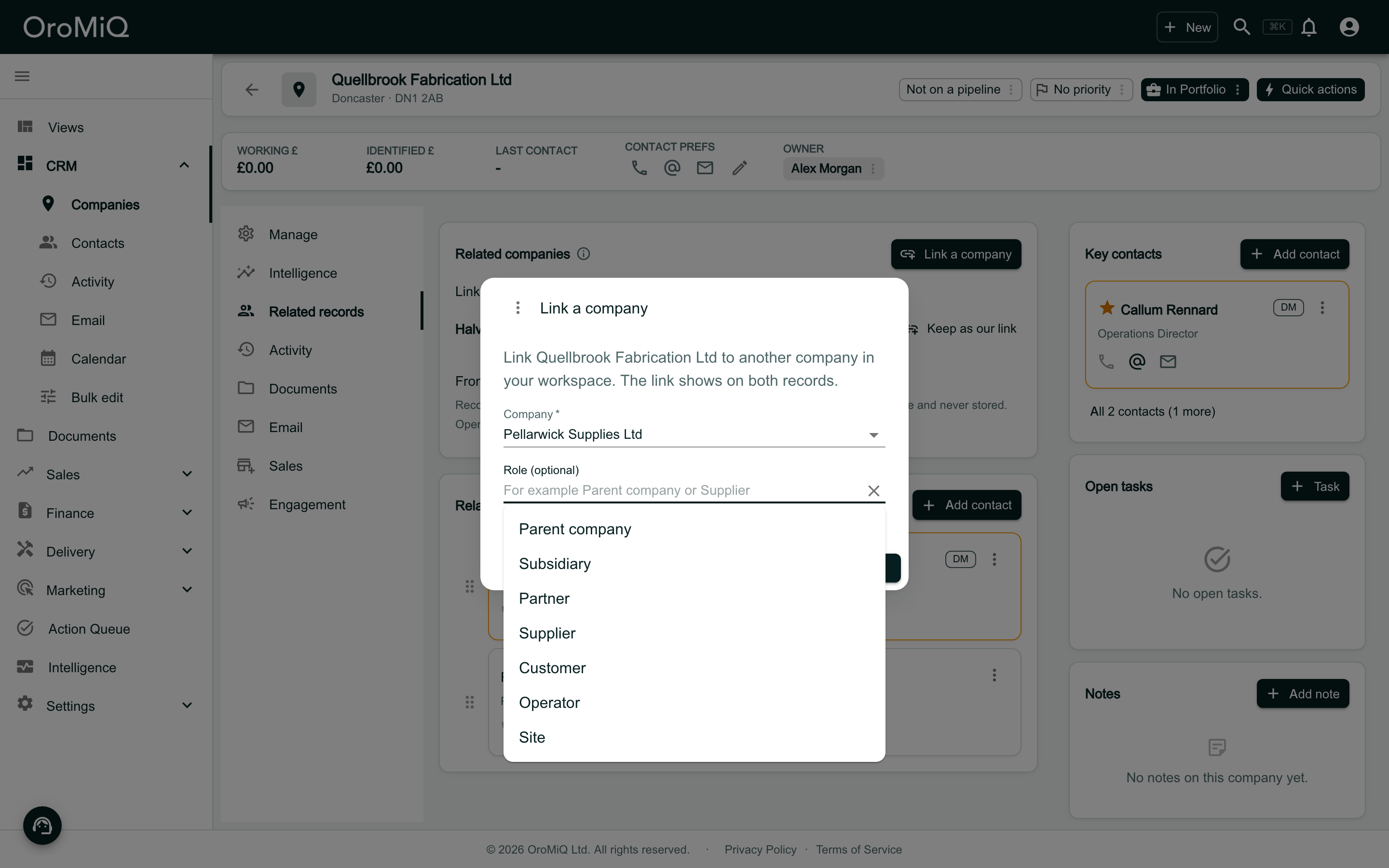
Click Link a company. In Company, type at least two letters of the other company’s name and choose it from the list.
In Role (optional), say what the other company is to this one. The list offers the usual roles first, and you can type your own wording instead.
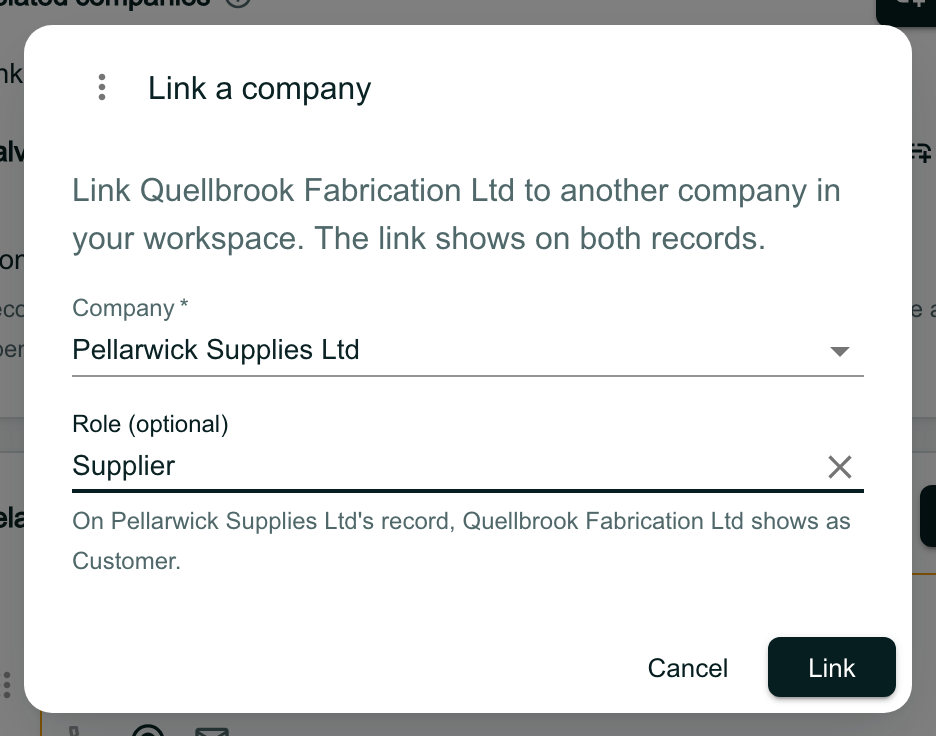
Check what the other company will show
The line under the role says what the other record will read. A role from the list sets the other side for you: a Supplier here shows this company as its Customer there, and a Subsidiary shows it as the Parent company.
Wording of your own shows on this record only; the other record shows the link as Linked. Click Link.
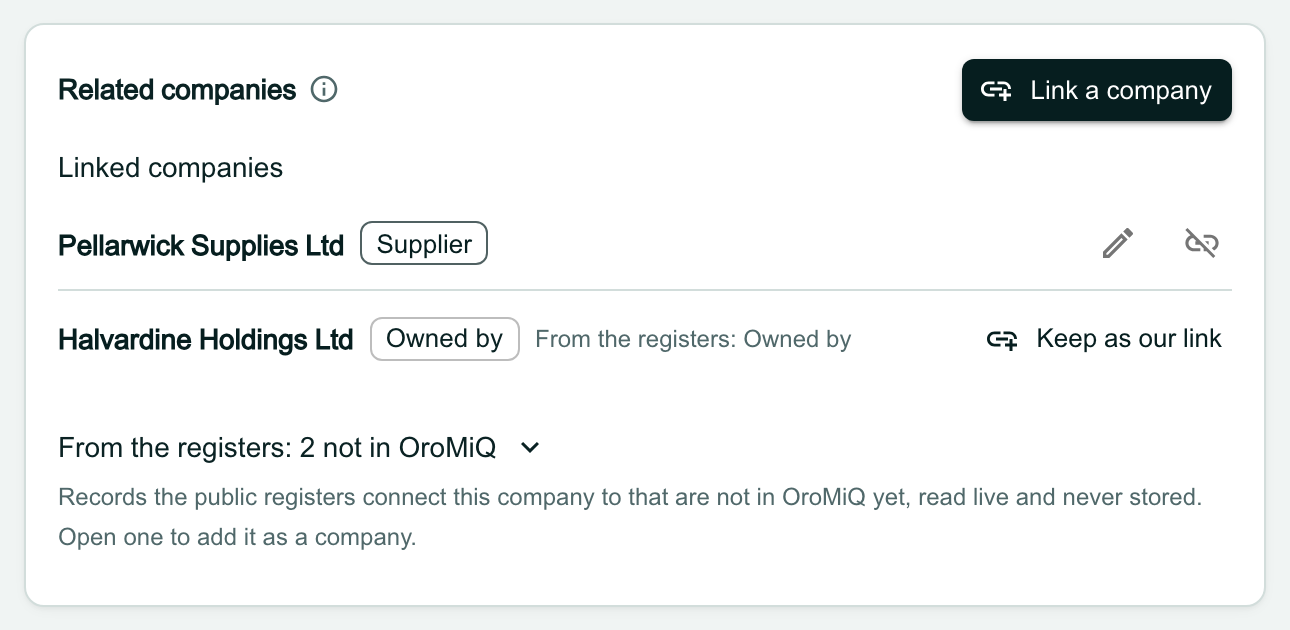
See the link
The company is listed with its role. Click its name to open it in a window without leaving this page.
Change the role
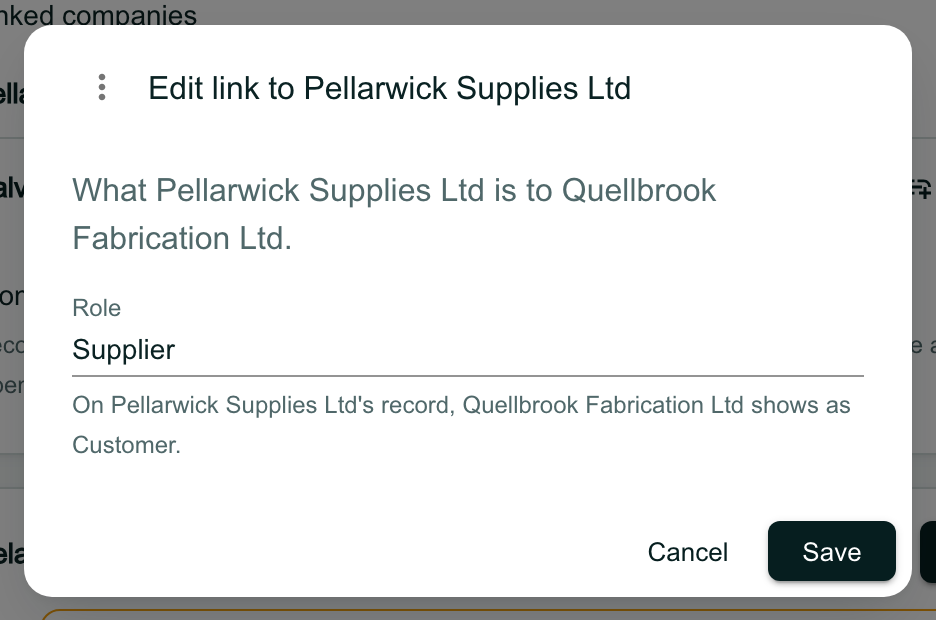
To change a role, click the pencil beside the link, change Role and click Save. The other record follows a role from the list, but wording typed on the other record by hand is never overwritten.
See the link from the other company
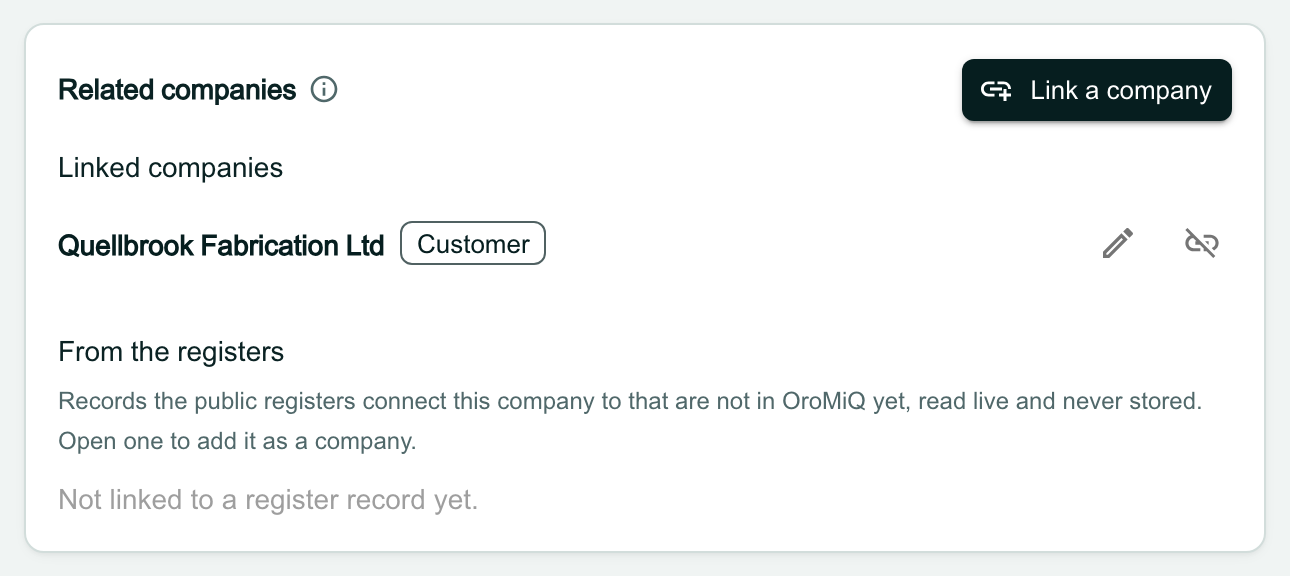
Open the other company’s Related records: the same link is there, with the role from its side. Here Pellarwick Supplies Ltd lists Quellbrook Fabrication Ltd as its Customer.
Read what the registers show
With a data layer on, the registers’ connections show beside your own links. A company already in your workspace that the registers connect to this one sits under Linked companies, marked From the registers with what they say, such as Owned by (you can see Halvardine Holdings Ltd in step 4).
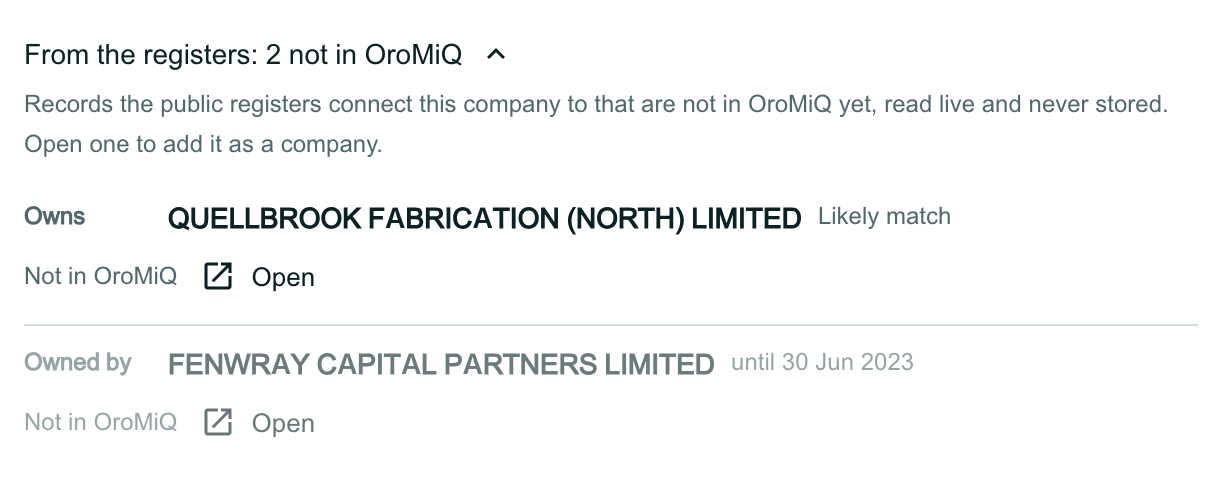
Records that are not in your workspace yet are counted in From the registers, collapsed so a large group stays tidy. Click it to open the list. Each record says how it is connected; a connection that has ended is greyed out with its end date, and Likely match means the registers made the connection by a strong match rather than a published identifier.
Note
Open a record that is not in OroMiQ
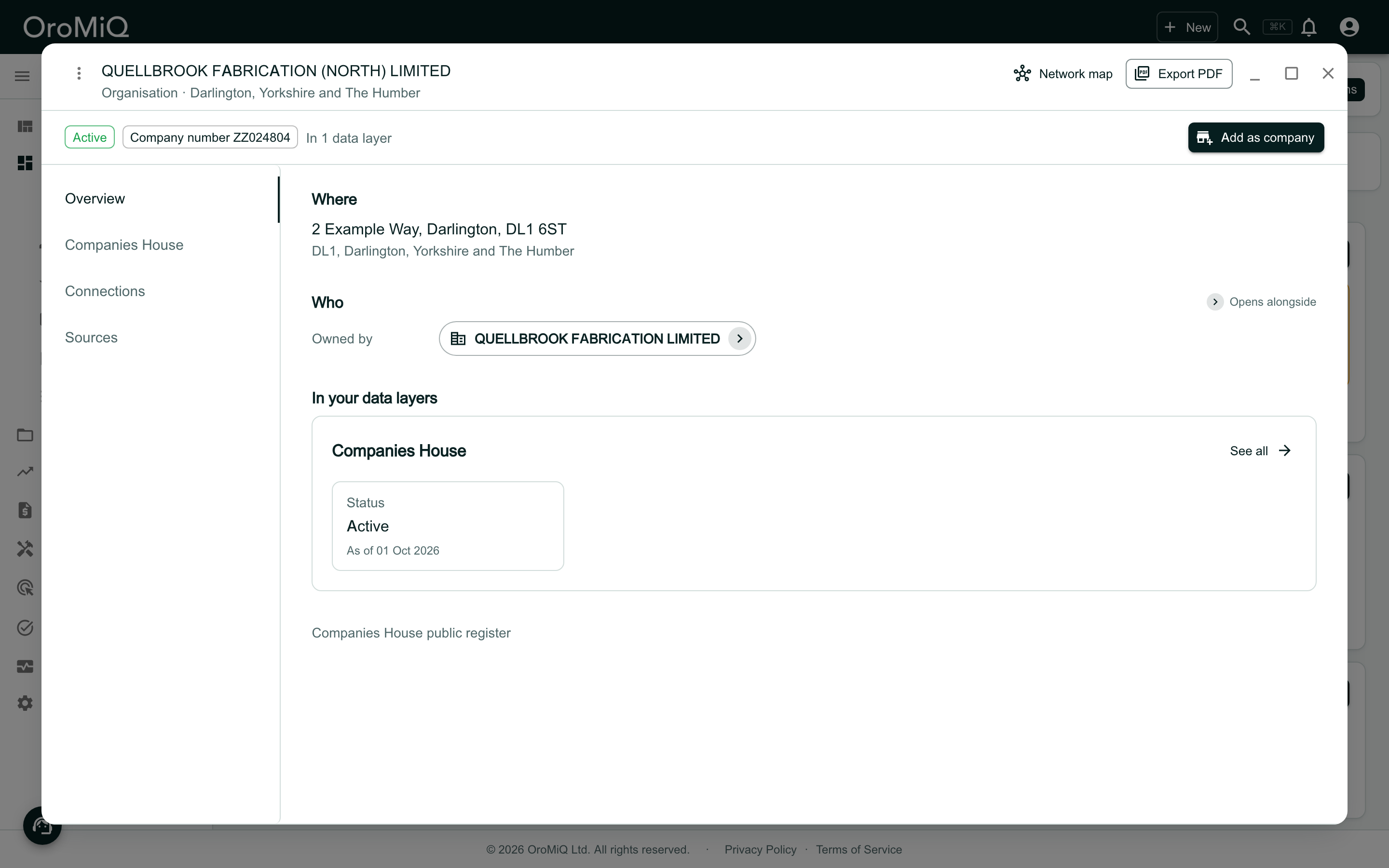
Click Open beside a record to read it in a window. To bring it into your workspace, click Add as company. Once it is a company in your workspace, it is listed under Linked companies, as Halvardine Holdings Ltd is.
Keep a register connection as your own link
A connection from the registers can change when the register does. To keep it whatever happens, click Keep as our link. It becomes one of your team’s links, with the role the connection implies (here Parent company), and the note beside it still says what the registers show.
Remove a link
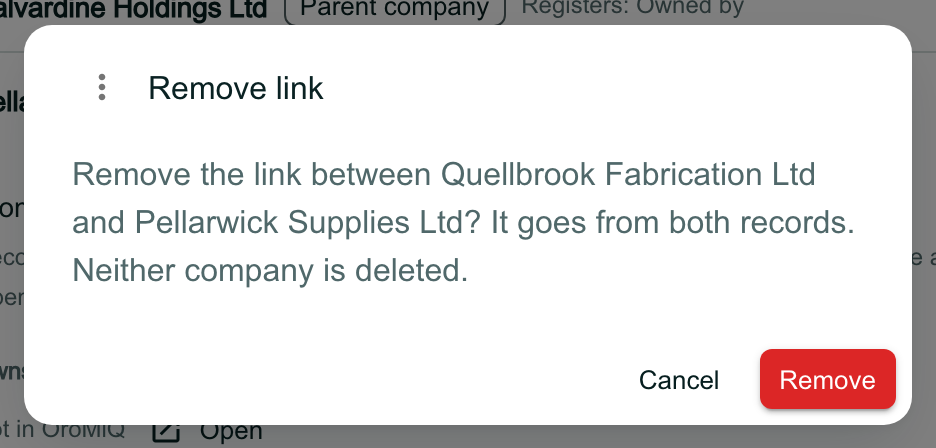
To remove a link, click the broken-link button beside it, then Remove. The link goes from both records; neither company is deleted.
Note
What next
Cannot find what you need? Browse the Help Centre or submit a support ticket.