Email, sequences & enquiries
Connect your mailbox and send email
Before you start
Before you start:
- a Microsoft 365 work account. It is the mailbox provider OroMiQ supports,
- permission to send emails, which the built-in Power User, Manager, Admin, Call Team Manager and Call Agent roles have. Anyone with it can connect their own mailbox,
- to create email templates, the Admin or Manager role, and
- to connect a shared mailbox, the Admin role.
Connect Microsoft 365
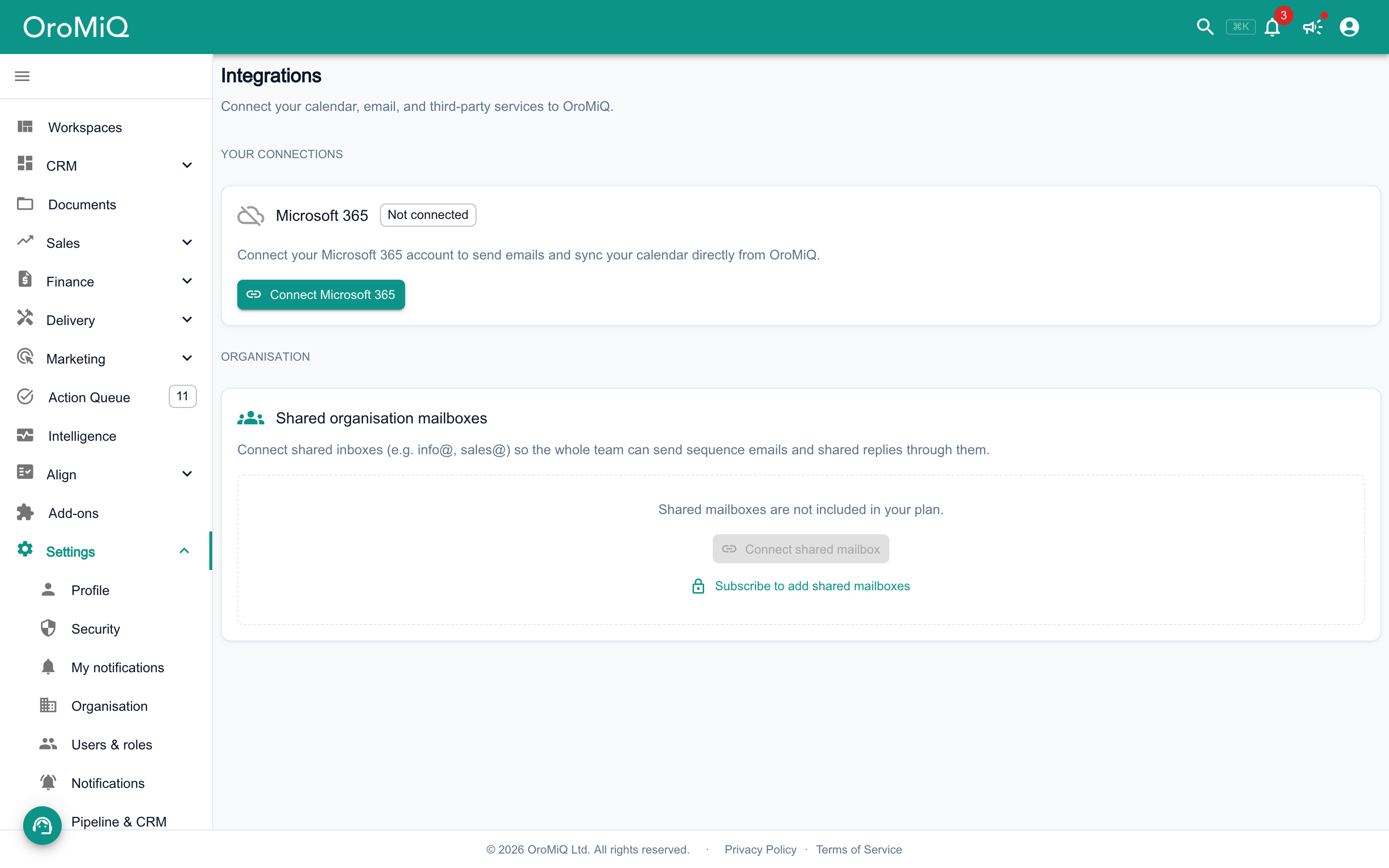
In the sidebar, open Settings then Integrations. Under Your connections, click Connect Microsoft 365 and sign in with your work account.
Once connected, the card shows your Account and the Permissions granted: Email, Calendar. Emails you send and receive with your companies are brought into OroMiQ. If any are missing, click Re-sync emails to scan the last 30 days.
Note
Add a shared mailbox (optional)
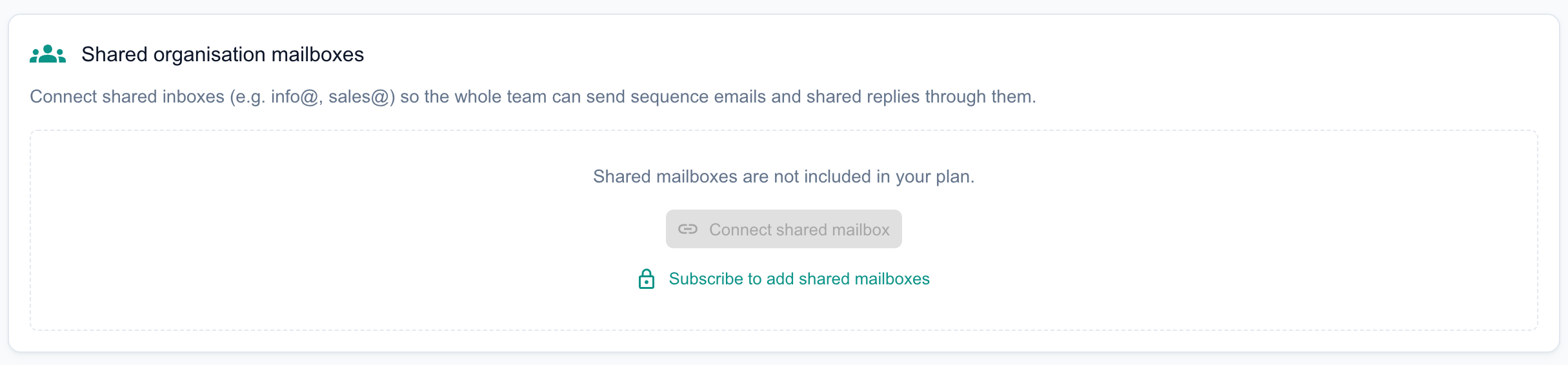
To send from a team address such as sales@, go to the Organisation section of the same page and click Connect shared mailbox under Shared organisation mailboxes. When Microsoft asks which account to use, sign in as the shared account, not as yourself.
Shared mailboxes are bought separately. If your plan has none, the card offers Subscribe to add shared mailboxes, which takes you to Settings → Subscription & billing (see pricing). Once connected, anyone in your team can send one-off and sequence emails from it, even if they haven’t connected their own mailbox. Replies are sent from your own mailbox.
Note
Prepare a template
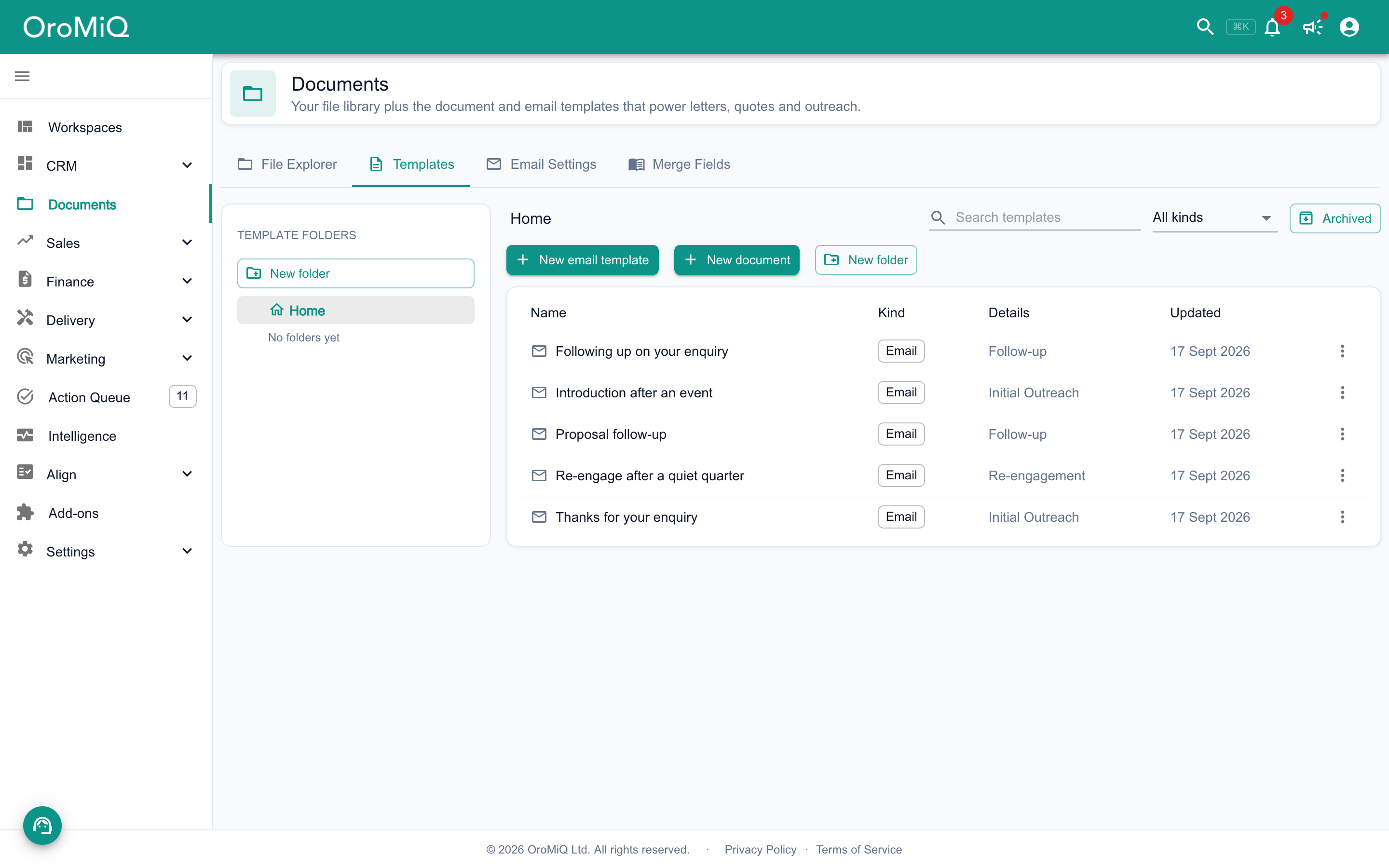
Open Documents, choose the Templates tab and click New email template. Write a subject and body, then use Insert merge fieldto personalise it with details such as the contact’s name. Click Preview to check how it reads.
The Merge Fields tab lists every field you can use.
Note
Write an email from a record
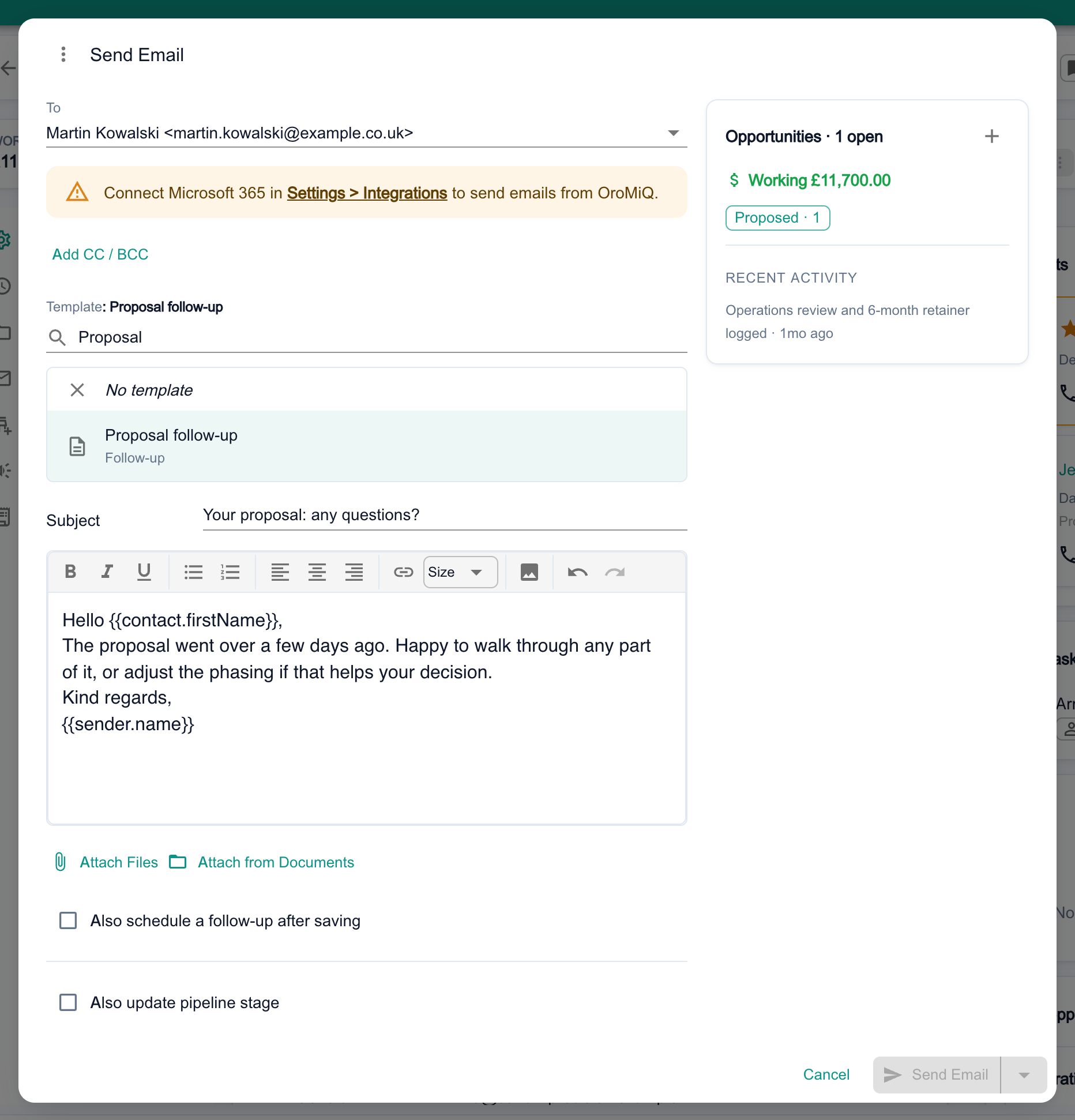
Open a company, click Quick Actions, then Send email. The same option is on a contact’s Quick Actions. Pick who it is To, and choose the mailbox under Send from: your own, or a shared mailbox.
Pick a Template to fill in the subject and body, or write your own. Use Add CC / BCC to copy others in.
Tip
Add attachments
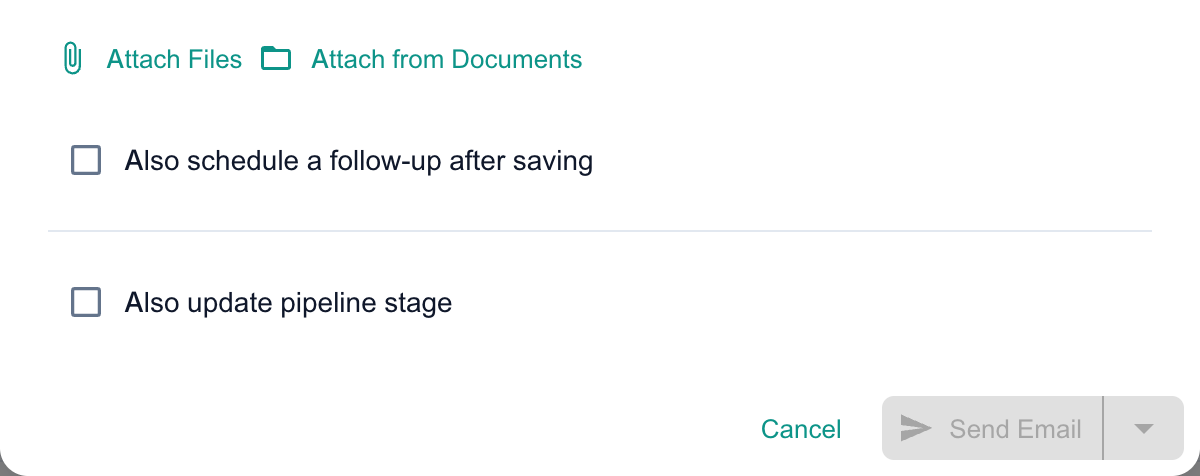
Click Attach Files to add files from your computer, or Attach from Documents to pick files already stored against the company or in your shared library.
Note
Send now or later
Click Send Email to send straight away. To send later, click the arrow beside it and choose In 1 hour, Tomorrow morning, Monday morning, or Pick date & time… then Schedule.
Before sending, you can tick Also schedule a follow-up after saving or Also update pipeline stage. A stage change only works with an email sent now, not one sent later.
Tip
See where it went
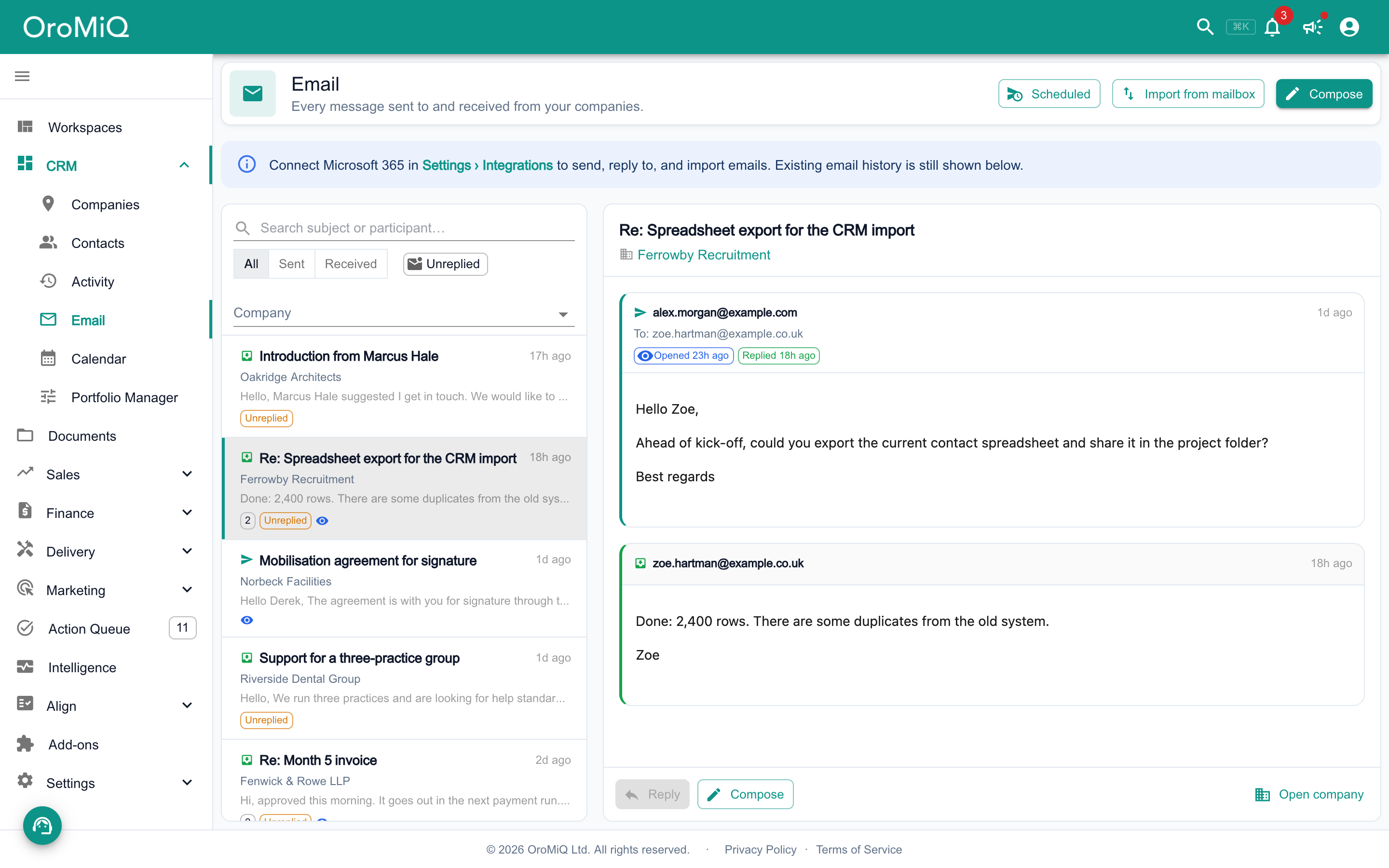
Sent emails appear in the company’s Email and Activity sections, and in CRM → Email alongside replies. Open a conversation to read it: each email you sent shows when it was opened and replied to.
See how it landed
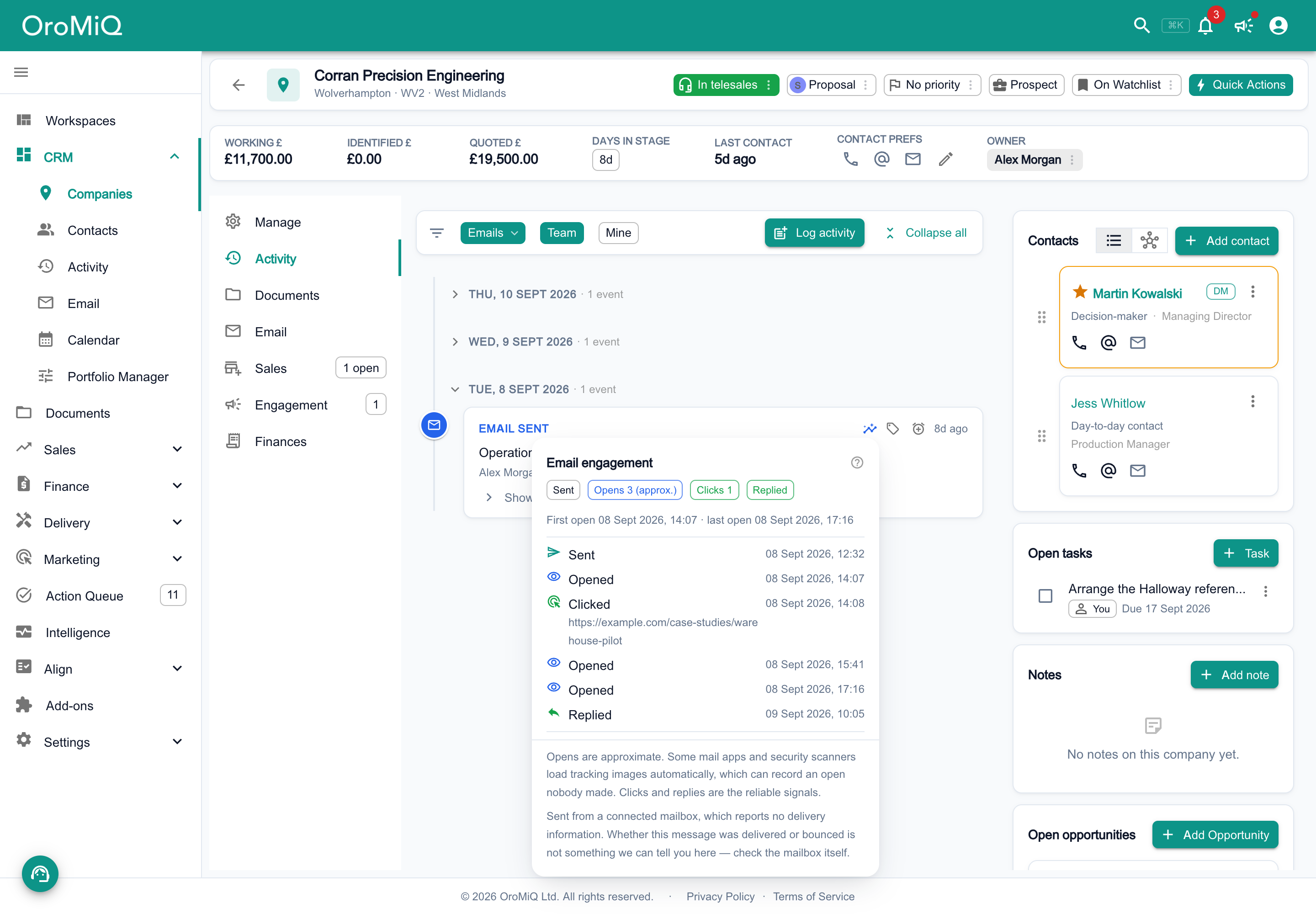
On an email in the activity timeline, click the Email engagement icon to see what happened to it: Opens, Clicks and whether the recipient Replied.
Note
Who you can email
What next
Cannot find what you need? Browse the Help Centre or submit a support ticket.