Quotes & invoices
Raise an invoice and get paid
Before you start
A few things need to be in place first:
- the Finance Pack or the Sales Pack. Without one, Invoices shows a padlock. An Admin can add a pack from Settings → Subscription & billing (see pricing),
- a role that can manage the pipeline, such as the built-in Admin, Manager or Power User roles, and
- the Admin or Manager role to reach the invoice settings in step 1.
Set up VAT and invoice numbering
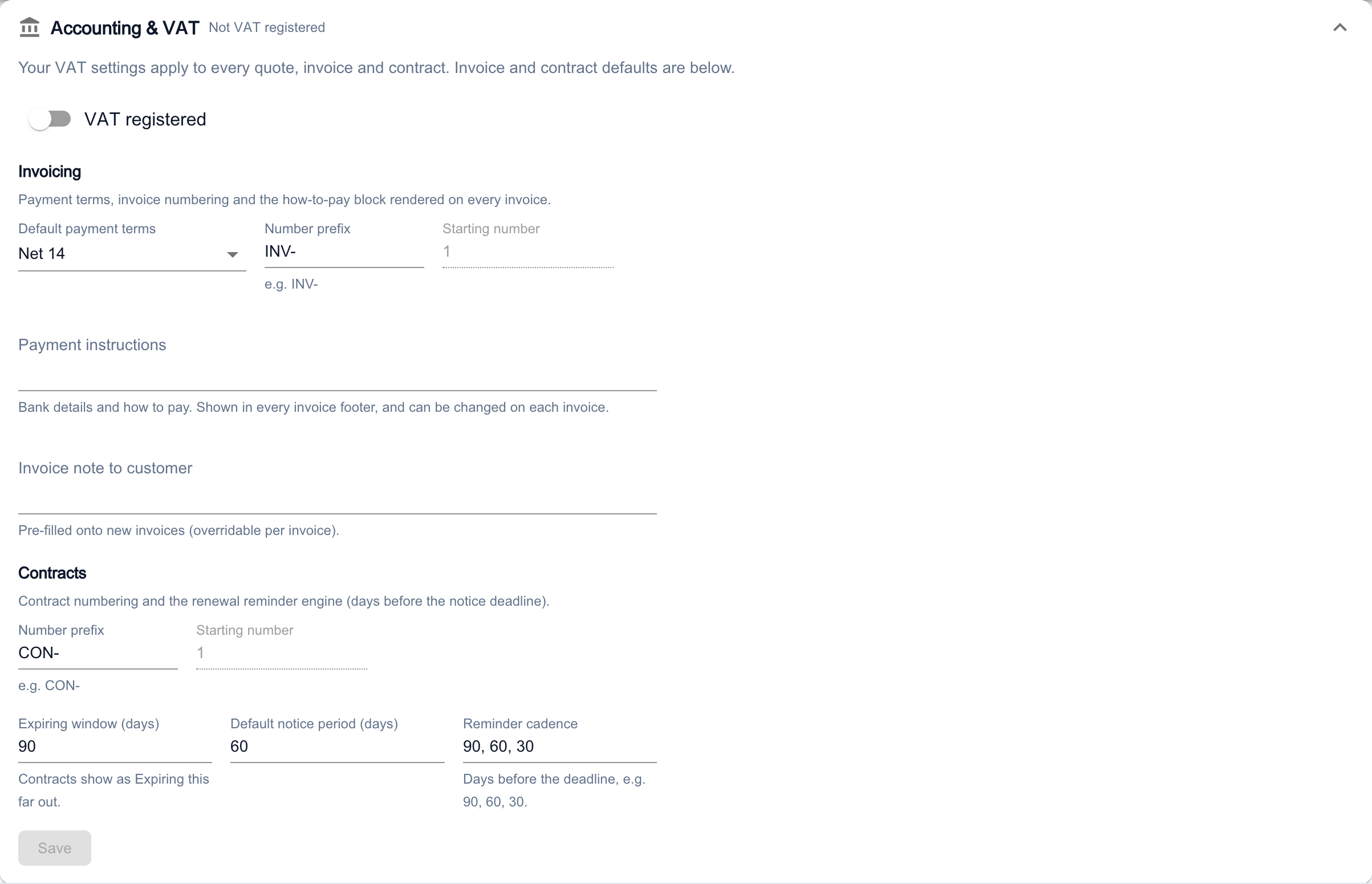
In the sidebar, open Settings then Pipeline & CRM, and expand Accounting & VAT. Switch on VAT registered if it applies, add your VAT number, and check your rates and Default VAT rate.
Under Invoicing, set your Default payment terms, a Number prefix and Starting number, and the Payment instructions that tell clients how to pay.
Note
Create an invoice
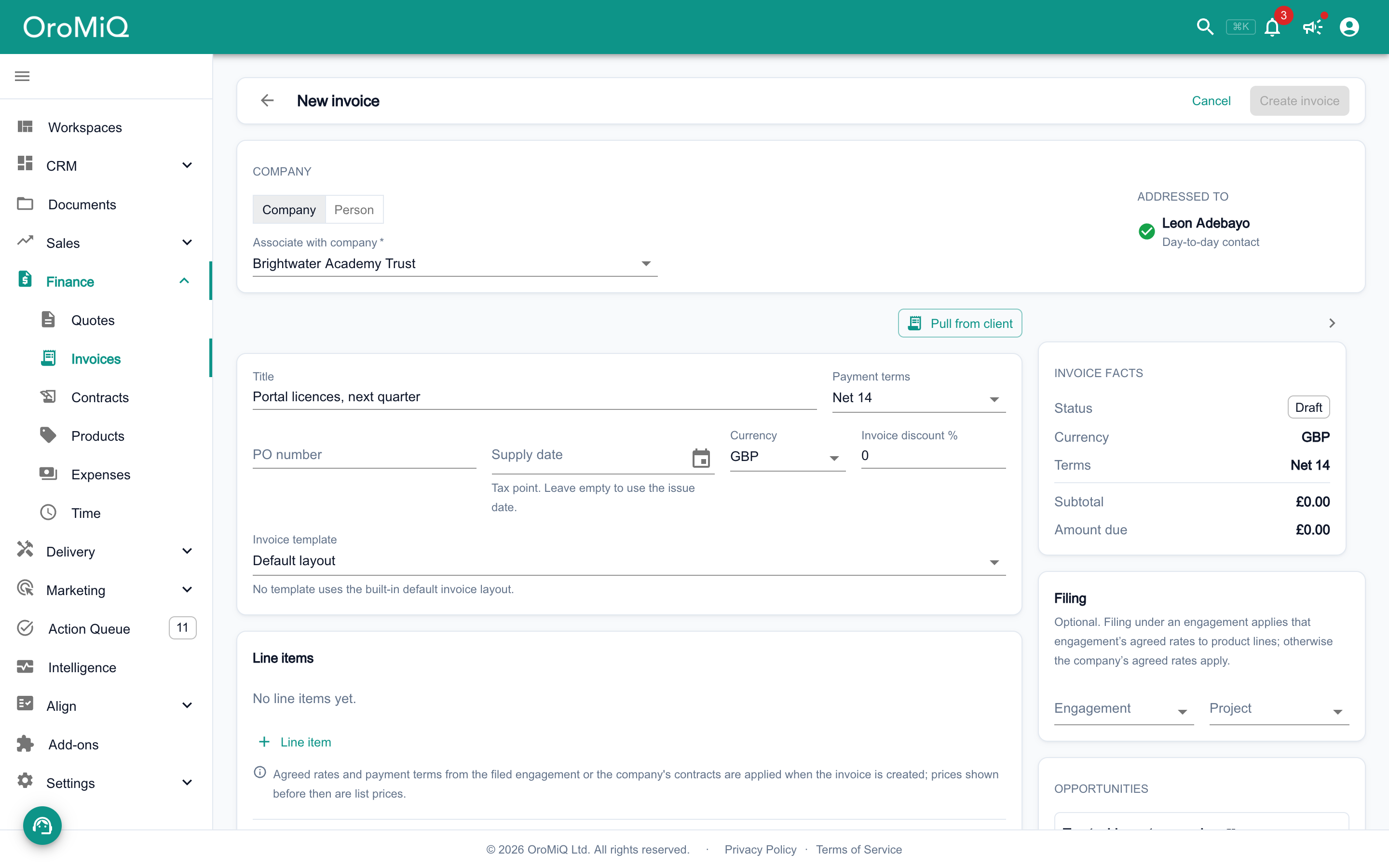
Open Finance then Invoices, and click Add invoice. Choose Company or Person and search for who you are billing. For a company, pick the contact it is Addressed tofrom the company’s contacts, lower down on the right.
Add a Title, then add your line items, either typed in or chosen from your product catalogue. Check the Payment terms and click Create invoice. It is saved as a draft with no invoice number yet. Leave Invoice template on Default layout, or pick one of your own templates for the invoice document.
Tip
Issue and send it
Click Issue invoice and confirm. The invoice gets its number and due date and can no longer be edited. Issuing does not email anyone.
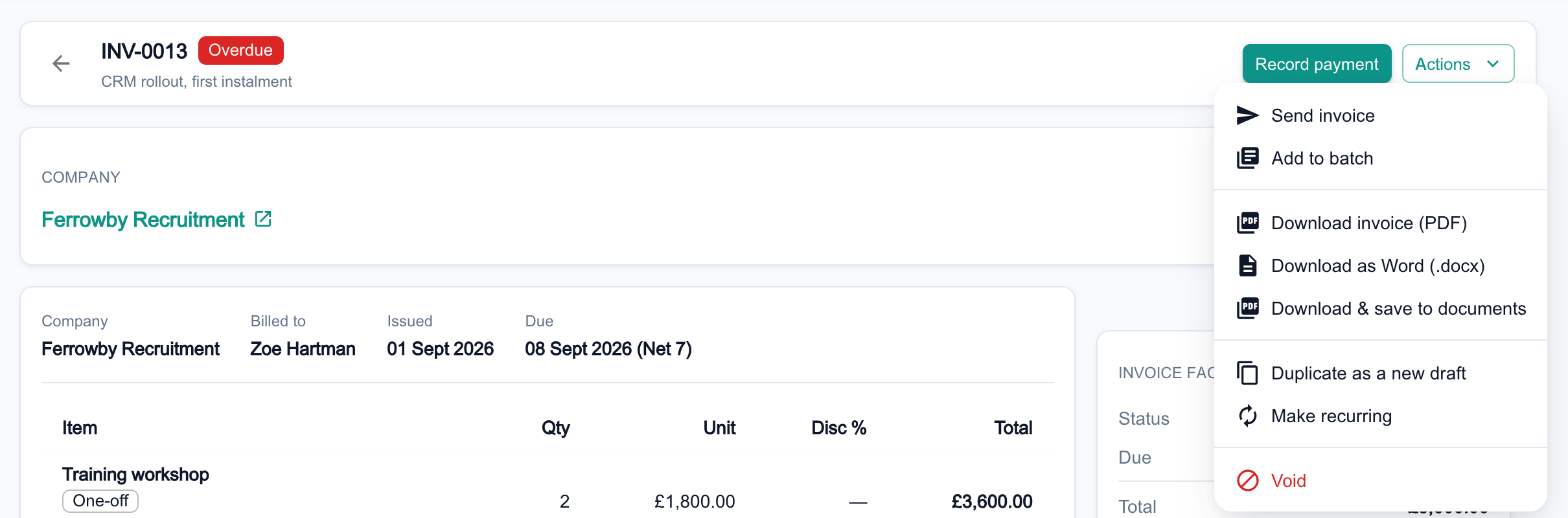
To send it, click Actions and choose Send invoice. Check the recipient in Send to, add an optional message, and click Send. It goes out as an email from your business with a PDF attached.
Tip
Record a payment
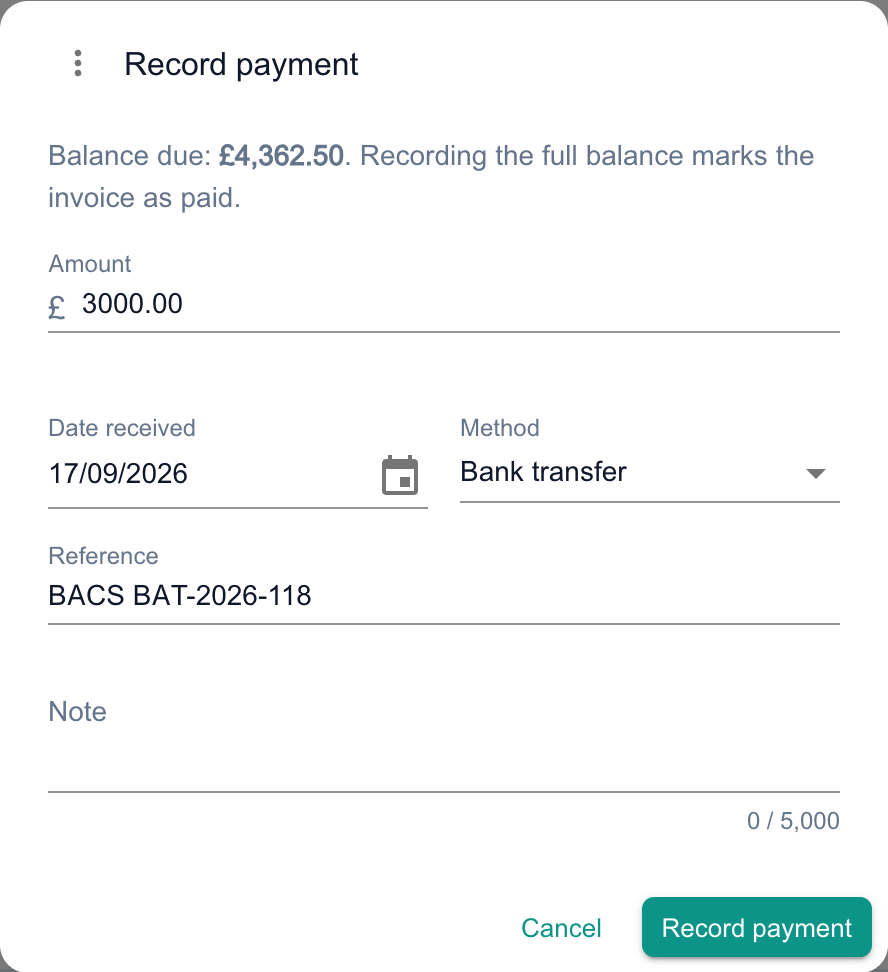
When money arrives, click Record payment. The Amount starts at the full balance, so change it for a part payment. Set the Date received, Method and an optional Reference, then click Record payment.
Recording the full balance marks the invoice Paid. A part payment leaves the rest showing as Balance due.
Note
Correct an invoice with a credit note
An issued invoice cannot be edited, so use a credit note to reduce it. In the Credits card, click Add credit note.
Enter a Reason, which appears on the credit note. Choose An amount or pick the lines you are crediting, then click Issue credit note. The invoice balance drops straight away.
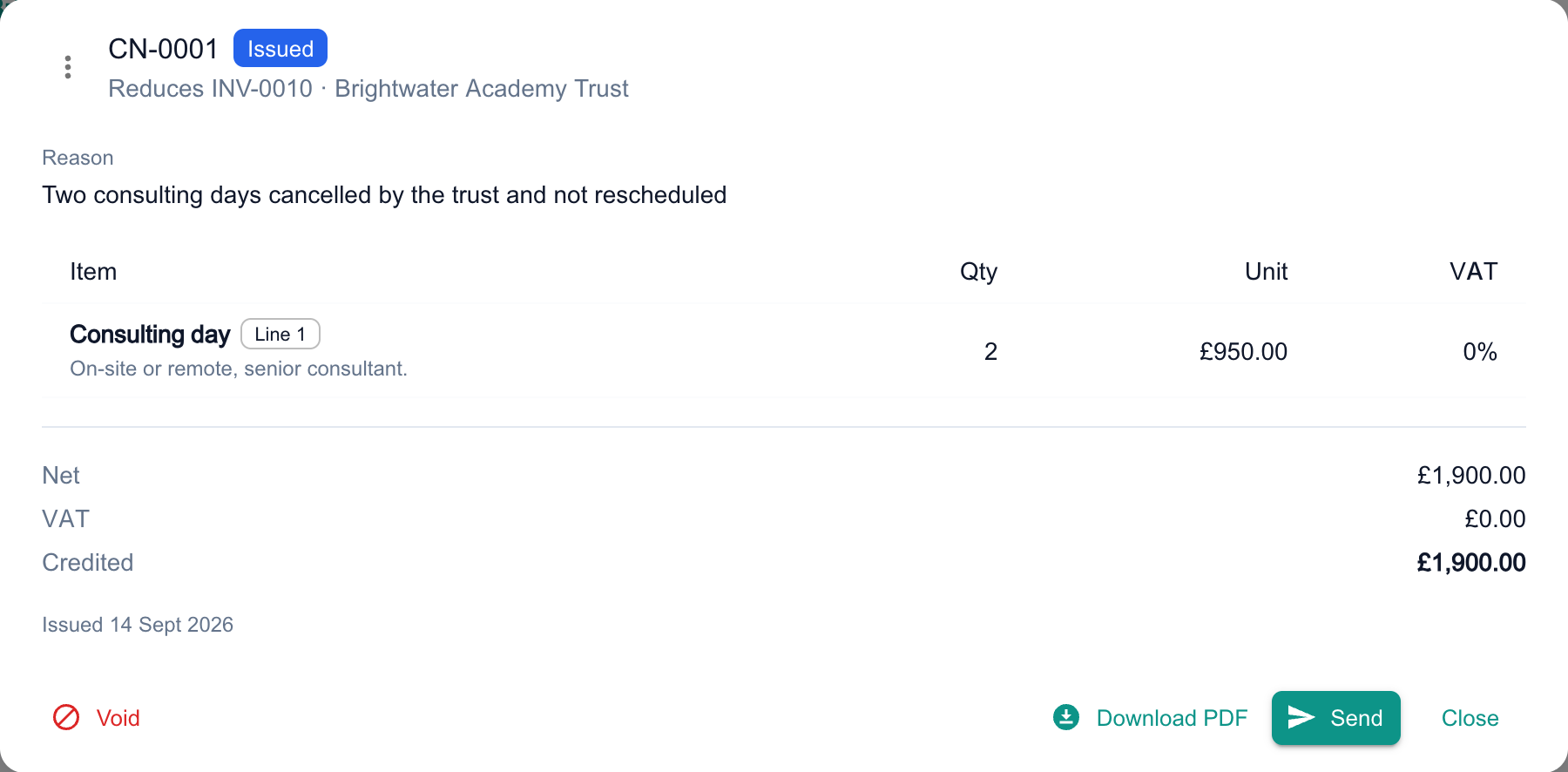
Issued credit notes are listed in the Credits card. Click one to open it, then Download PDF or Send it to your client.
Tip
Chase late payers from the Action Queue
Back in Settings → Pipeline & CRM, expand Payment reminders. Set a Reminder ladder (days overdue), such as 7, 14, 30, and a Grace period (days).
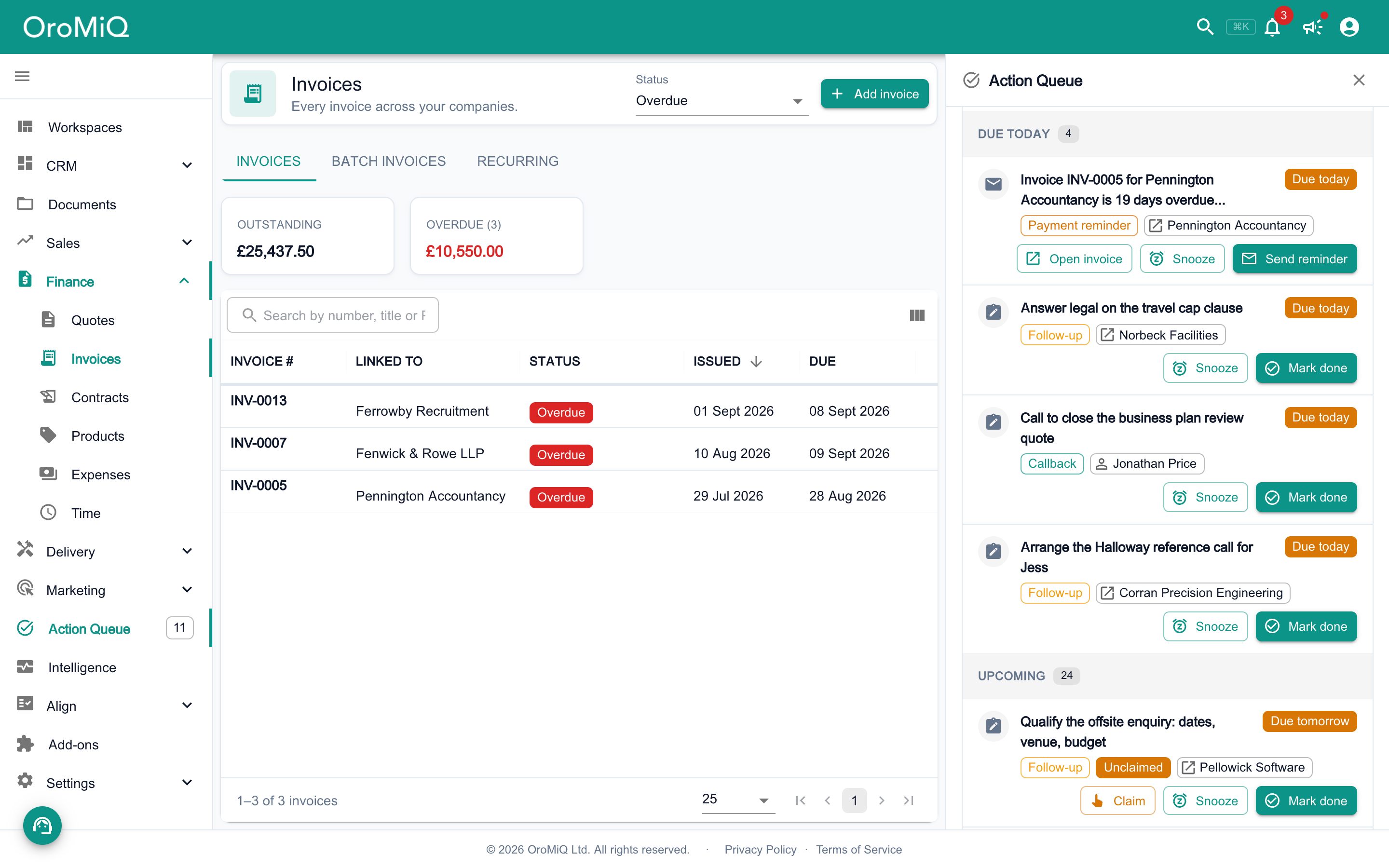
Overnight, each unpaid invoice that reaches a step gets a reminder drafted into your Action Queue. Nothing is emailed automatically. Click Send reminder on the row to review and send it, with a fresh PDF attached.
Note
Save time on regular billing
For work you bill every period, open an invoice and choose Actions → Make recurring. Each run creates a draft and a review task. Nothing is issued or emailed on its own.
To put several issued invoices for the same payer onto one bill, choose Actions → Add to batch. Find your batches and schedules on the Batch invoices and Recurring tabs of Invoices.
Tip
What next
Cannot find what you need? Browse the Help Centre or submit a support ticket.