Quotes & invoices
Build and send a quote
Before you start
A few things need to be in place first:
- the Finance Pack or the Sales Pack. Without one, Quotes shows a padlock. An Admin can add a pack from Settings → Subscription & billing (see pricing),
- a role that can manage the pipeline, such as the built-in Admin, Manager or Power User roles, and
- the company or person you are quoting, already added in OroMiQ.
Add your products and services
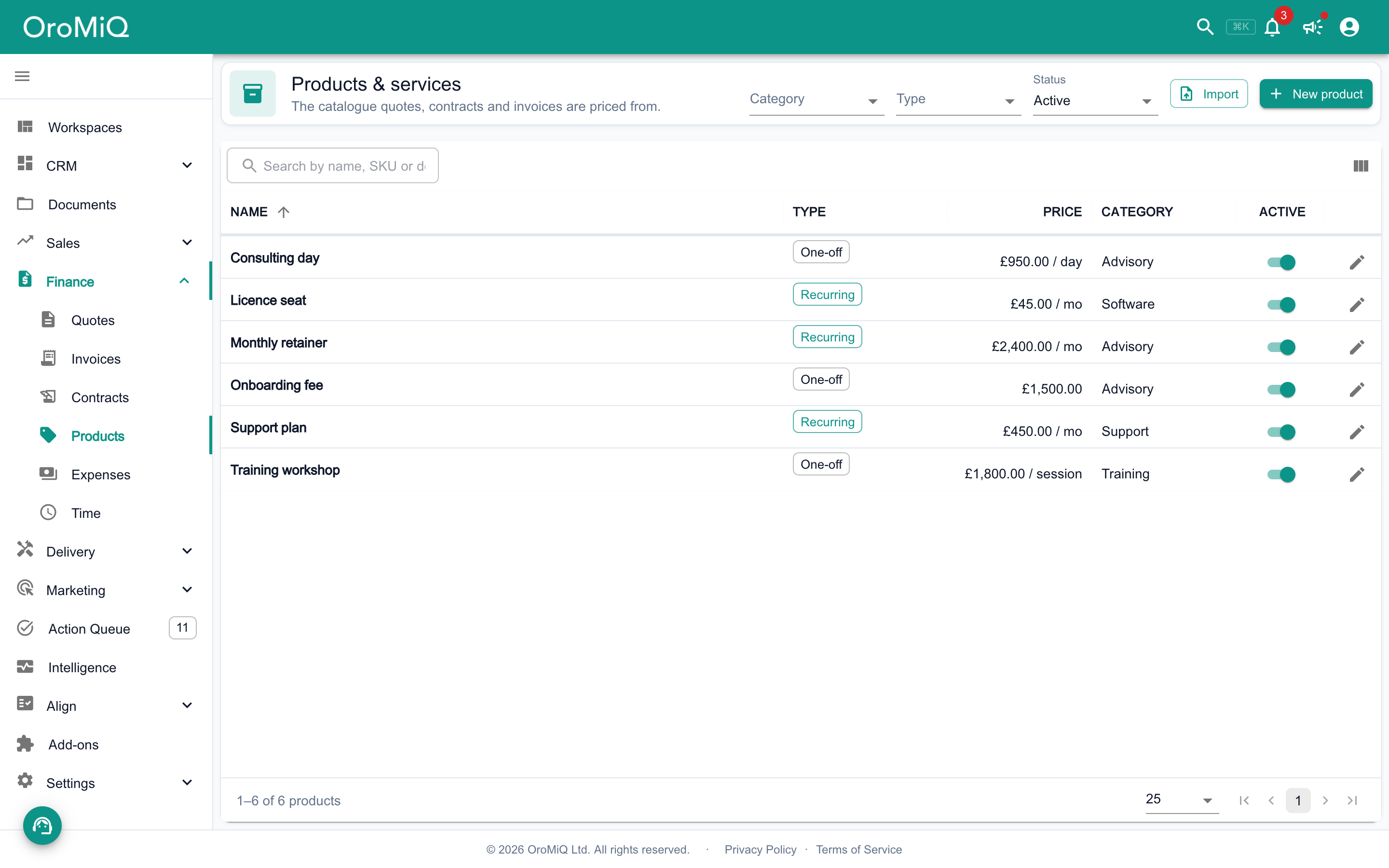
In the sidebar, open Finance then Products. Click New product, give it a Name, choose a Pricing type of One-off or Recurring, and enter a Price (£). Click Create product.
Your catalogue is what quotes, contracts and invoices are priced from, so a few products here save retyping later. Use Import to bring in a list you already have.
Note
Start a quote
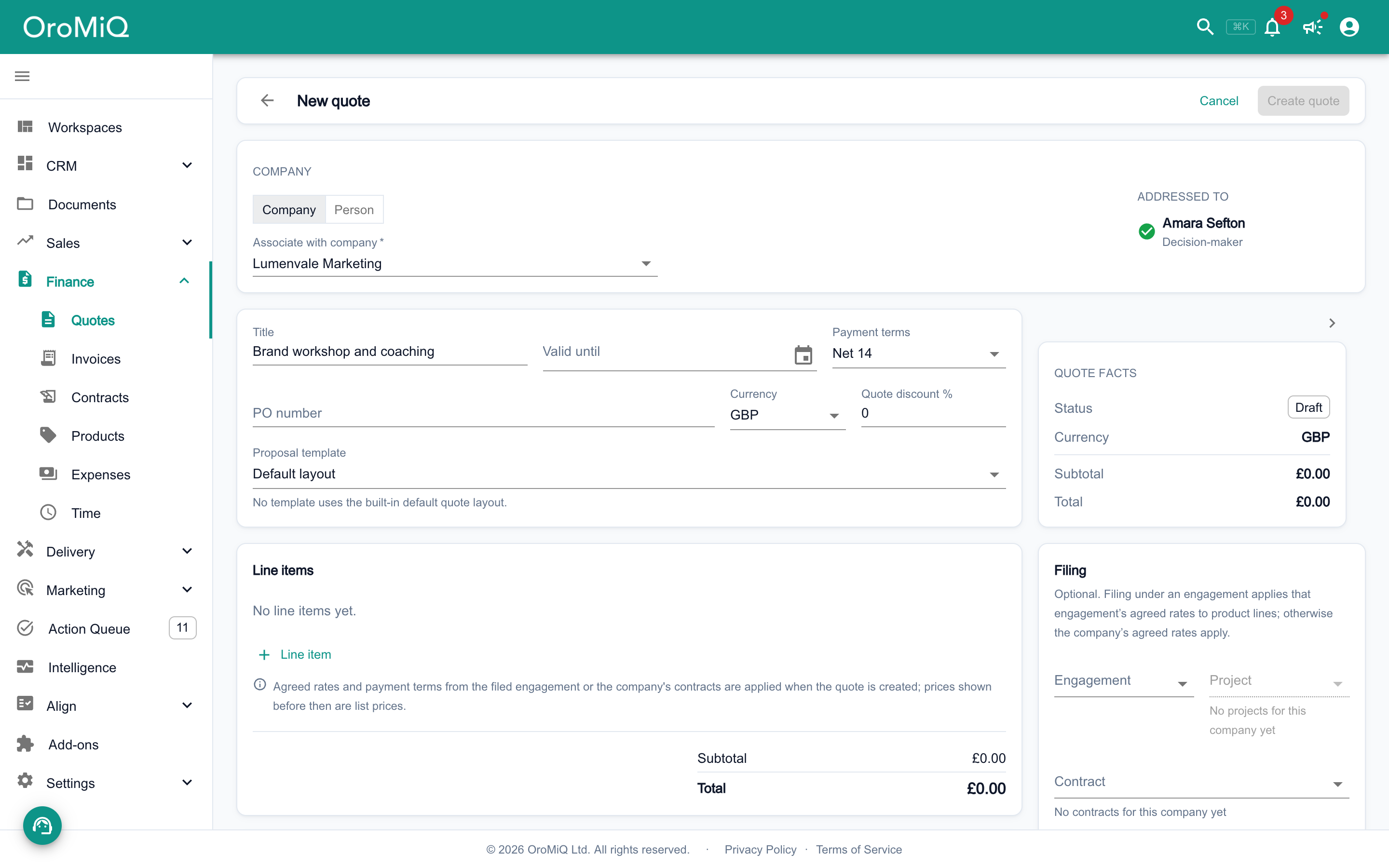
Open Finance then Quotes, and click Add quote. Choose Company or Person for who the quote is for, then search for them. For a company, pick the contact it is Addressed tofrom the company’s contacts, lower down on the right.
Give the quote a Title, and set Valid until and Payment terms. You can also add a PO number or a Quote discount %. Leave Proposal template on Default layout, or pick one of your own templates for the quote document.
Tip
Add your line items
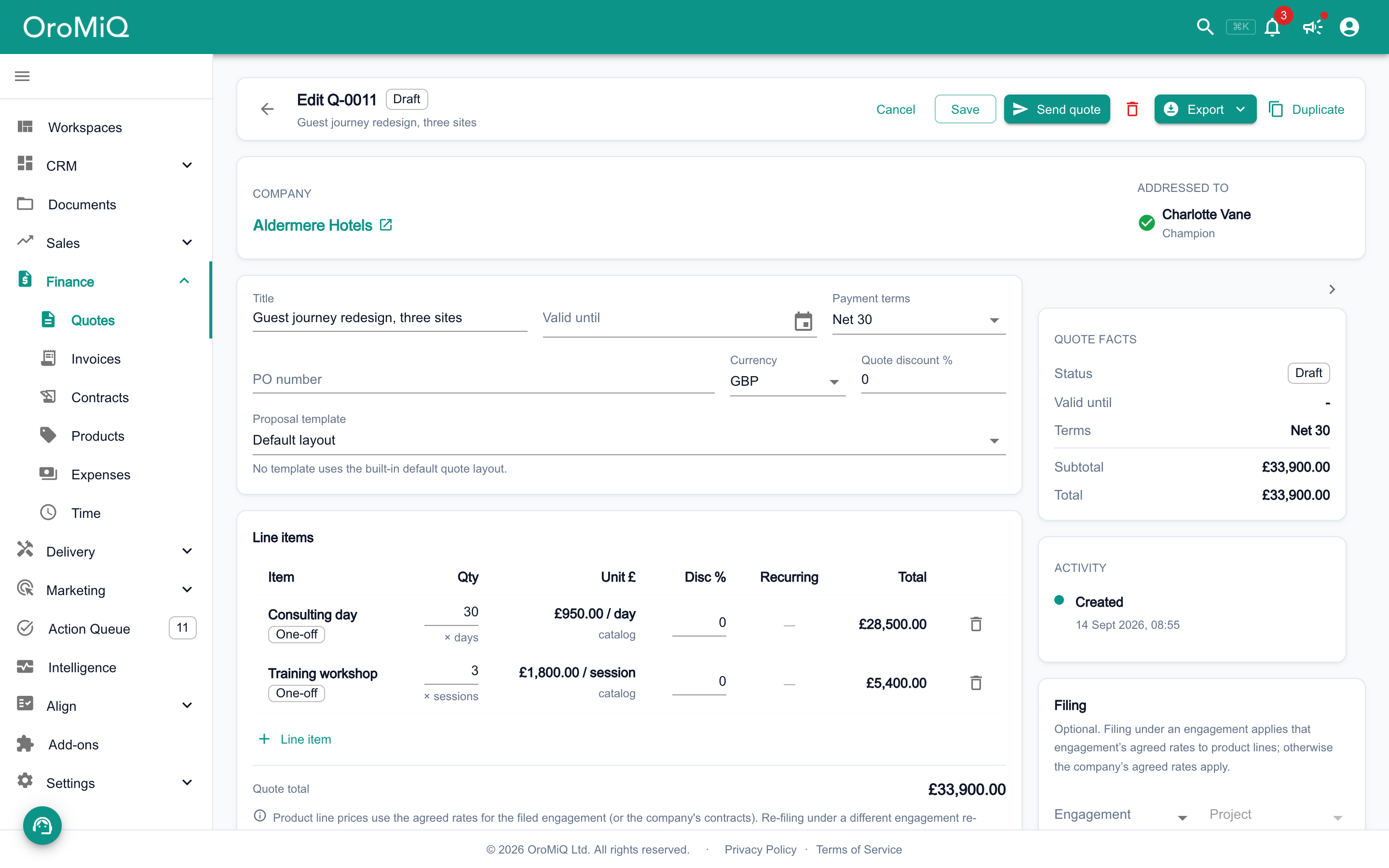
Under Line items, click Line item. Either type a description and a price, or click + to choose a product from the catalogue. Click the tick to add the line.
Adjust Qty and Disc % on each line as you go. If you are VAT registered, each line also has its own VAT %, and the summary shows the subtotal, VAT and total.
Add a Note to customer if you want one on the quote, then click Create quote. It is saved as a Draft.
Note
Check the document
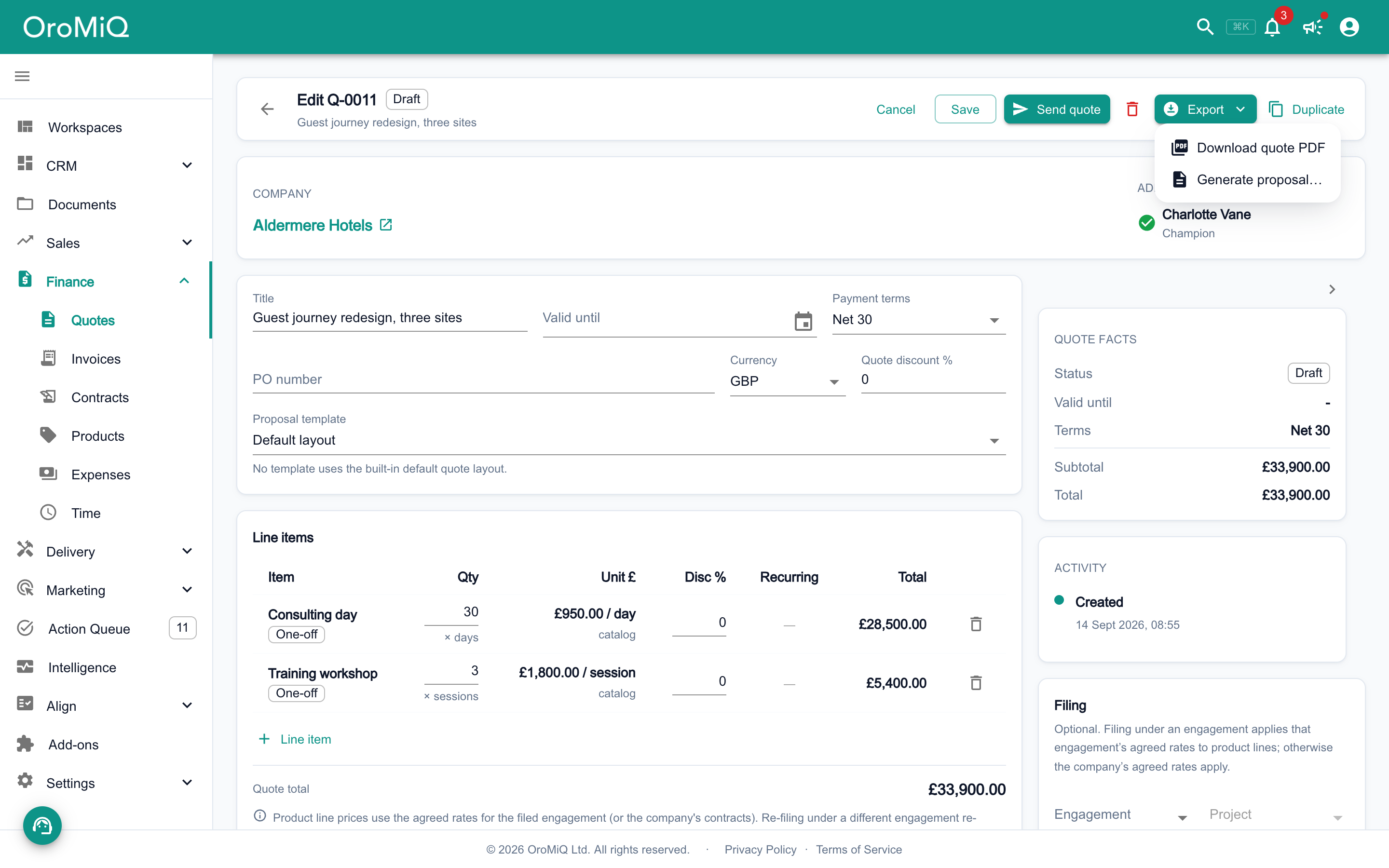
On the saved quote, click Export and choose Download quote PDF to see exactly what your client will receive. To produce a fuller proposal from one of your document templates, choose Generate proposal instead.
Tip
Send the quote
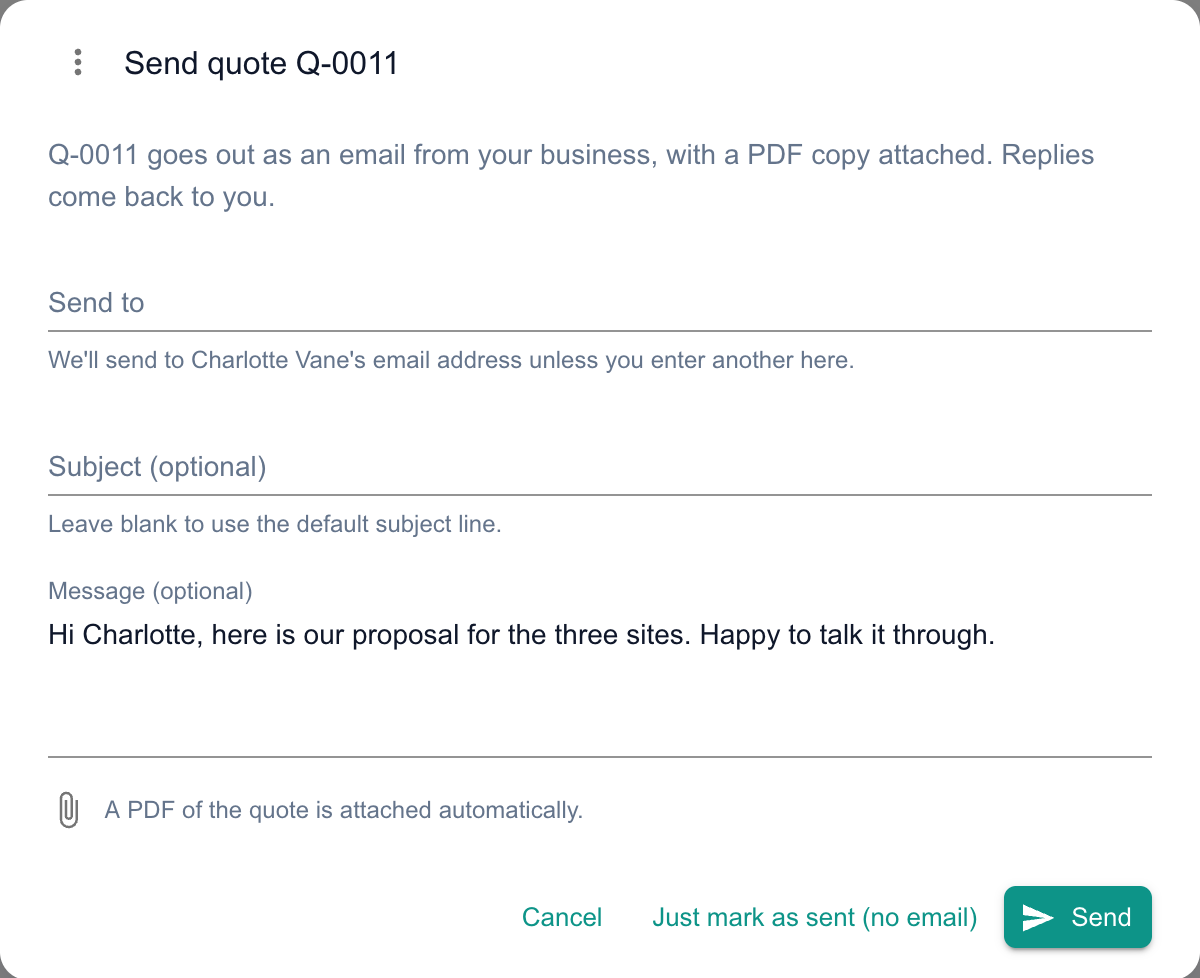
Click Send quote. It goes to whoever the quote is addressed to, or to the company’s billing contact if nobody is, unless you enter another address in Send to. Add an optional Subject and Message, then click Send.
The quote goes out as an email from your business with a PDF copy attached, and your client’s replies come back to you. The quote moves to Sent.
Tip
Record the answer and move it on
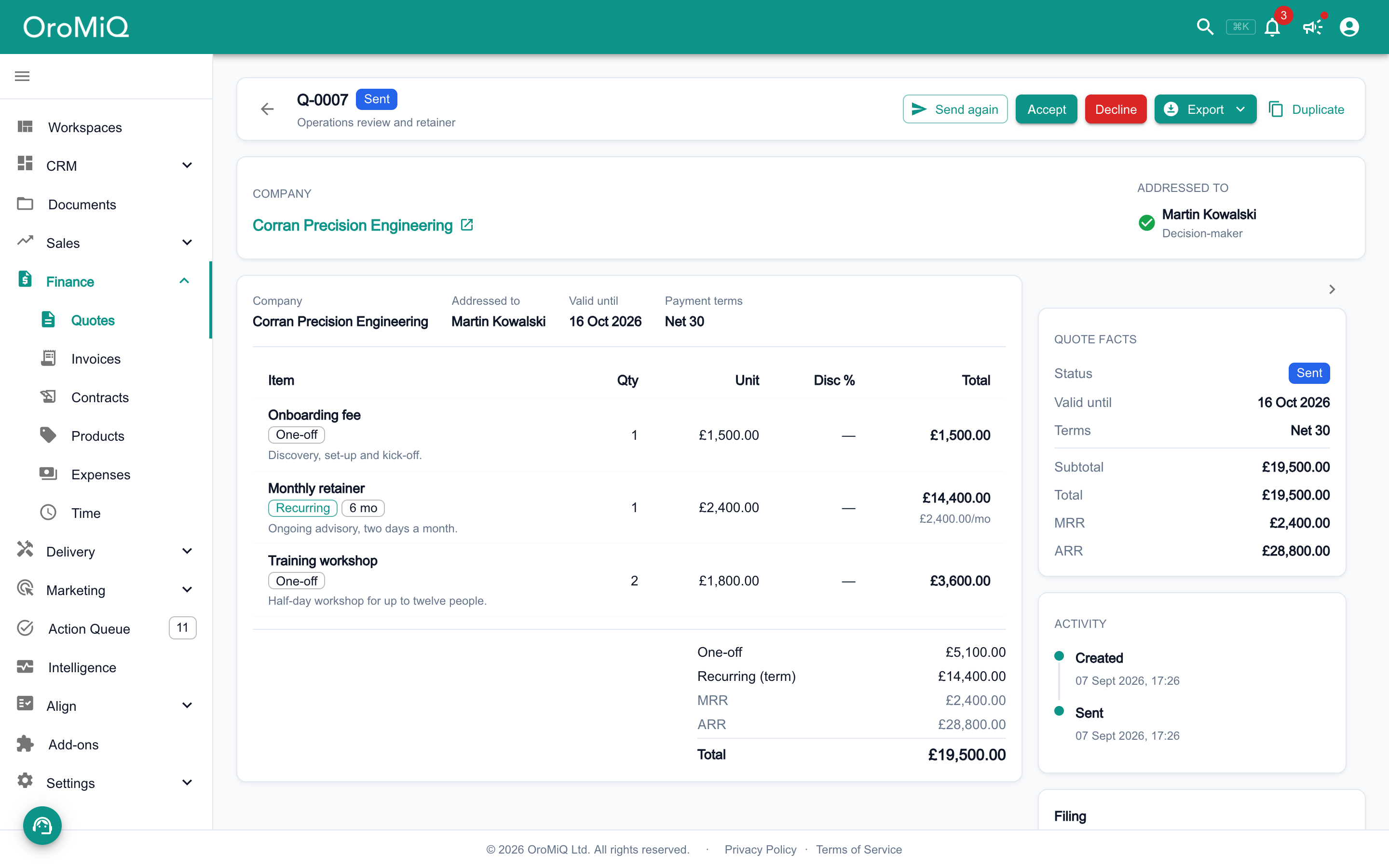
When your client replies, open the quote and click Accept or Decline. A sent quote that passes its Valid until date shows as Expired.
On an accepted quote, click Create invoice to bill it. With the Sales Pack, you can also click Create contract to turn it into an agreement.
Tip
What next
Cannot find what you need? Browse the Help Centre or submit a support ticket.