Getting started
Log your first call
Before you start
You need a company in OroMiQ to call. If you have not added one yet, follow Add your contacts and companies first.
OroMiQ logs calls, it does not dial
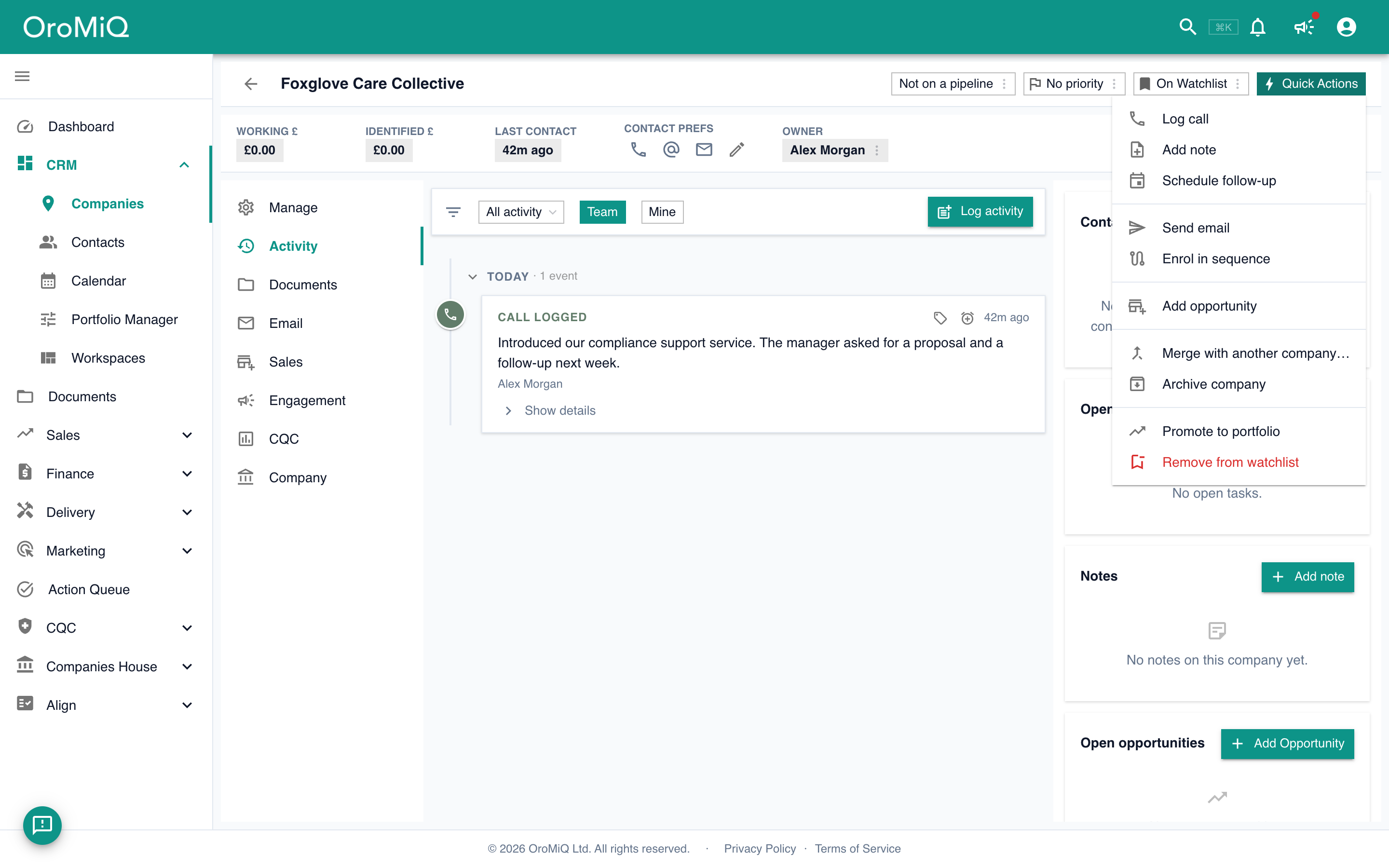
Open a company and choose Log call
Open the company you called. In the top-right of its record, click Quick Actions, then Log call.
You can also log a call from a contact’s Quick Actions menu, or from a deal in your pipeline.
Record the outcome
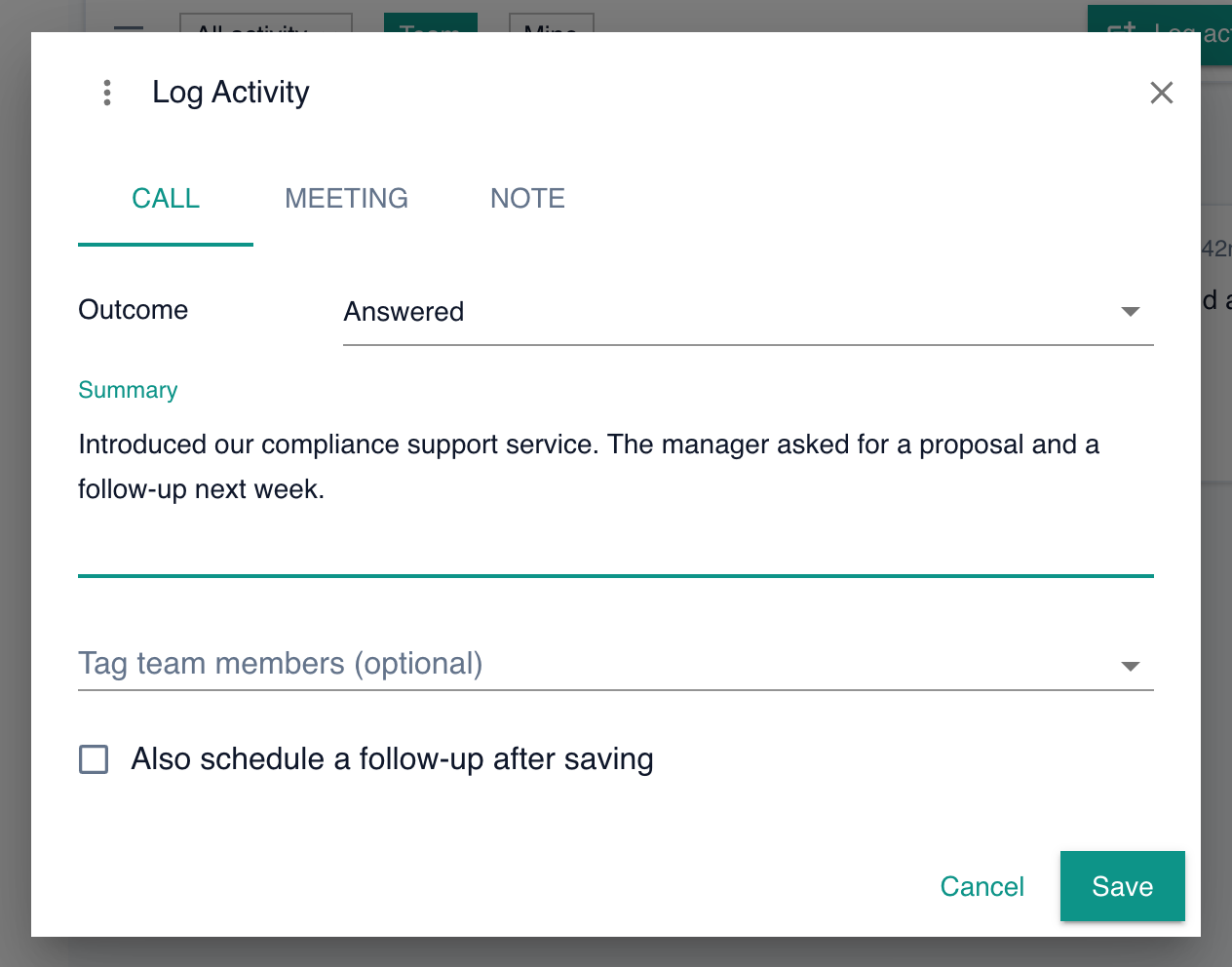
On the Call tab, choose an Outcome: No answer, Voicemail, Gatekeeper, Decision maker or Other. The outcome is required, and it fills in the Summary for you. Add a few words about what was said if you want to.
Optionally pick the Contact you spoke to, tag team members, or use Also attach to to log the same call against other records.
Tick Also schedule a follow-up after saving to line up your next step, then click Save. The follow-up dialog opens straight after.
Tip
See it on the timeline
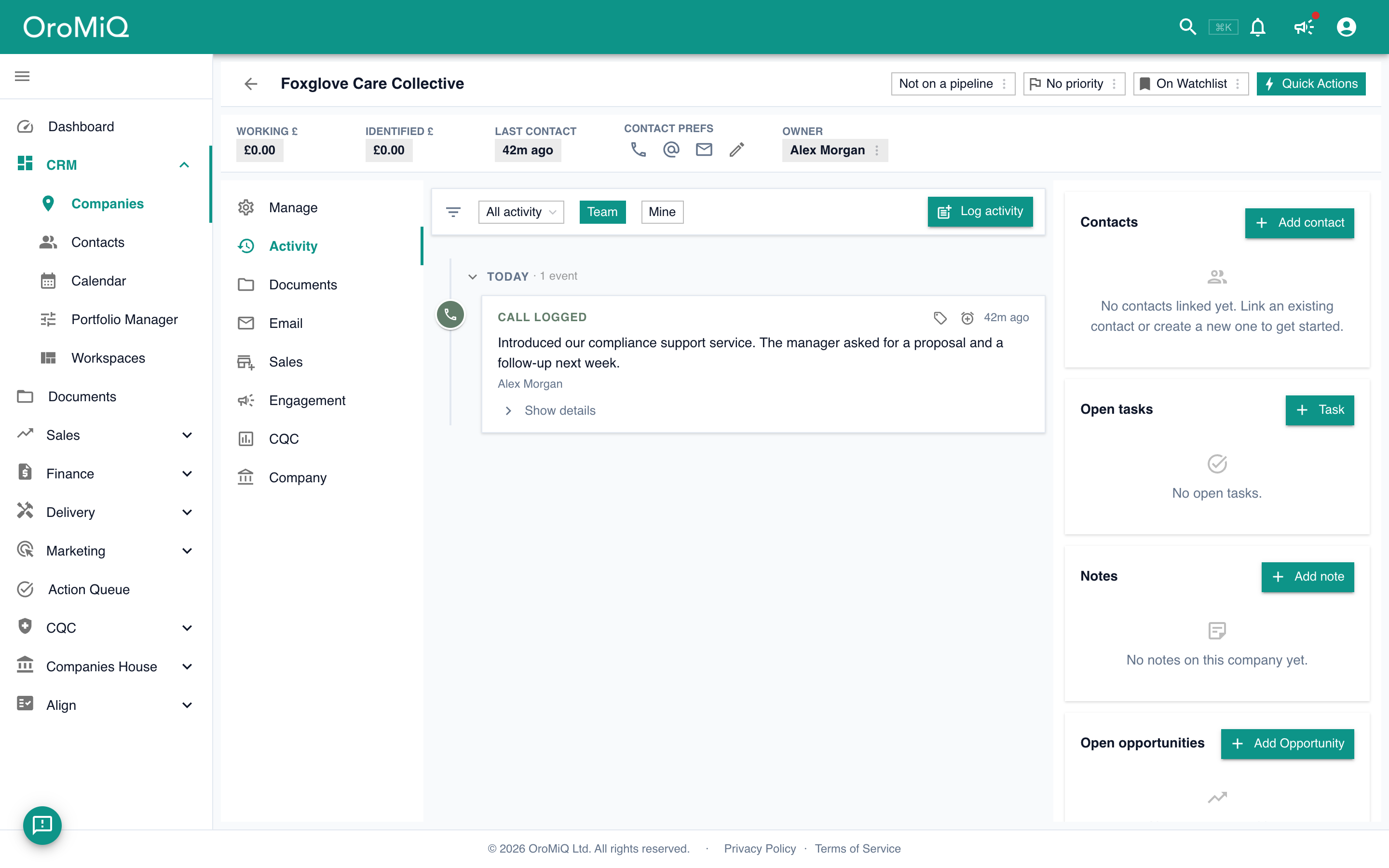
Your call now appears on the company’s Activity timeline as Call logged, with its outcome, and the Last contact tile updates to just now. Anyone on your team can see the history at a glance. To see only calls, choose Calls from the All activity filter.
Working at volume?
What next
Cannot find what you need? Browse the Help Centre or submit a support ticket.