Workspace, settings & billing
Decide what AI assistants can see
Before you start
Before you start:
- you need the Admin or Manager role, or a custom role that can manage team members. Other team members who can open Settings see the page but cannot change it, and
- AI assistants must be switched on for your workspace by the OroMiQ team. Until they are, there is no AI assistants entry in Settings.
Open AI assistants in Settings
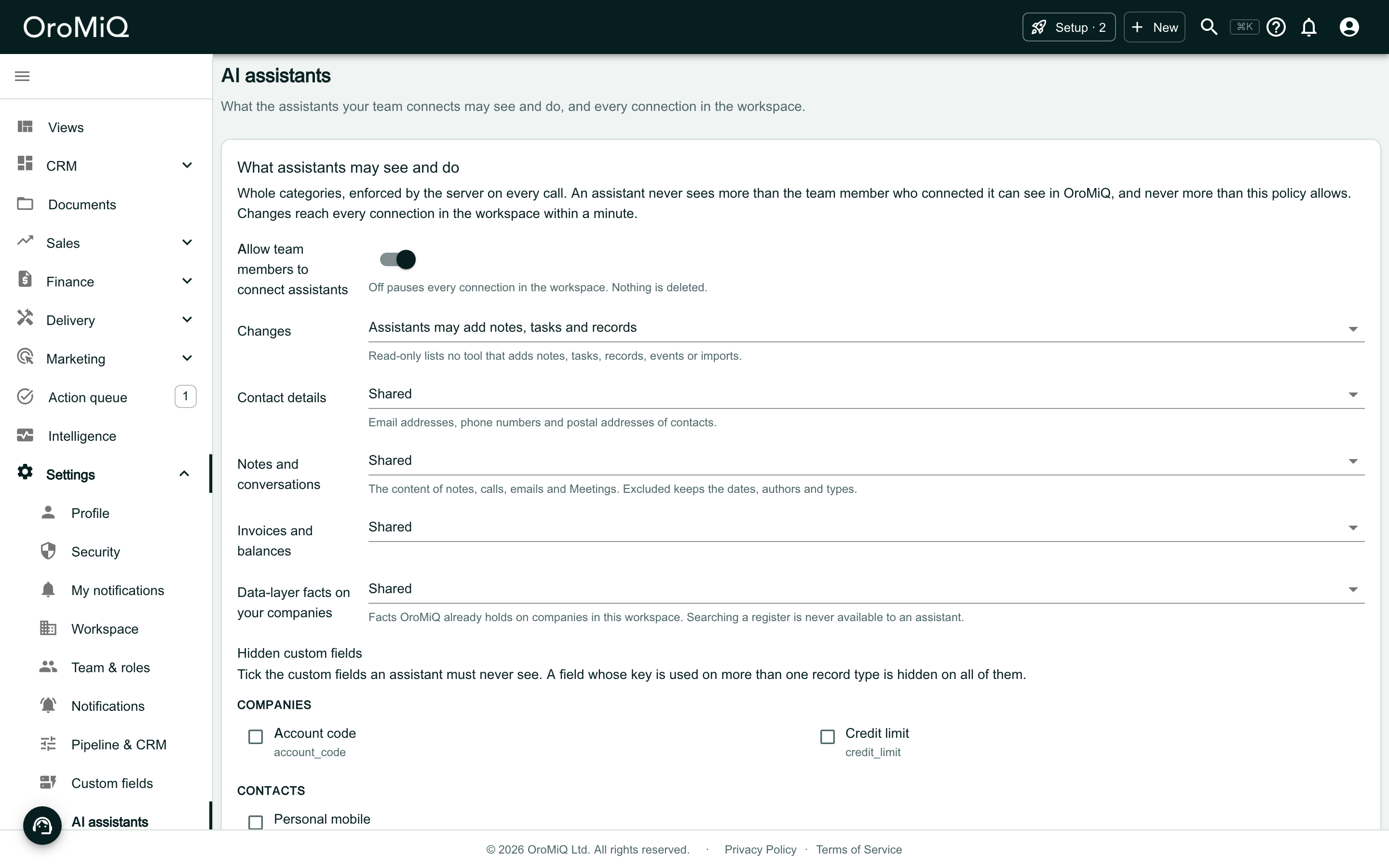
In the sidebar, open Settings, then AI assistants. The What assistants may see and do card holds your workspace’s policy. Until you change it, assistants may see everything the team member who connected them can see, and may make changes.
Allow or pause assistants
Leave Allow team members to connect assistants on to let your team connect. Turn it off to pause every connection in the workspace at once. Nothing is deleted: assistants are refused until you turn it back on, and nobody can connect a new one in the meantime.
Choose what assistants may see and do
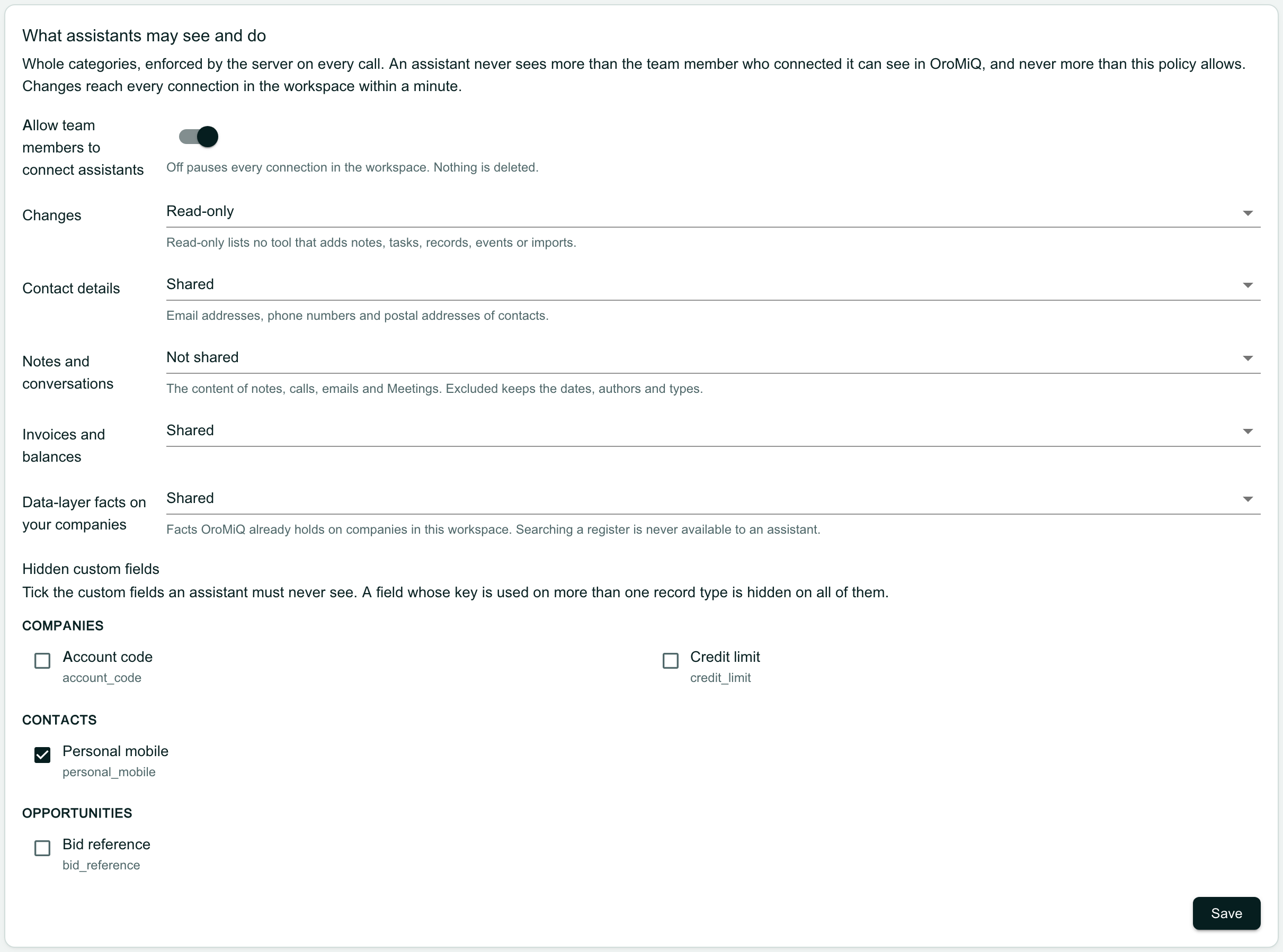
Set each line to suit your workspace:
- Changes: choose Read-only so assistants can read but not add notes, tasks, records, events or imports.
- Contact details: Not shared keeps contacts’ email addresses, phone numbers and postal addresses from assistants.
- Notes and conversations: Not shared withholds what notes, calls, emails and Meetings say. Assistants still see their dates, authors and types.
- Invoices and balances: Not shared withholds your invoices and what is owed.
- Data-layer facts on your companies: if your workspace uses data layers, Not shared withholds the facts OroMiQ holds on your companies. Assistants can never search the public registers, whatever you choose.
- Hidden custom fields: tick any custom field an assistant must never see.
Note
Save the policy
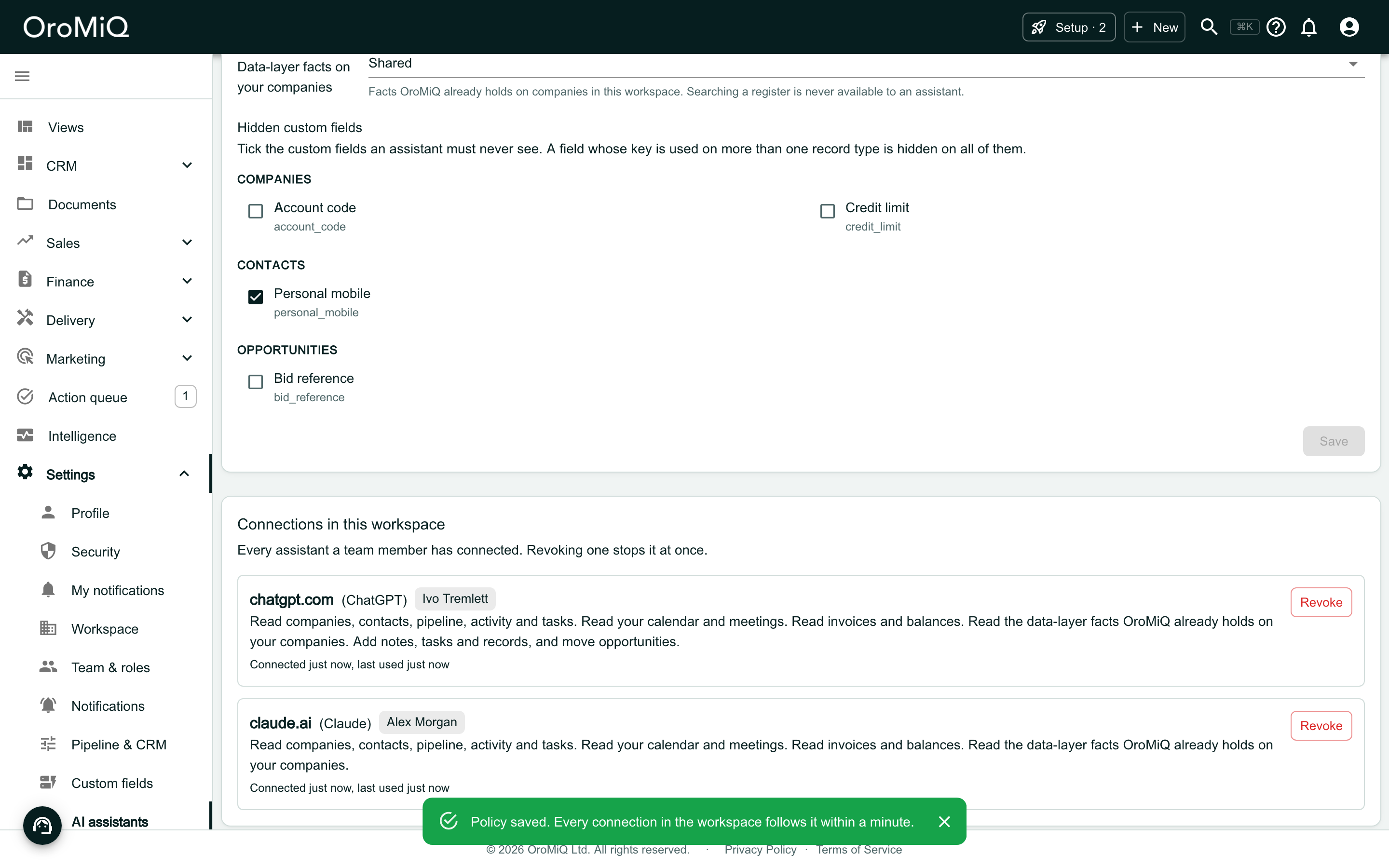
Click Save. Every connection in the workspace follows the new policy within a minute, including assistants that are already connected. Nobody has to reconnect.
See and revoke every connection
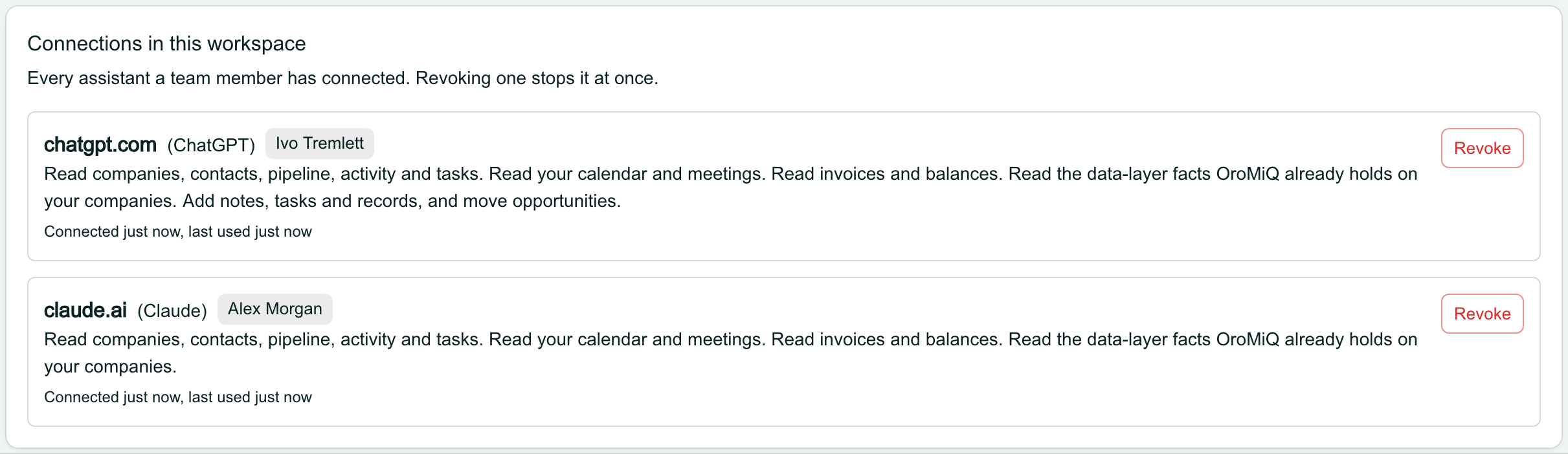
Under Connections in this workspace you see every assistant your team has connected: its address, the team member it works for, what it may do and when it was last used. Click Revoke and confirm to stop one at once.
Who can revoke what
Know what your team sees
Your policy is stated wherever your team meets it. When someone connects an assistant, anything it asked for that your policy withholds is listed under It asked for, and will not get, with your policy in plain words below.
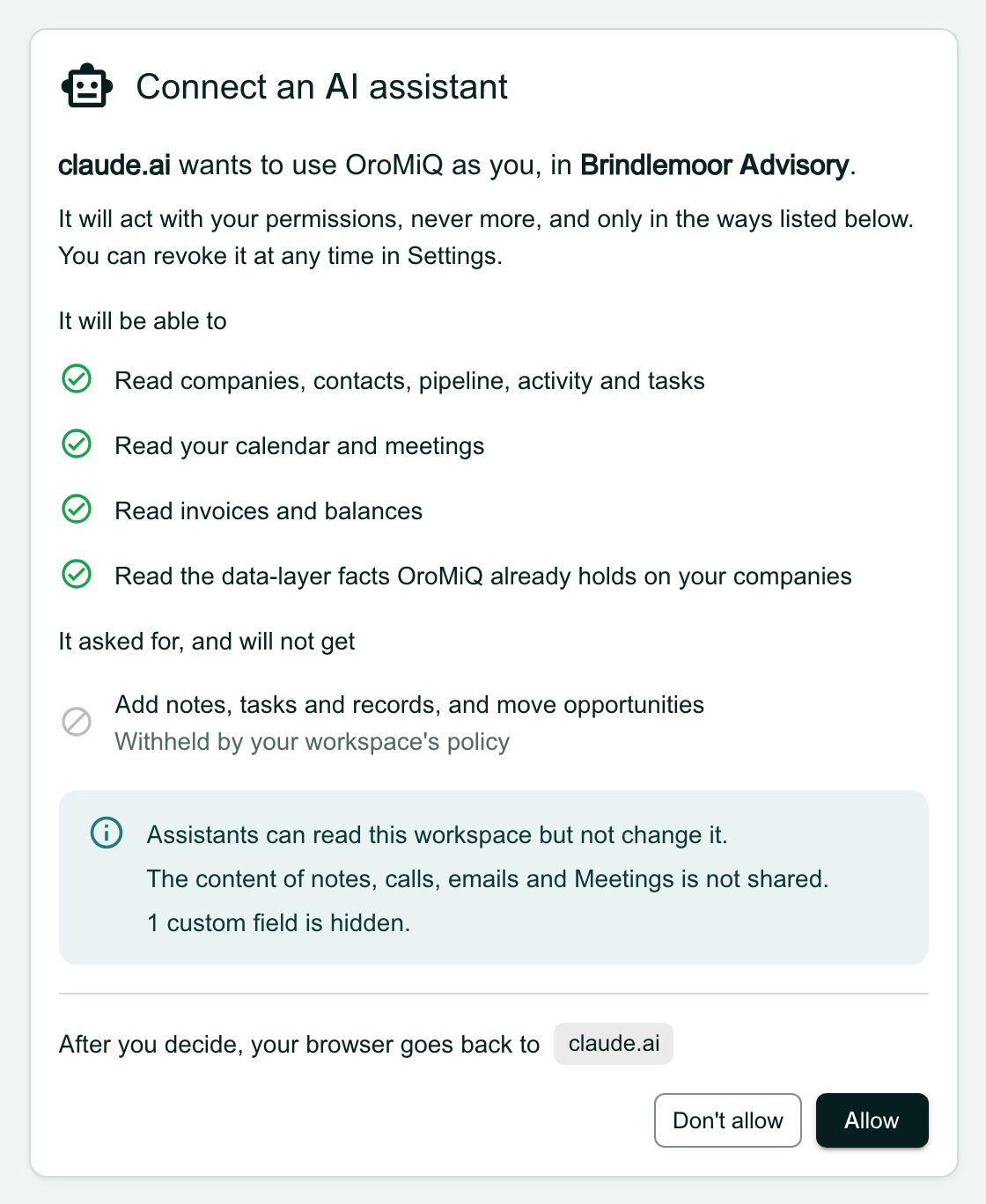
Check the policy on the Integrations card
The AI assistants card in Settings → Integrations repeats the policy under Your workspace’s policy, so every team member can see what their assistant is allowed.
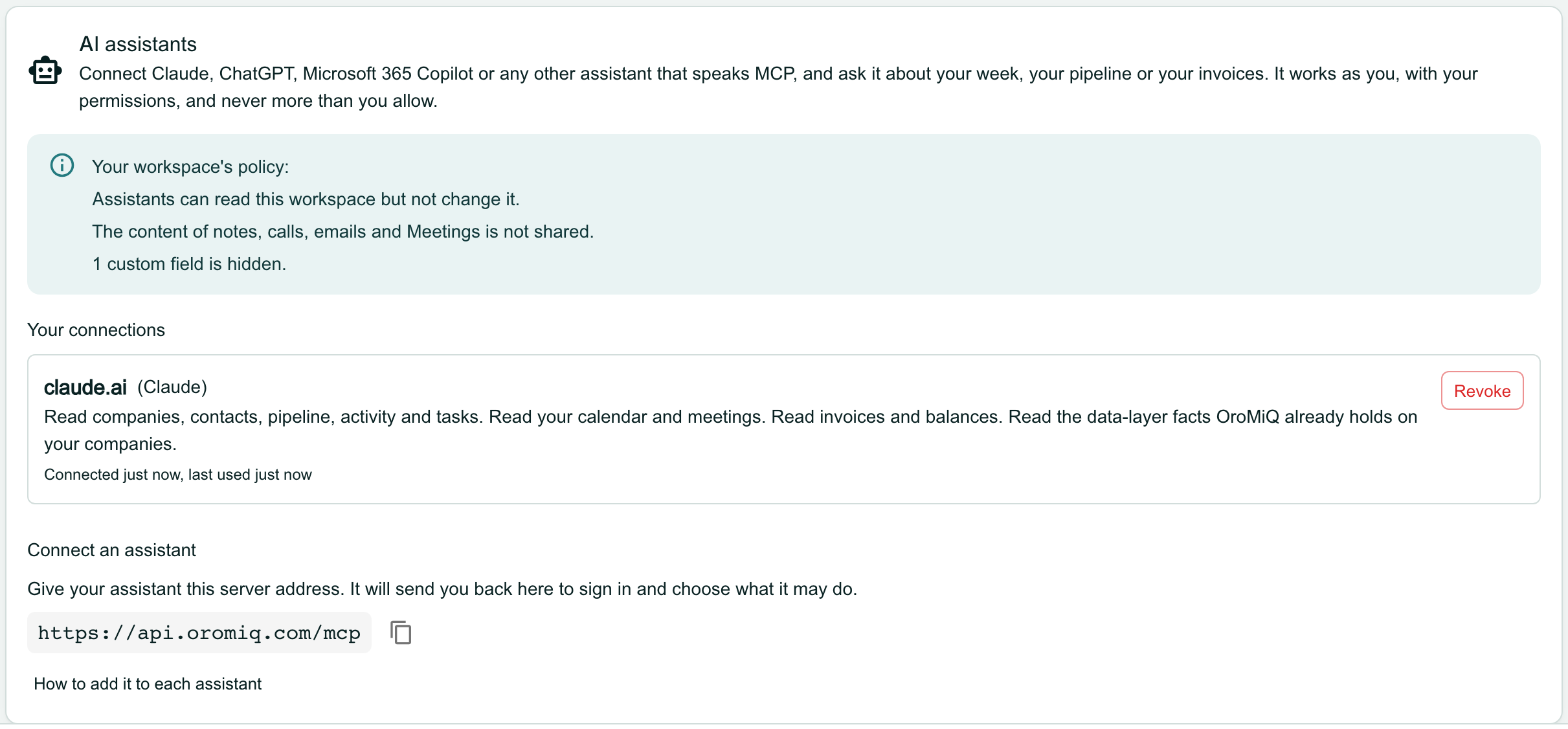
What next
Cannot find what you need? Browse the Help Centre or submit a support ticket.