Data layers & Intelligence
Monitor changes with Intelligence
Before you start
At least one data layer must be switched on. Data layers are free, optional add-ons (see Turn on a data layer). Your organisation includes 10 subscription slots, and buying more needs permission to manage billing, which the Admin role has.
Open Intelligence
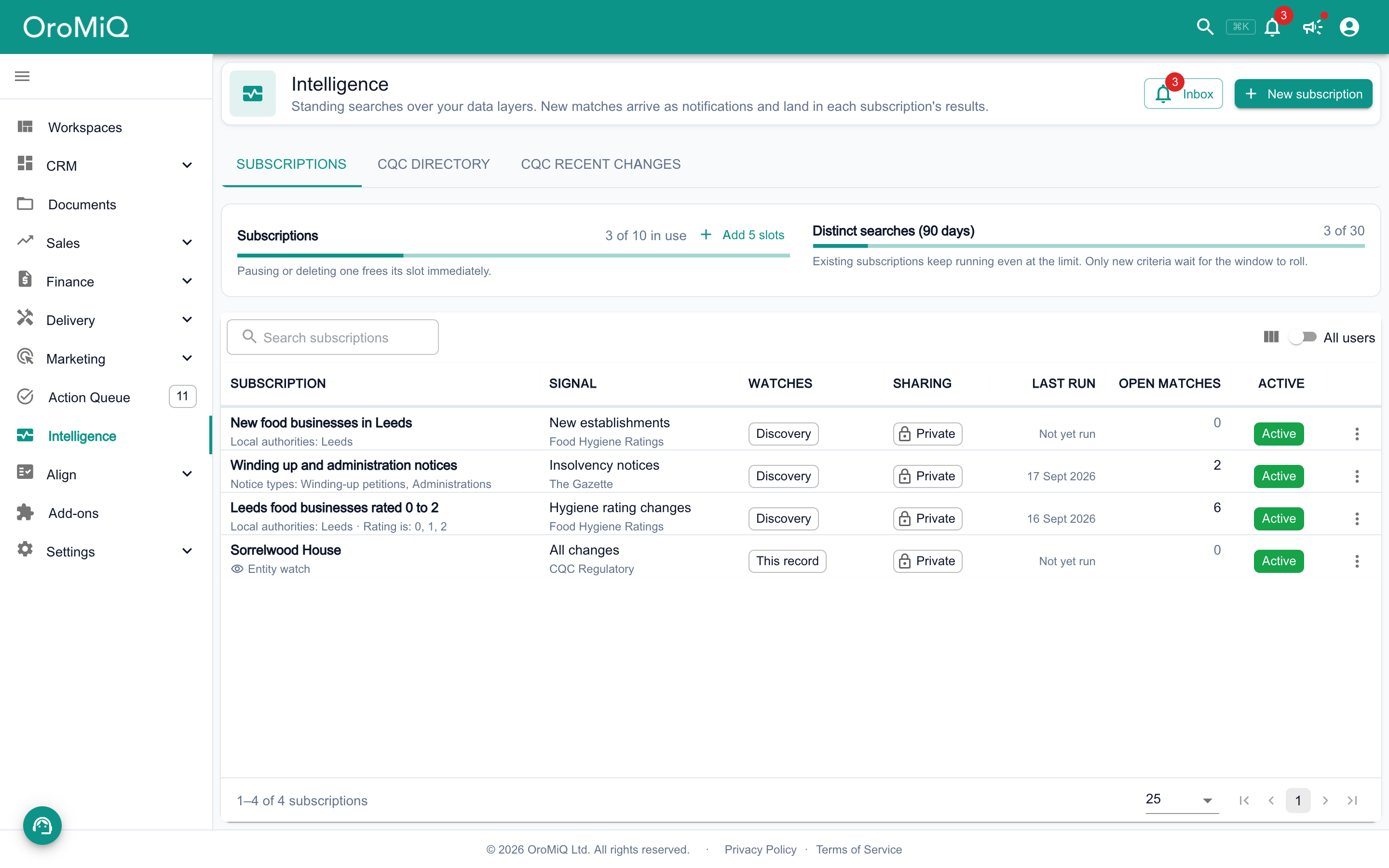
In the sidebar, click Intelligence. The Subscriptions list shows every standing search you and your team have set up. Some data layers add their own tabs beside it for browsing their records.
Note
Choose what to watch for
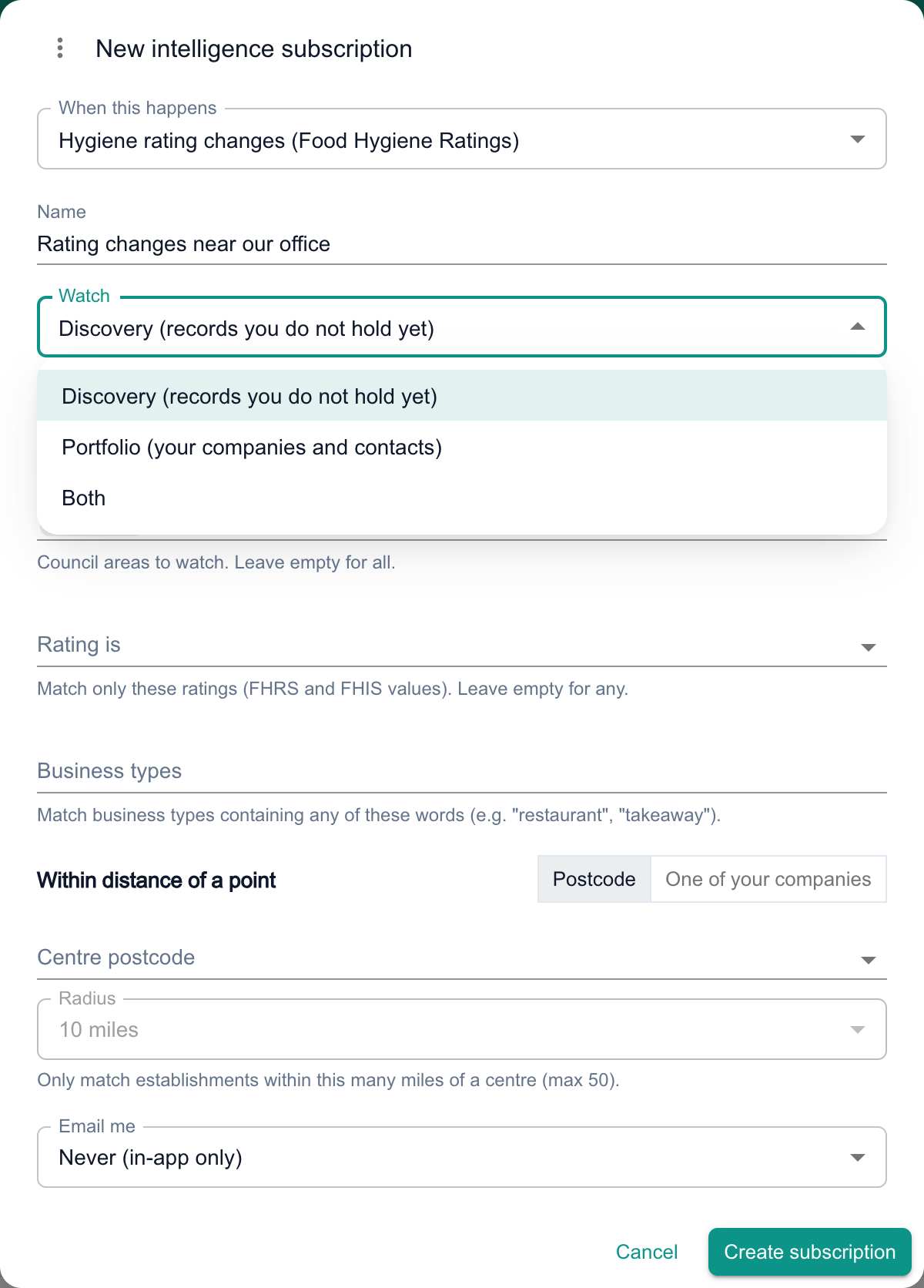
Click New subscription. Under When this happens, pick a signal. Signals are grouped by data layer, for example New companies registered under Companies House. Give the subscription a Name.
Then choose what to Watch:
- Portfolio watches companies and contacts you already hold,
- Discovery finds records that are not in your CRM yet, and
- Both does each.
Note
Narrow it down with filters
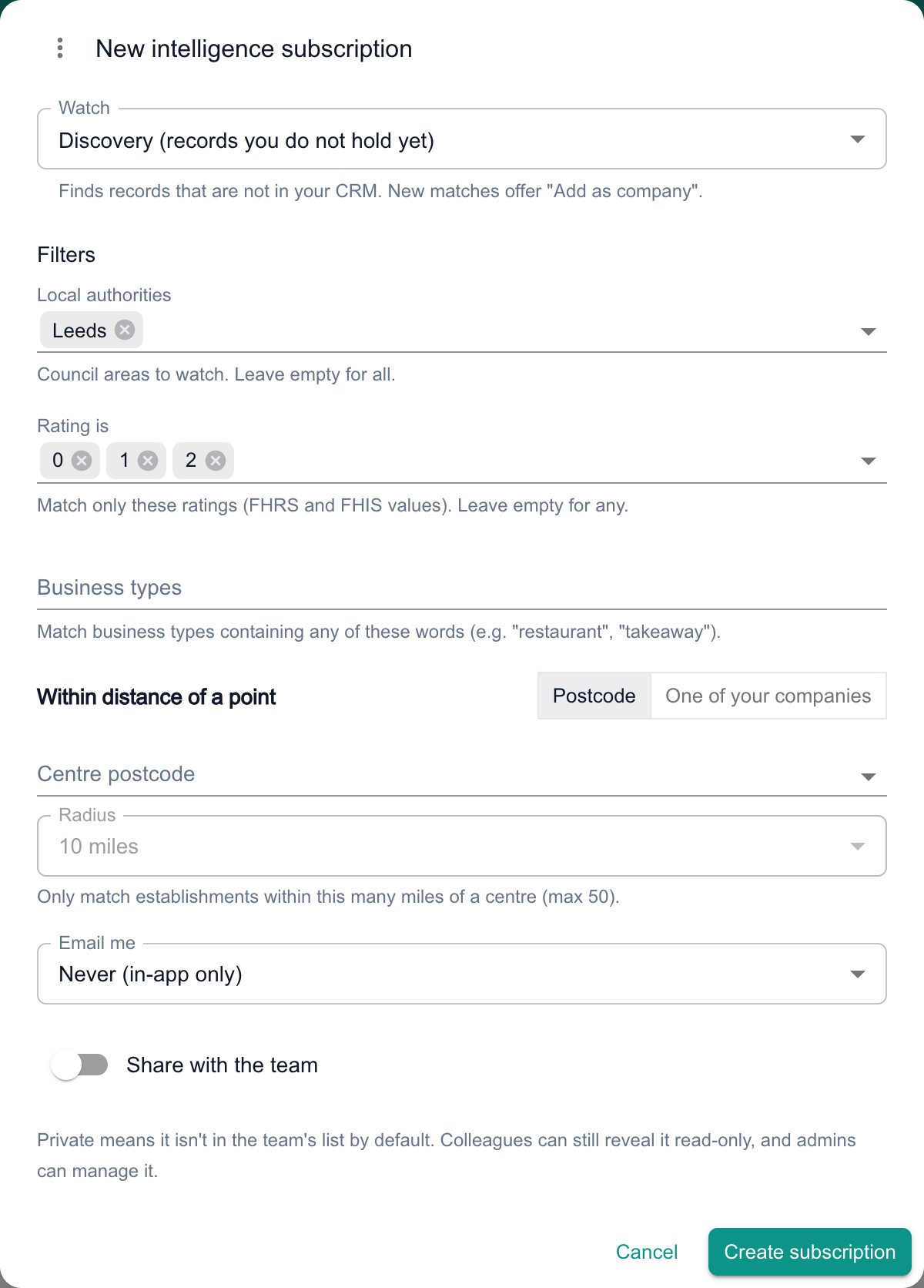
The Filters change with the signal you picked, such as SIC codes or Postcode areas for Companies House, or local authority and rating for other layers.
Where a layer supports it, Within distance of a point lets you centre a search on a Postcode or One of your companies, then choose a Radius.
Note
Choose how you are told
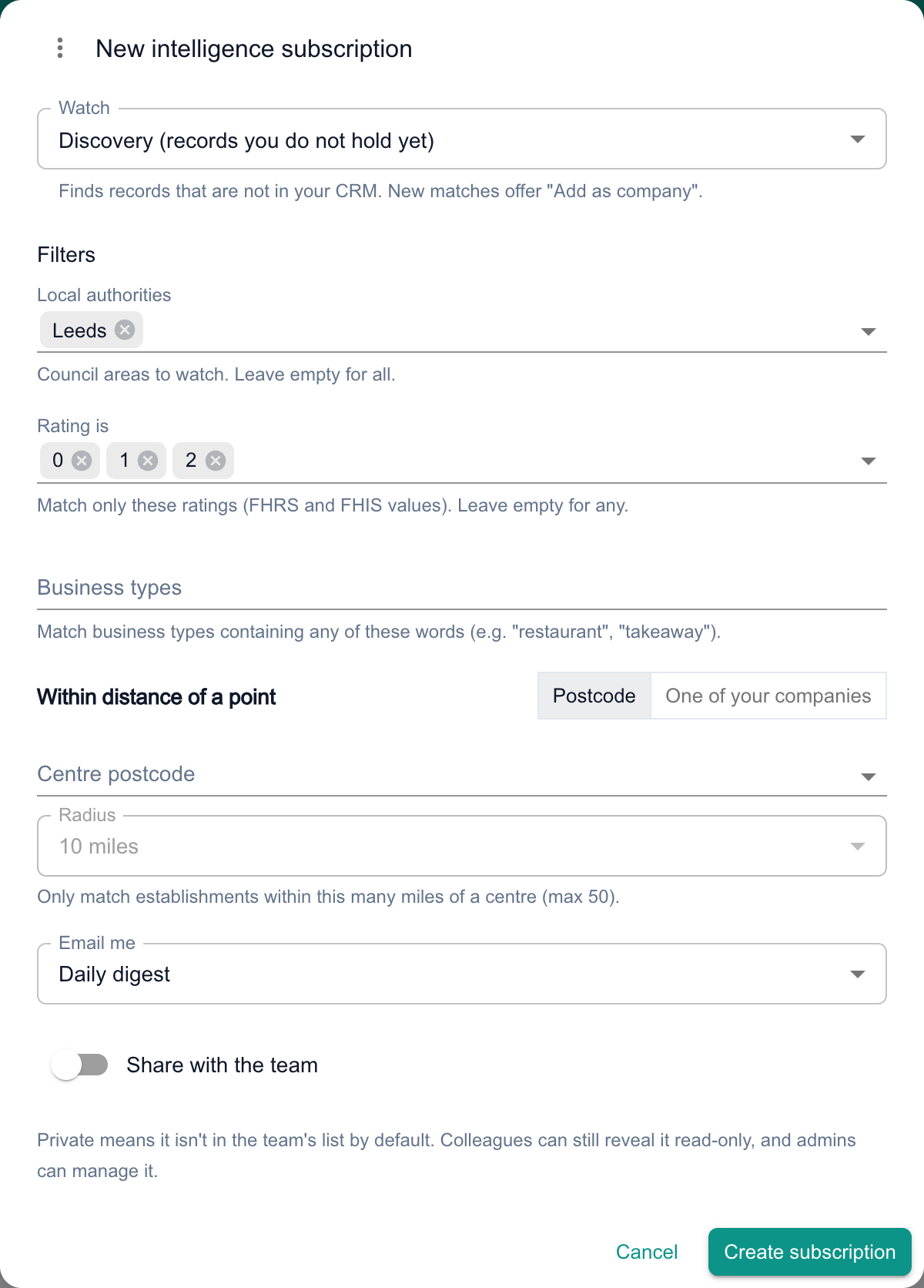
New matches always arrive as in-app notifications. Under Email me, choose Never (in-app only), Hourly (as matches arrive), Daily digest or Weekly digest.
Switch on Share with the teamto put it in everyone’s list, then click Create subscription.
Work through your matches
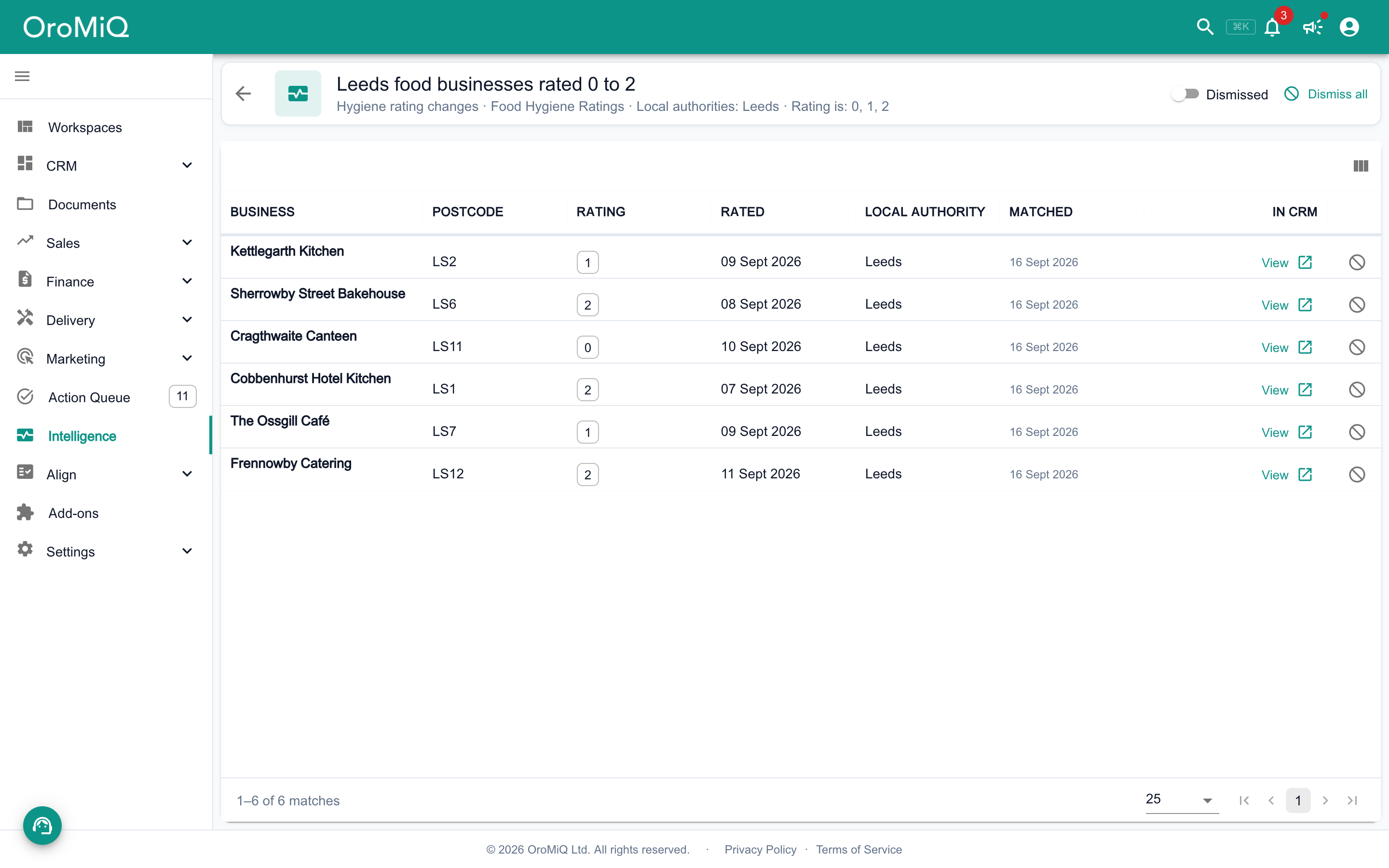
Click a subscription to see its matches. For a record you already hold, click View. For one you don’t, click Add as company (or View and add it from there) to create the company with its pipeline and owner set as you go.
Hide matches you don’t want with the Not interested icon, or Dismiss all. Switch on Dismissed to see and restore them. Future changes to a dismissed record still come through.
Check your inbox
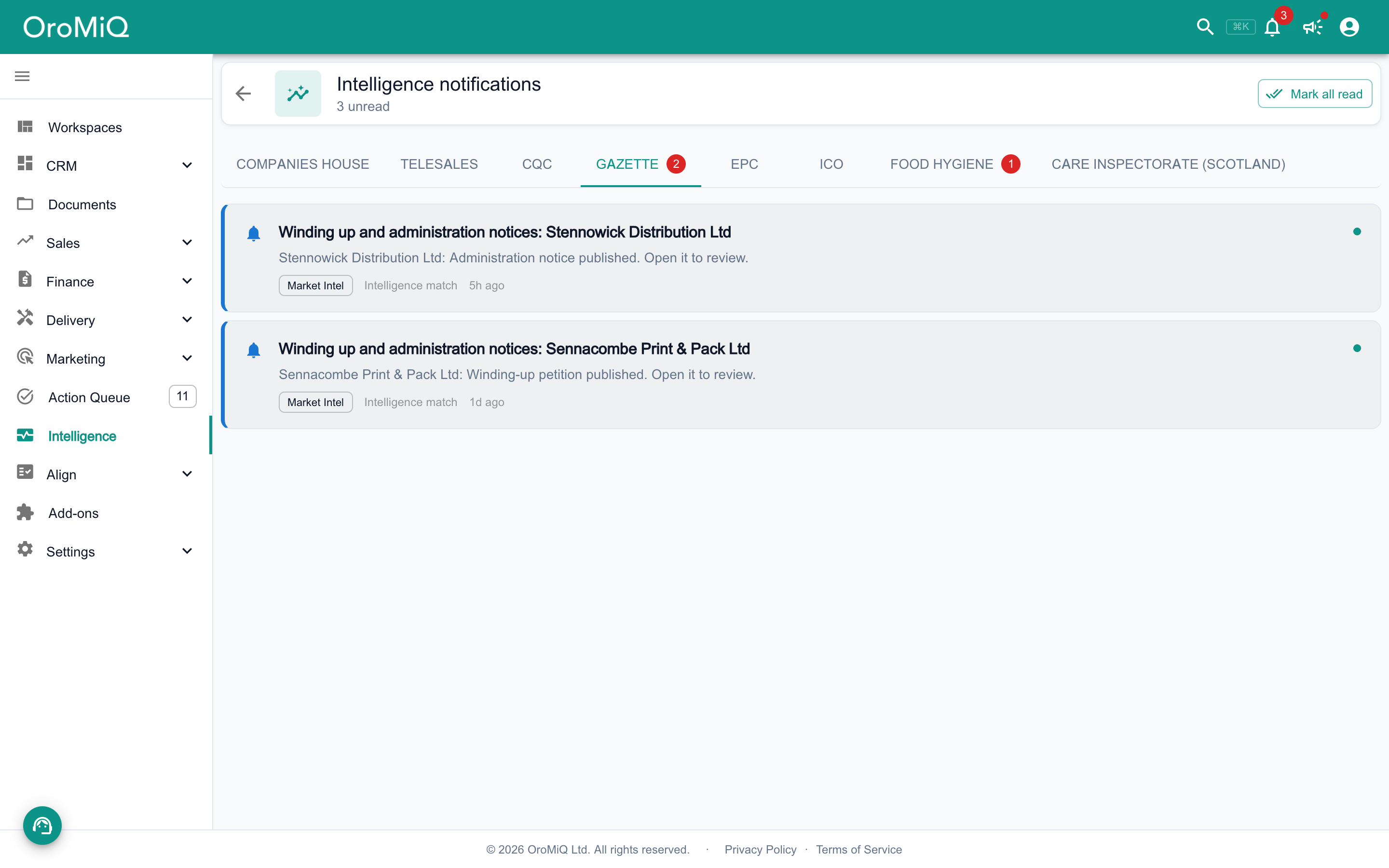
Click Inbox on the Intelligence page to see every notification from your data layers, with a tab per layer. Click one to open the record, or use Mark all read.
Watch a single record
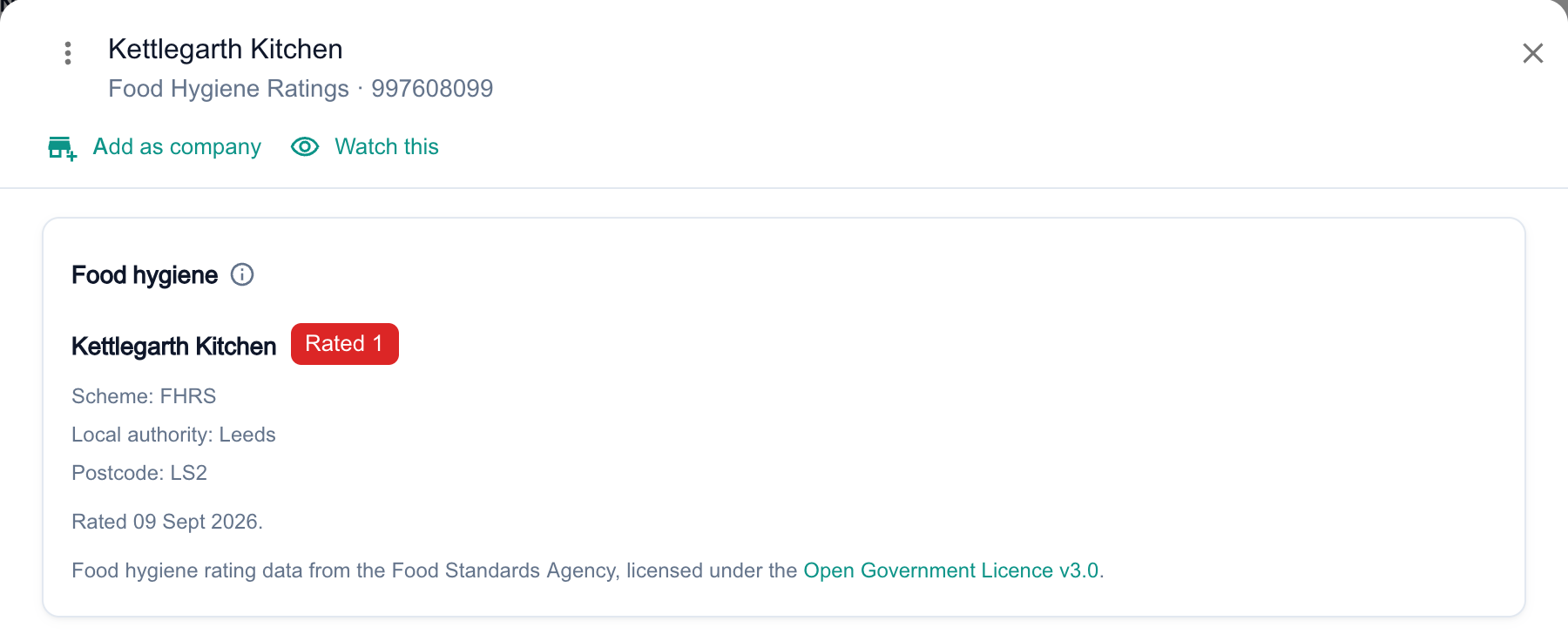
When you open a record from Intelligence, click Watch this to be told whenever anything changes on it. Not every data layer offers this. From a company linked to a data layer, you can also use Quick Actions then Watch in Intelligence.
The button changes to Watching, and the watch appears in your list as an Entity watch.
Tip
Manage your slots
The meter above the list shows how many Subscriptionsare in use. Pausing or deleting one frees its slot immediately: open the row’s menu and choose Pause (frees a slot) or Delete.
If you can manage billing, click Add 5 slots to buy a block of five more (see pricing). If you can’t, ask an Admin to add them from this page.
Note

What next
Cannot find what you need? Browse the Help Centre or submit a support ticket.